Do you want to install and use Perfect Player to enjoy IPTV service on Firestick, Android, or Google TV? If so, follow these steps to learn the installation method thoroughly.
Perfect Player IPTV is a free media player that lets you watch live TV using M3U or XSPF playlists on compatible Android devices, including Android-based Fire TV Stick models. It supports electronic program guides (EPG), channel groups, and a TV-friendly interface for browsing streaming content.
To install Perfect Player on a compatible FireStick, enable installation from trusted external sources, then download and install the APK. Then add your IPTV M3U playlist URL in Settings > General > Playlist to load your channels.
However, not every Fire TV device supports installing Android APKs. This guide explains which devices are compatible, how to install Perfect Player, and how to configure IPTV playlists safely.
Reminder: Perfect Player does not include live TV channels or subscriptions. You need your own authorized IPTV playlist to watch content.
| Note: Before using Perfect Player, ensure that your IPTV service provider provides you with the M3U URL and an EPG URL. Enter the required IPTV URLs in Perfect Player’s settings to load your playlist and TV guide. Once configured, you can browse channels and customize playback settings for a better streaming experience. |
Can You Install Perfect Player IPTV on FireStick in 2026?
Yes, Perfect Player can be installed on compatible Fire TV Stick models running Android-based Fire OS. However, it cannot be installed through the same APK sideloading method on Fire TV devices running Amazon’s newer Vega OS.
Amazon’s official Fire TV device specifications confirm that the Fire TV Stick 4K (3rd Gen, 2026) runs Vega OS 2.0 rather than Fire OS.
Check your device before continuing:
| Device | Perfect Player APK Compatibility |
| Fire TV Stick 4K (1st & 2nd Gen) | Supports Android APK installation |
| Fire TV Stick 4K Max (1st & 2nd Gen) | Supports Android APK installation |
| Fire TV Stick HD (2024) | Supports Android APK installation |
| Fire TV Stick 4K Plus (2025) | Supports Android APK installation |
| Fire TV Stick 4K Select (2025) | Standard Android APK sideloading not supported |
| Fire TV Stick 4K (3rd Gen, 2026) | Standard Android APK sideloading not supported |
| Android TV / Google TV | Compatible with supported APK versions |
Compatibility with Android APK installation does not guarantee that every Perfect Player version will run correctly.
Helpful Advice: On Fire TV, navigate to Settings > My Fire TV > About to identify your device. On Android TV, check Settings > System > About.
How to Install Perfect Player IPTV on Firestick
Perfect Player is no longer available through Google Play, and you should not expect to find it in the Amazon Appstore. On compatible Fire OS devices, installation generally requires downloading an Android APK from a trustworthy source.
1st Step – Prepare Your Firestick for IPTV App Installation
First, prepare the Firestick device; go to it and click “Firestick Home”.
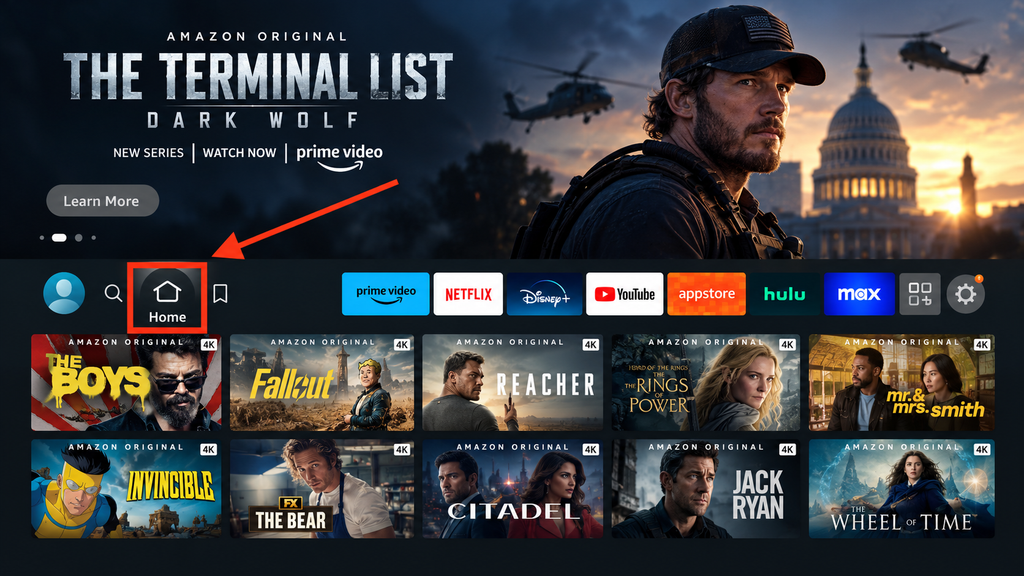
2nd Step – Click on the Settings option
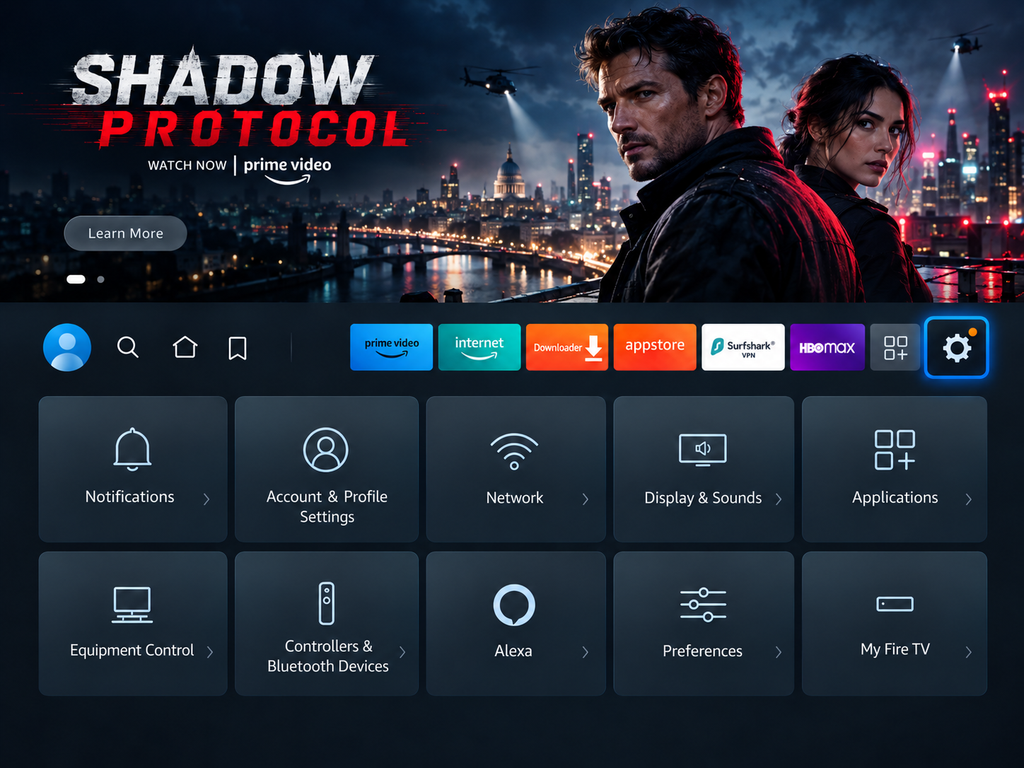
3rd Step – Select the “My Fire TV” option.
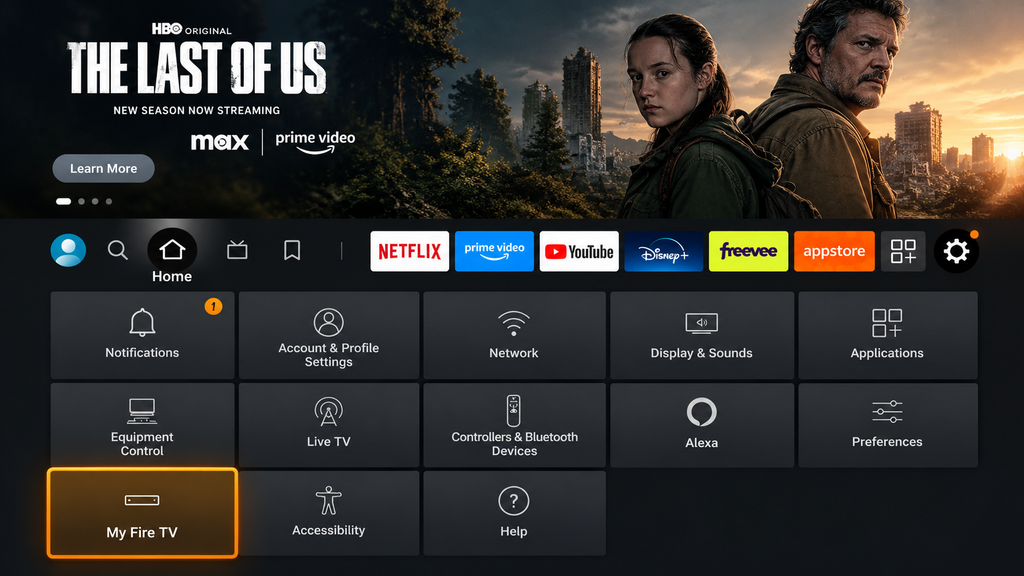
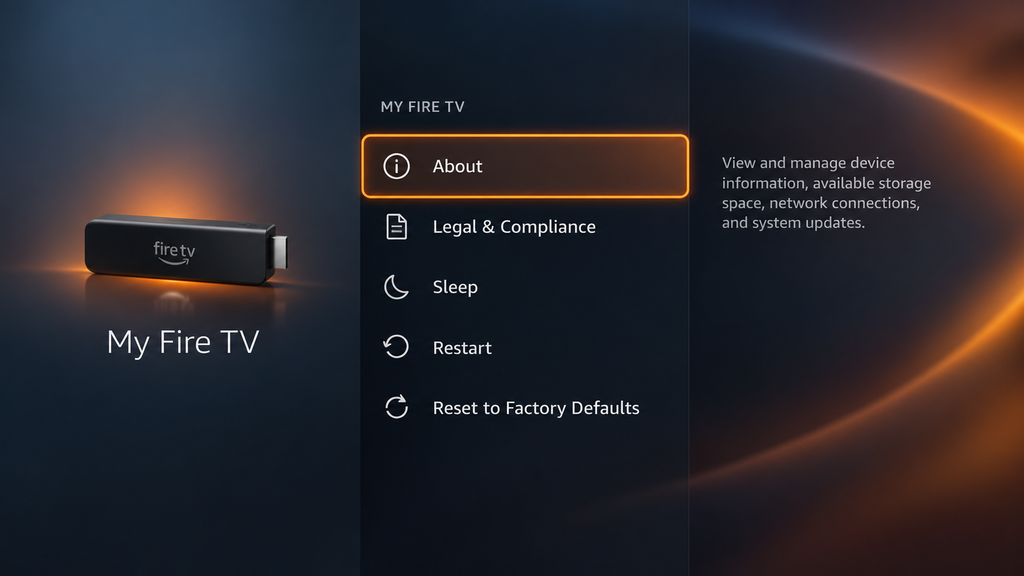
4th Step – From the “My Fire TV” option, select “About“. This is how you can enable the developer options.
5th Step – After clicking “About”, you’ll find the “Fire TV Stick 4K” option. Click there 7-8 times.
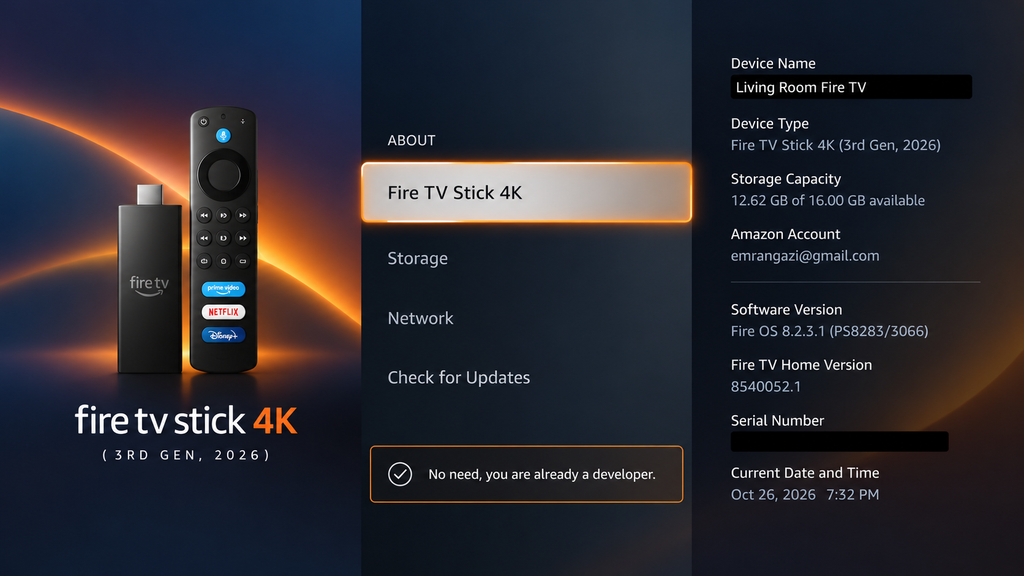
When you see the message “No need, you are already a developer” — that’s the moment you should stop clicking.
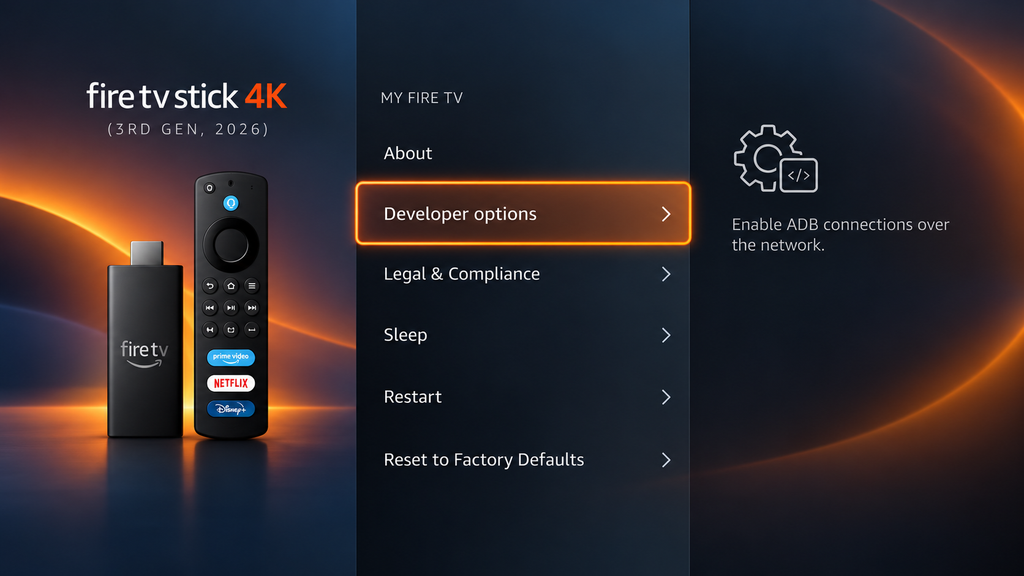
6th Step – Now, the Developer options will appear in the menu and you should click there.
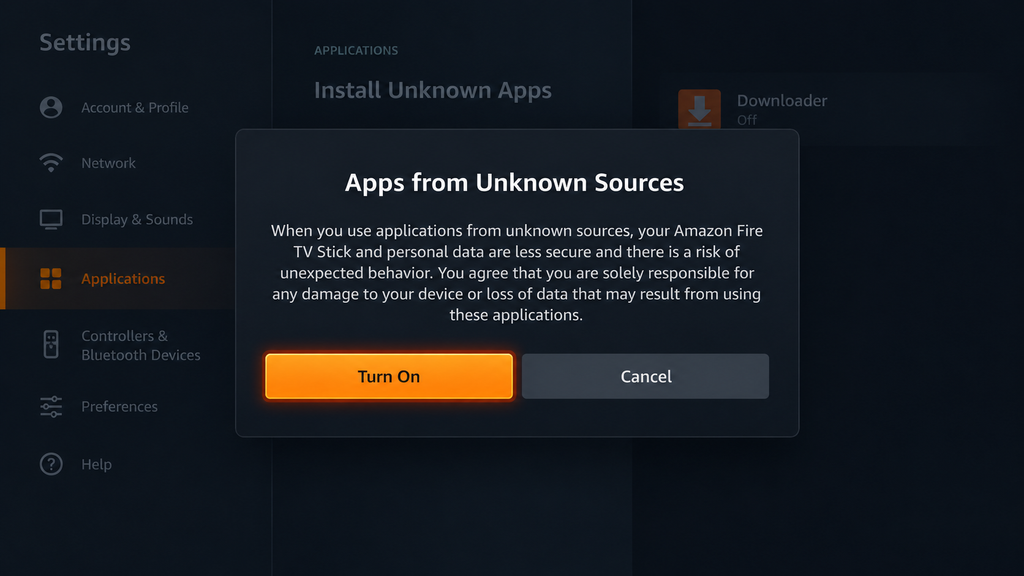
7th Step – Choose Apps from Unknown Sources to enable it.
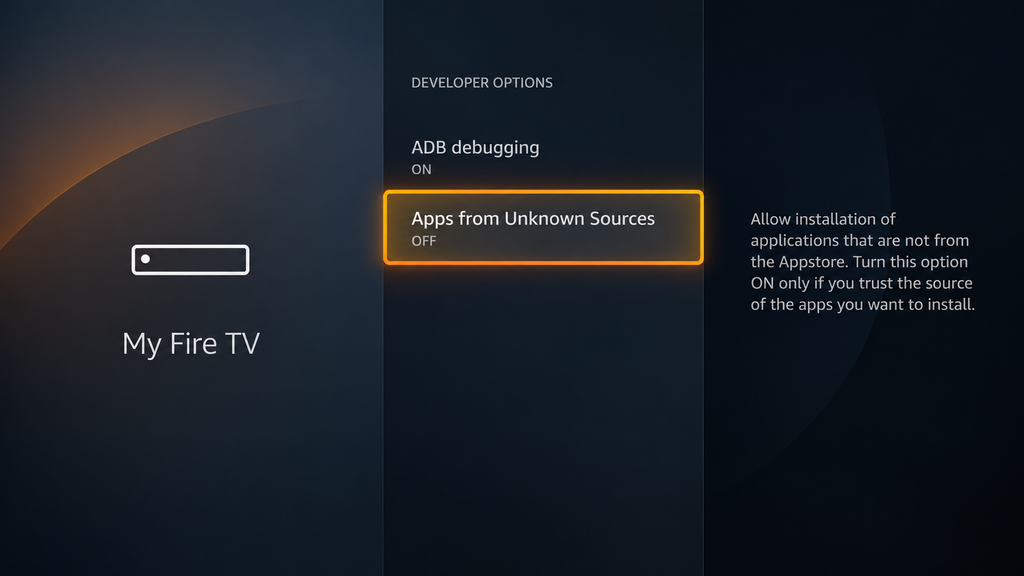
8th Step –Click Apps from Unknown Sources and turn it on.
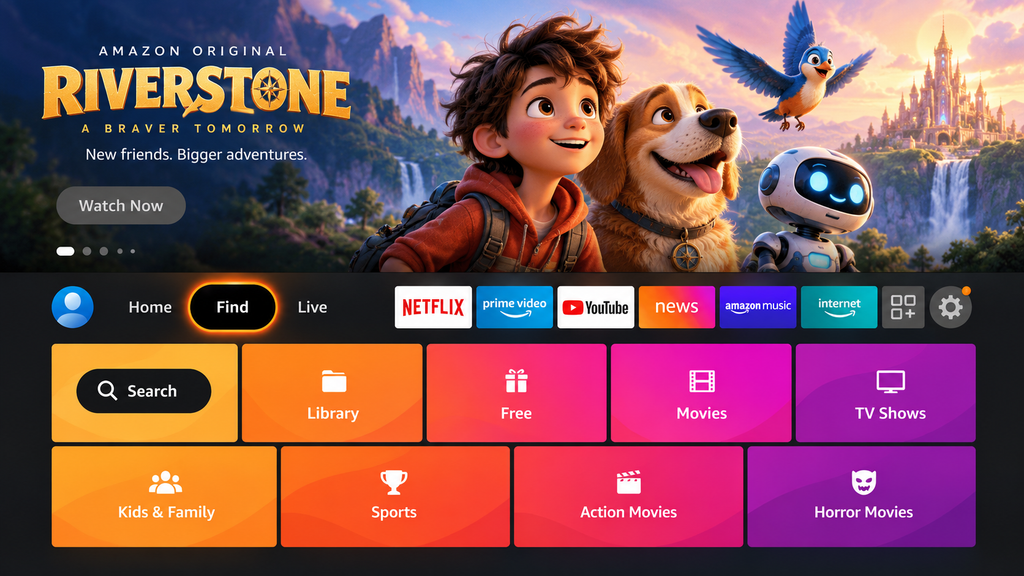
9th Step – It’s time to return to the Firestick Home menu. After returning, press the “Home” icon on the remote, then click Find.
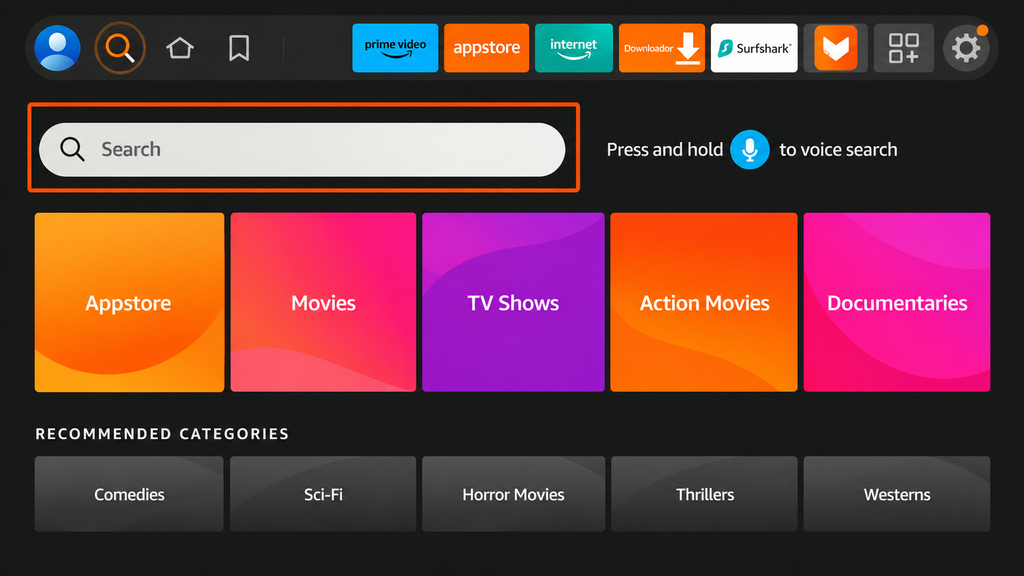
10th Step – Select the “Search” icon
11th Step – Type downloader and press Search
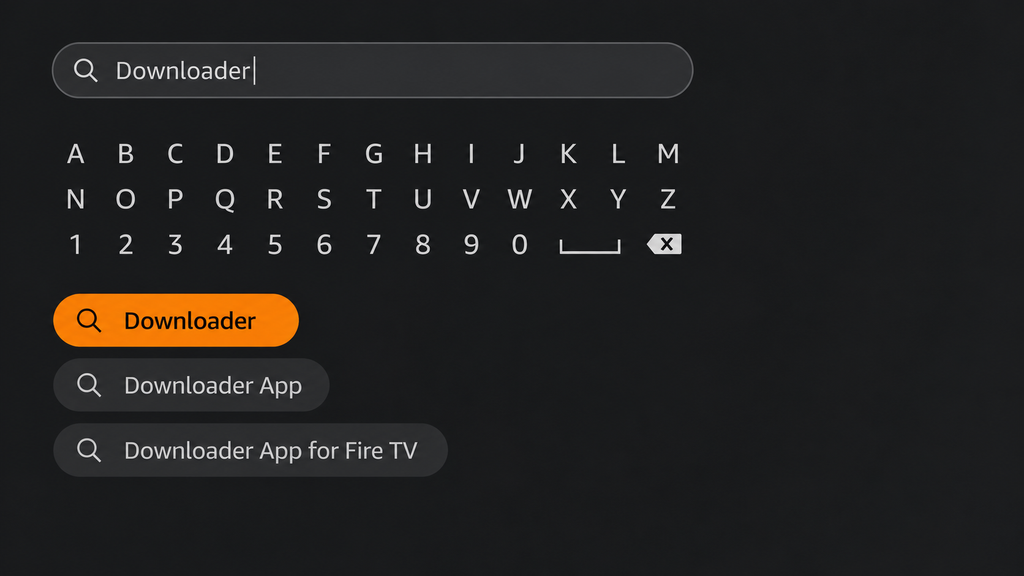
12th Step – Select the Downloader App icon from the list available in the Amazon Store.
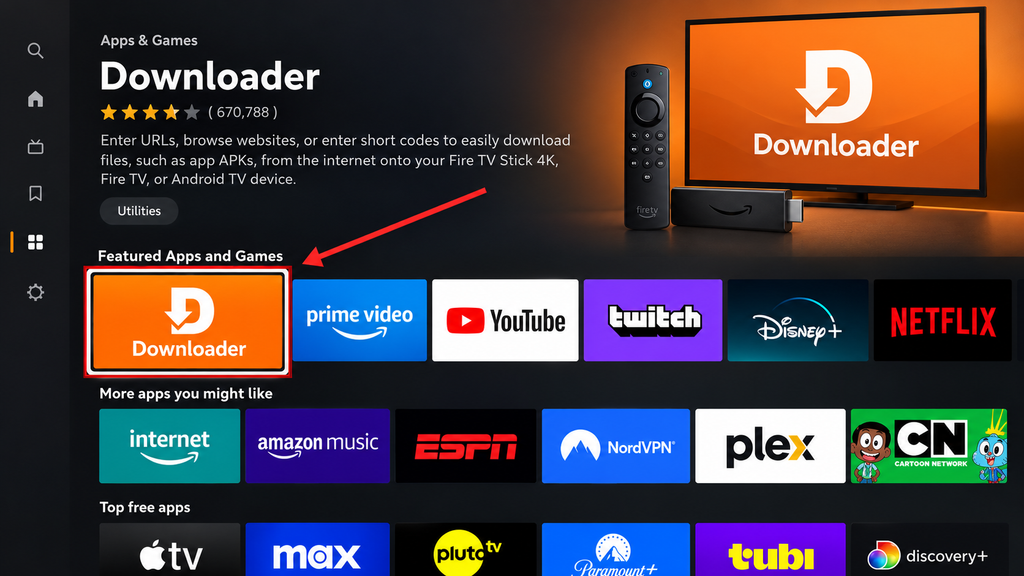
13th Step – Tap the download button.
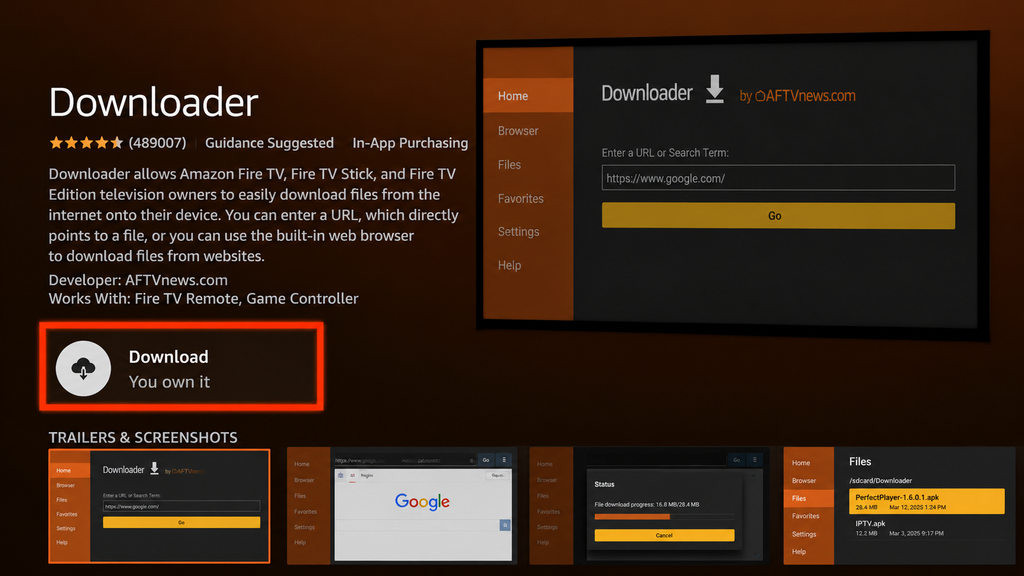
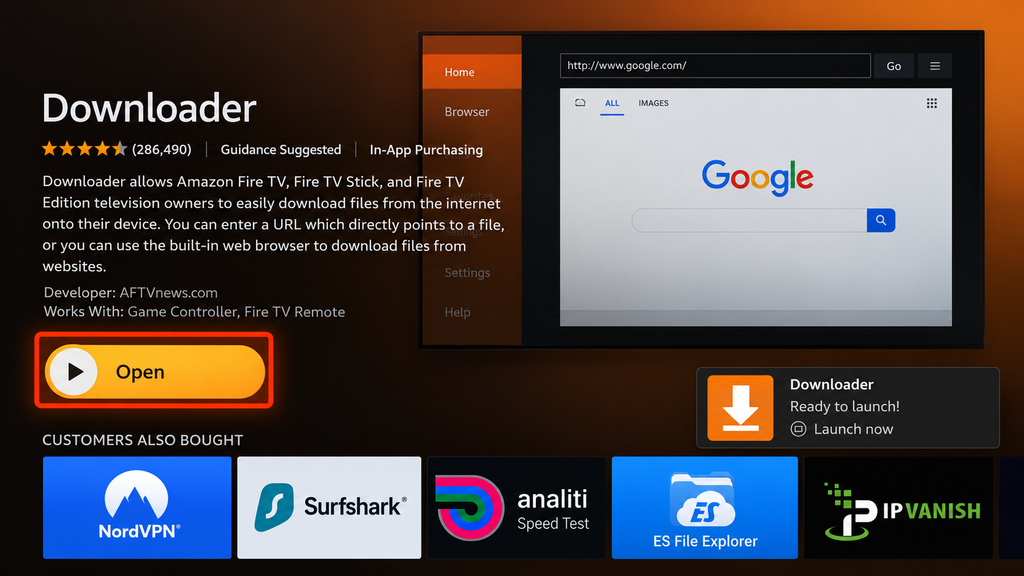
14th Step – The download procedure will be completed within a minute(s). After completion, click “Open“.
15th Step – A pop-up notification about the latest Downloader app update will appear. Select “OK” to continue.
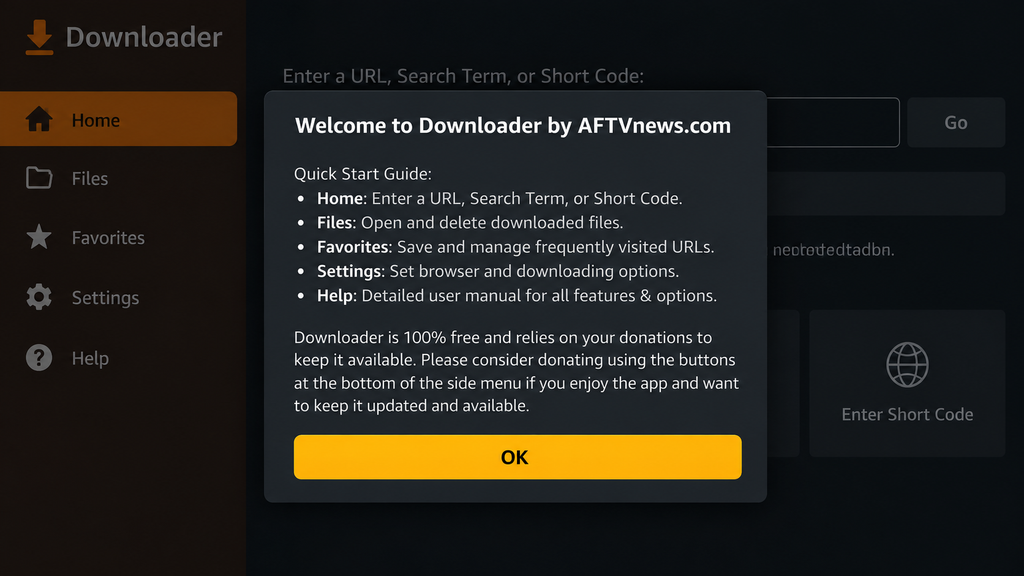
16th Step – Click “OK” for another time.
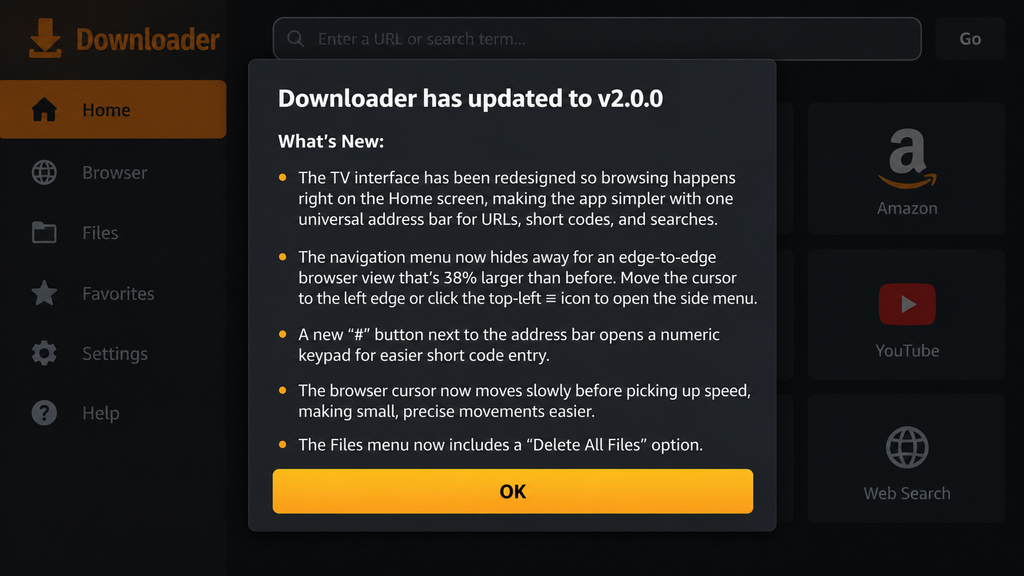
17th Step – Here’s the downloader app interface; click the search bar at the top.
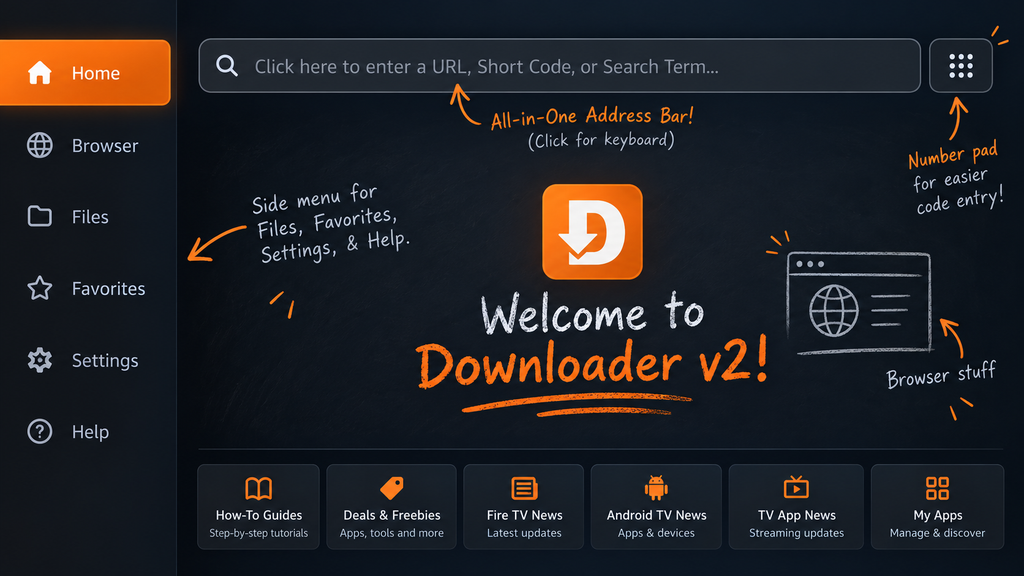
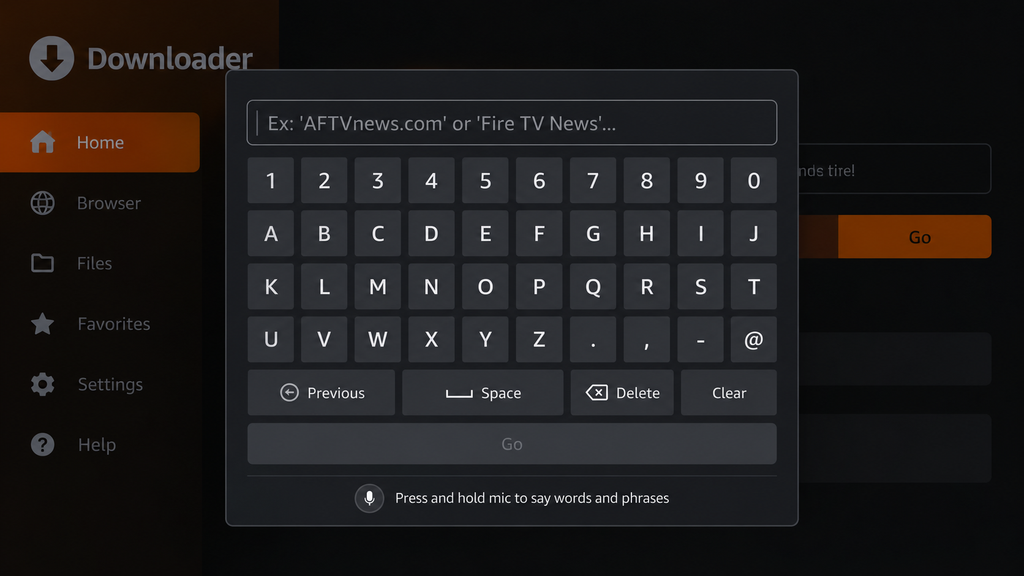
18th Step – Now enter the Perfect Player Downloader Code.
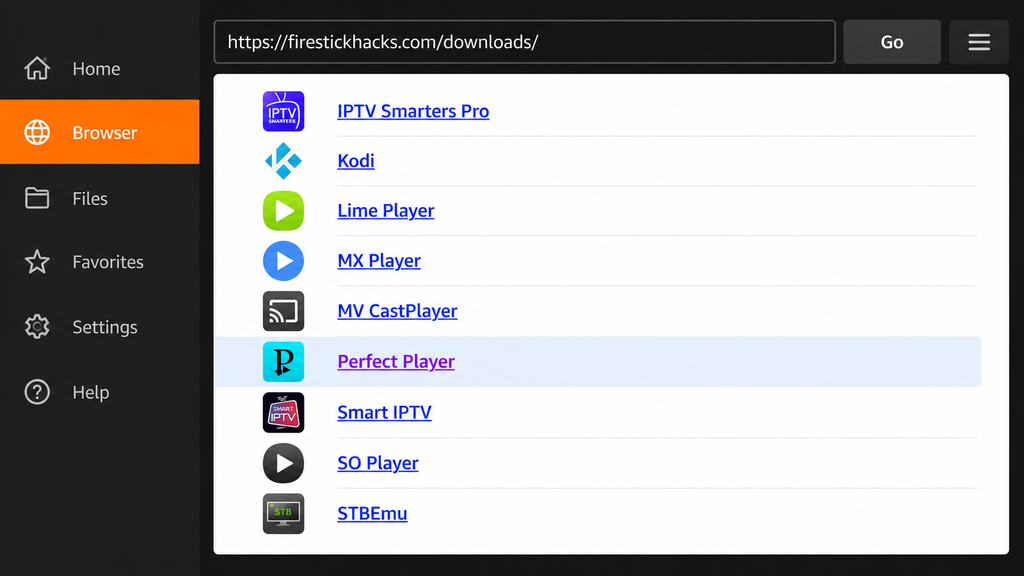
19th Step – Scroll down to the “IPTV & Media Player” category, then find and select “Perfect Player” to proceed with the IPTV player setup.
20th Step – After completion of download, click “Install“.
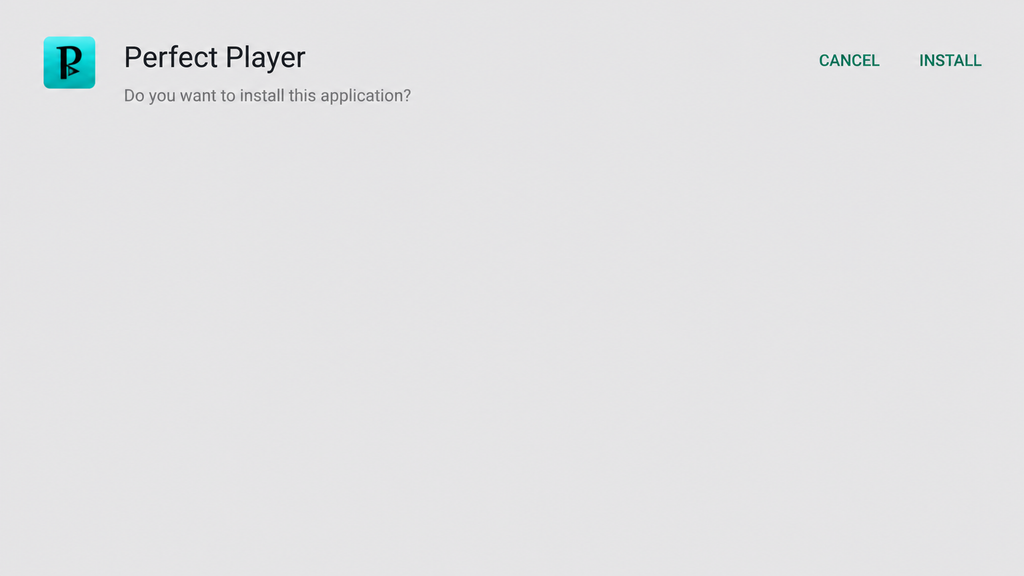
21st Step – After the download completes, tap the “done” button.
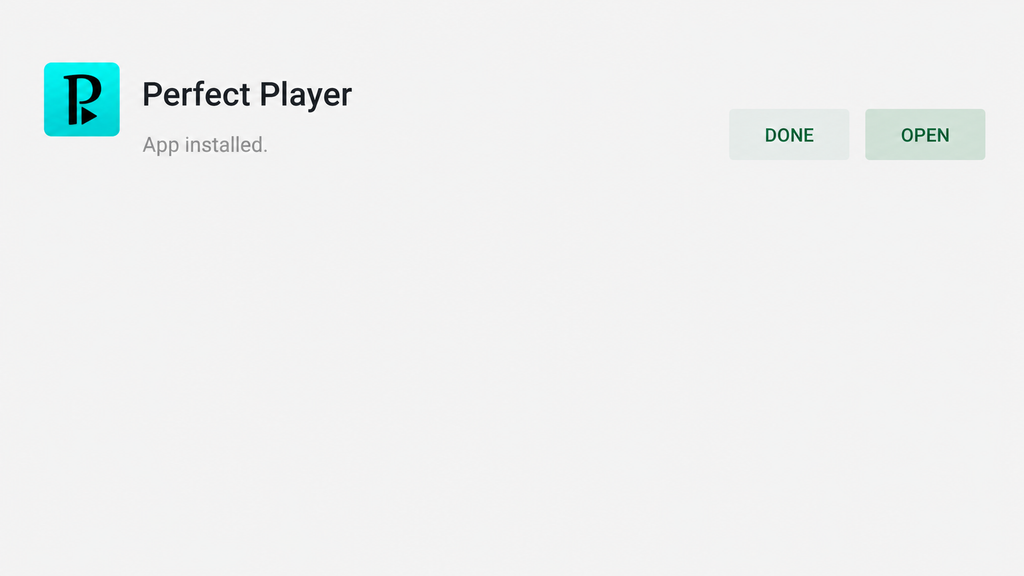
22nd Step – Click the “done” button.
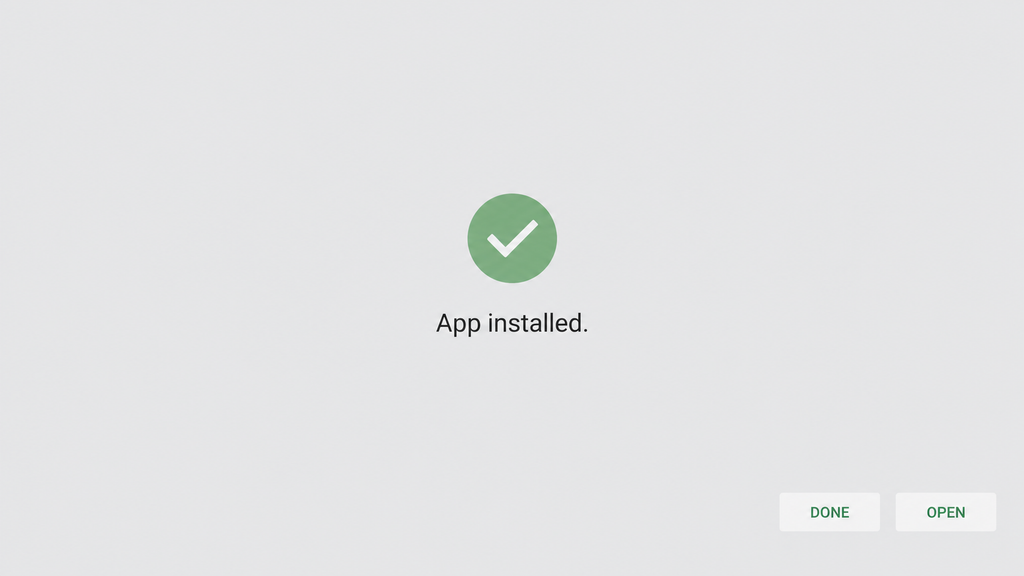
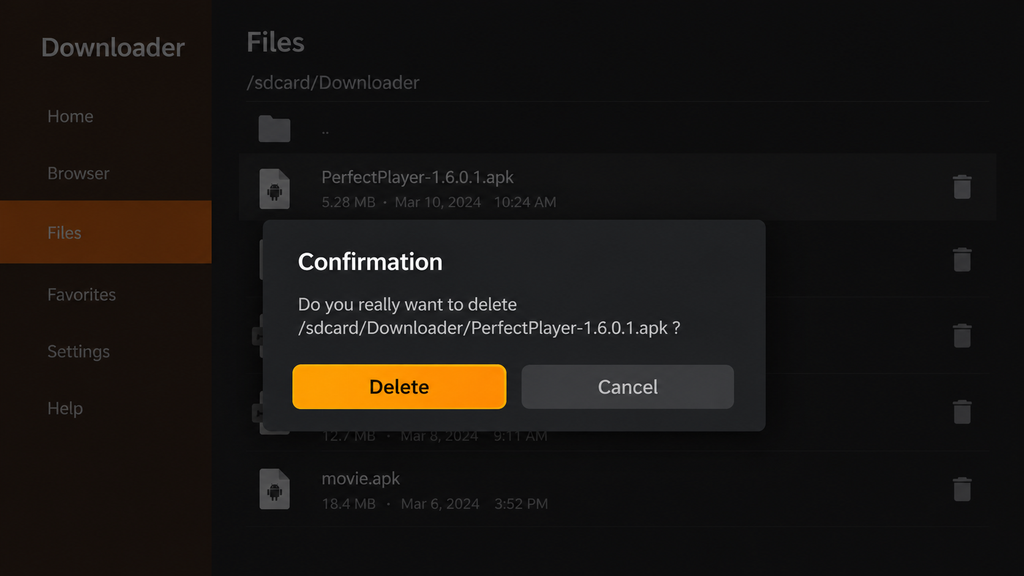
23rd Step – Click “Delete” to remove the downloaded Perfect Player APK file from your Amazon Fire TV Stick, freeing up storage space without uninstalling the app.
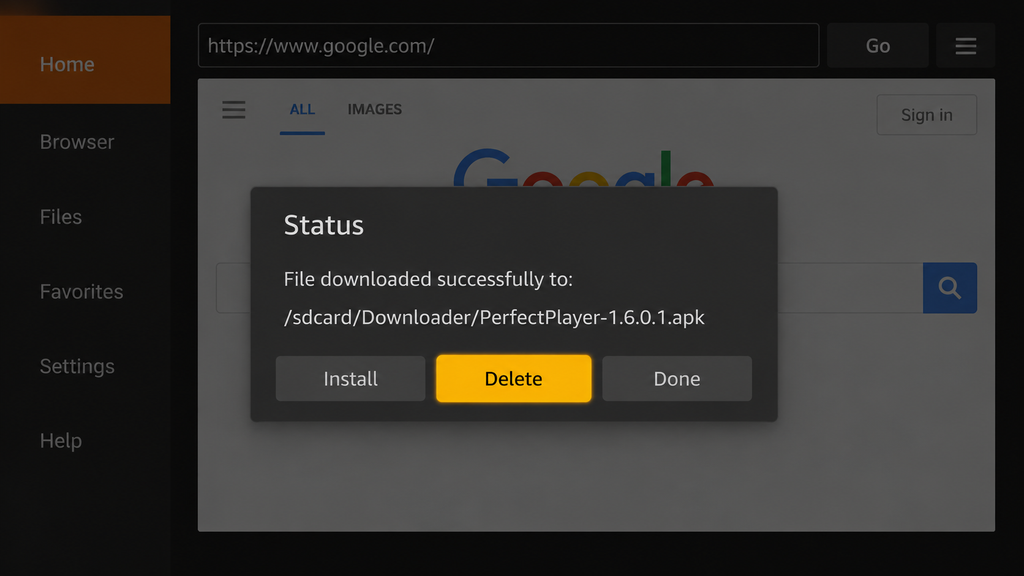
24th Step – Select “Delete” again to confirm and permanently remove the downloaded Perfect Player APK file from your Fire TV Stick storage.
IPTV on Perfect Player
Perfect Player IPTV is a media player that lets you stream live TV using your own IPTV playlist. It supports formats such as M3U and XSPF, along with electronic program guides (EPGs). Depending on the version and device, it can run on Android devices, Android TV, Fire TV devices, and Windows.
How to Set Up IPTV in Perfect Player
To configure Perfect Player IPTV, open Settings > General > Playlist, enter your M3U playlist URL, and save the settings. You can also add an EPG URL to display TV schedules and program information. Follow these 6 steps to add an IPTV playlist and load your channels.
- Open Settings: Launch Perfect Player and select the gear icon.
- Go to General: Open the General settings menu.
- Add a playlist: Select Playlist.
- Enter your M3U URL: Paste the playlist URL supplied by your IPTV provider and enter a name. Use Xtream Codes credentials only if your version supports them.
- Configure the EPG: Open the EPG setting and enter your provider’s XMLTV or JTV guide URL, if available.
- Save and refresh: Confirm your settings and return to the main screen. Wait for the channel list and program guide to load.
If your provider only supplies Xtream Codes credentials, request a compatible M3U playlist URL. Do not assume Perfect Player supports a direct Xtream Codes API login screen.
Pointer: An M3U playlist supplies channel names and streaming addresses, while an EPG supplies broadcast schedules. You can load channels without an EPG, but the TV guide may remain empty.
Perfect Player IPTV: Key Features
Perfect Player offers several useful features for managing IPTV playlists and watching live television through a TV-style interface. Let’s check these 5 most significant features of this player:
- M3U and XSPF support: Load compatible IPTV playlists from a URL or file.
- Electronic program guide (EPG): View scheduled programs using supported XMLTV or JTV data.
- Channel categories: Browse channels and organize available content.
- External streaming support: Playback compatibility depends on the stream protocol, device, and app version.
- TV-friendly navigation: Use the remote’s OK button to open the channel list and the left arrow to browse categories.
Supported Playlist and EPG Formats
| Format | Purpose |
| M3U | Stores IPTV playlist and stream information |
| XSPF | Provides a playlist in XML-based format |
| XMLTV | Supplies electronic program guide data |
| JTV | Provides EPG data in a supported format |
Perfect Player versions may differ in their supported protocols and configuration options, so check your installed version before entering advanced streaming settings.
Is Perfect Player Safe to Use on FireStick or Android TV?
Perfect Player IPTV is generally safe to use on Amazon Fire TV Stick and Android TV when downloaded from a trustworthy source and configured with legal IPTV playlists. However, its security depends on where you download the APK, the permissions it requests, and the IPTV service you connect.
Perfect Player is a media player, not an IPTV provider. It does not include live TV channels or subscriptions.
To use Perfect Player safely:
- Download from trusted sources: Avoid modified, cracked, or unverified Perfect Player APK files that may contain malware.
- Check app permissions: Review requested permissions before installing the IPTV player on FireStick or Android TV.
- Use licensed IPTV services: Only stream channels and content you are authorized to access.
- Protect your device: Keep Fire OS or Android TV updated and avoid sharing IPTV login credentials with unknown websites.
Endline: Perfect Player itself is not inherently unsafe, but sideloading an APK from an unknown source can introduce security and privacy risks. Use a trusted installation source and a legitimate M3U playlist for safer IPTV streaming.
Perfect Player IPTV App Details: Version, APK Size, Compatibility & Safety
Perfect Player IPTV is a free Android-based media player developed by Niklabs Software. It supports M3U/XSPF playlists, live TV streaming, and electronic program guides (EPG) on compatible Fire TV Stick and Android TV devices.
Here’s a quick overview of the Perfect Player IPTV app specifications:
| App Details | Specifications |
| App Name | Perfect Player IPTV |
| Developer | Niklabs Software |
| Latest Known Version | 1.6.0.1 |
| Older Version | 1.5.8 |
| APK File Size (v1.5.8) | Approximately 9.8–10 MB, depending on architecture |
| Price | Free (optional paid features) |
| Compatibility | Android 4.1+, Android TV, compatible Fire TV devices |
| Playlist Formats | M3U, XSPF |
| EPG Support | XMLTV, JTV |
| Safety | Depends on APK source, integrity, and permissions |
| Google Play Availability | Removed in December 2021 |
Note: Perfect Player version 1.5.8 is an older release from January 2020, not the latest known version. Although reputable APK archives offer signature verification, this does not guarantee that an older app is free from security vulnerabilities. Always verify the APK source before sideloading it onto FireStick or Android TV.
Best Perfect Player IPTV Alternatives for FireStick and Android TV in 2026
The best alternatives to Perfect Player IPTV include TiviMate, IPTV Smarters Pro, OTT Navigator, Televizo, and Kodi. These IPTV players support live TV streaming, M3U playlists, and EPG, with additional features depending on the app.
If you’re looking for a replacement for Perfect Player on Amazon Fire TV Stick, Android TV, or Windows, compare these options:
| IPTV Player | Best For | Key Features |
| TiviMate | FireStick & Android TV | M3U playlists, EPG, recording, TV-friendly interface |
| IPTV Smarters Pro | Beginners | M3U URLs, Xtream Codes login, live TV and VOD |
| OTT Navigator | Advanced users | Customizable interface, multiple playlists, EPG |
| Televizo | Simple IPTV streaming | M3U playlists, EPG, favorites, channel groups |
| Kodi | FireStick, Android TV & Windows | Free, open-source media center with IPTV Simple Client |
| Sparkle TV | Live TV & DVR | Program guide, recording and timeshift features |
Which Perfect Player Alternative Should You Choose?
TiviMate is a strong replacement for Perfect Player on FireStick and Android TV because of its remote-friendly interface and advanced TV guide. IPTV Smarters Pro is suitable for beginners, while Kodi is a flexible, free option for users who also want a full media center.
Conclusion
So, this is all about the IPTV Perfect Player APK that you can install on your Fire TV Stick, Google TV, and Android TV. I can assure you that you can easily install this simplistic yet high-end IPTV player on your device effortlessly if you follow these guidelines thoroughly. If you have questions regarding the discussion, you’re welcome to ask in the comment box below.
Frequently Asked Questions
What is Perfect Player?
Perfect Player is a free IPTV media player that lets users stream live TV channels using M3U or XSPF playlists. It supports EPG and works on compatible Android-based devices.
Is Perfect Player Legal?
Yes, Perfect Player is legal to use. However, streaming copyrighted content without permission may violate copyright laws. Always use licensed IPTV services and authorized playlists.
Is Perfect Player Safe?
Perfect Player can be safe when installed from a trusted source. However, outdated or modified APK files may pose security risks, so verify the download source and app permissions.
What Devices Can Perfect Player Be Installed On?
Perfect Player supports Android smartphones, Android TV, Android TV boxes, and compatible Amazon Fire TV Stick devices. A Windows version is also available.
Can I Use Perfect Player on FireStick for Free?
Yes, Perfect Player is free to use on FireStick. However, you must provide your own IPTV playlist, and some advanced features may require payment.
Can I Download Perfect Player Directly From the Amazon App Store?
No, Perfect Player is not currently available directly from the Amazon App Store. FireStick users generally need to sideload a compatible APK from a trustworthy source.
Do I Need to Create an Account to Use Perfect Player on FireStick?
No, Perfect Player does not require account registration. Simply install the app and add your M3U playlist URL. Your IPTV provider may require separate subscription credentials.
I don’t think the title of your article matches the content lol. Just kidding, mainly because I had some doubts after reading the article.
Your point of view caught my eye and was very interesting. Thanks. I have a question for you.
Your point of view caught my eye and was very interesting. Thanks. I have a question for you.
Can you be more specific about the content of your article? After reading it, I still have some doubts. Hope you can help me.