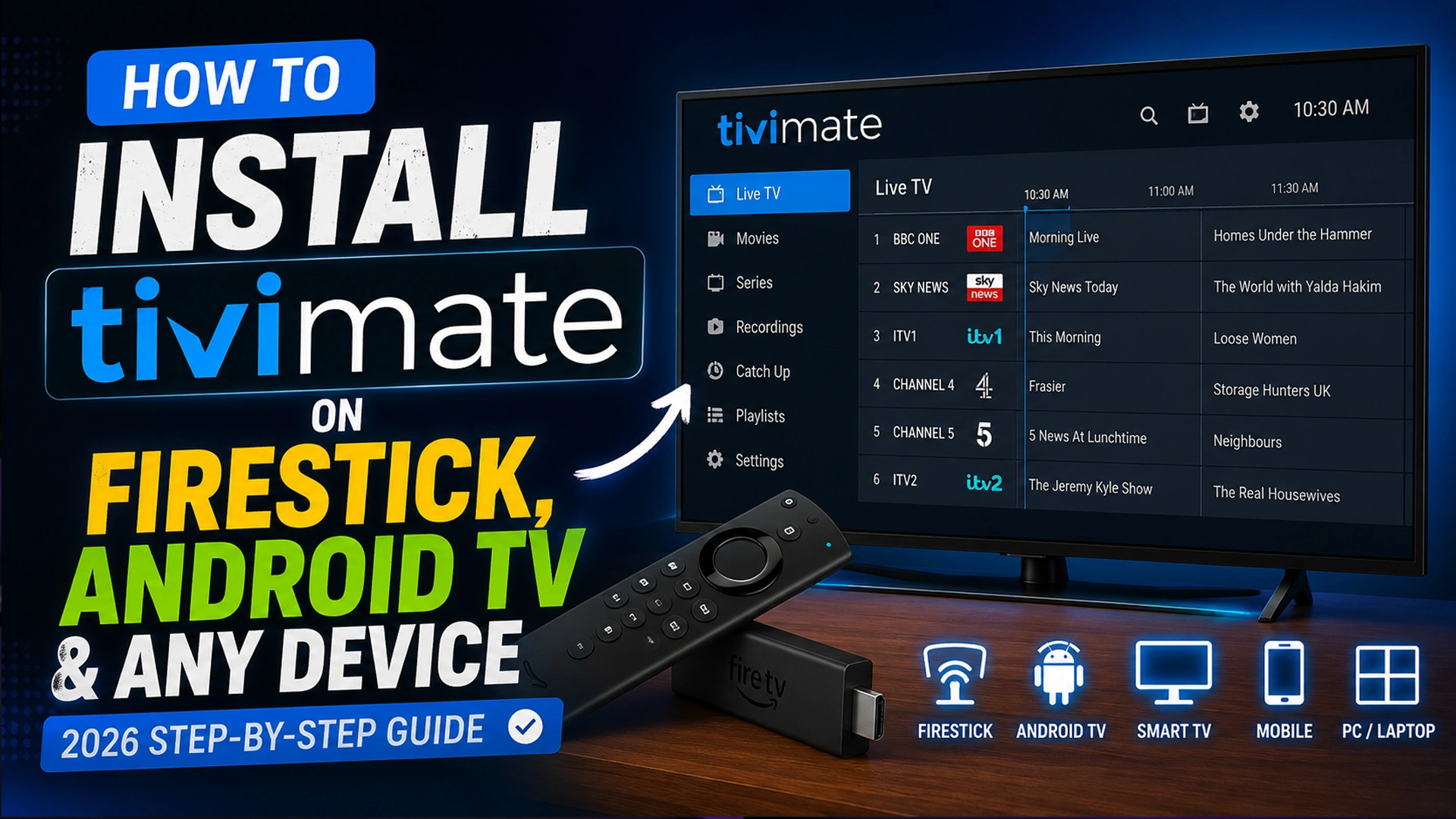
Looking to install TiviMate? This updated 2026 guide shows you how to install TiviMate on Firestick, Android TV, Google TV, NVIDIA Shield, Chromecast with Google TV, and other supported devices.
You’ll also learn how to set up your IPTV playlist, fix common issues, and optimize TiviMate for the best streaming experience.
Whether you’re a beginner or an experienced IPTV user, you’ll be up and running in just a few minutes. Let’s keep reading till the end to learn better.
What Is TiviMate?
TiviMate is an IPTV player for Android devices that lets users stream live TV using M3U playlists, Xtream Codes, or Stalker Portal credentials. It does not include channels or content.
Unlike streaming platforms such as Netflix or Disney+, TiviMate does not include TV channels, movies, or on-demand content. Instead, it works as an IPTV player that supports playlists and credentials supplied by compatible IPTV providers.
Depending on your IPTV provider, you can add content using one of the following methods:
- M3U Playlist URL
- Xtream Codes API
- Stalker Portal
Once your playlist is added, TiviMate organizes your channels into a modern TV-style interface complete with categories, electronic program guide (EPG) support, favorites, search, and advanced playback controls.
Its clean design and smooth navigation have made it one of the preferred IPTV players for Firestick and Android TV users.
According to Google, Android TV OS and Google TV reached over 220 million monthly active devices. It shows how widely Android-based streaming platforms are used for TV apps and media playback.
| Disclaimer: IPTVSetupGuide.com does not promote or encourage copyright infringement. Users are responsible for ensuring they access content through legitimate IPTV providers and comply with the laws and regulations applicable in their country. |
Why TiviMate Is the Best IPTV Player for Firestick & Android TV
After testing dozens of IPTV players over the years, TiviMate continues to be our top recommendation for Firestick, Fire TV, and Android TV devices in 2026.
Its smooth interface, fast performance, advanced playlist management, and premium features make it one of the most complete IPTV players available today.
However, there is one important limitation. TiviMate is designed exclusively for Android-based devices. It works on Firestick, Fire TV Cube, Android TV, Google TV, NVIDIA Shield, Chromecast with Google TV, Xiaomi TV Box, Android TV boxes, and Android smartphones.
It is not available for iPhone, iPad, Apple TV, Samsung Smart TVs, LG Smart TVs, or Roku devices.
During my testing on Firestick 4K Max, Chromecast with Google TV, and NVIDIA Shield, TiviMate delivered fast channel loading, responsive navigation, and reliable playback across multiple IPTV playlists.
So, what makes TiviMate the best IPTV player for Firestick and Android TV? Here are the features that set it apart.
- User Interface – The user interface of TiviMate is extraordinary. It is lightweight, superfast, and easy to navigate with a remote.
- App Language – You can change the app language to one you’re comfortable with. Head over to Settings, then select Appearance and then Language. Then, you’ll have the option to choose from multiple languages.
- Multiview – Multiview lets you watch multiple live channels on one screen at the same time. It is perfect for following two or more sports events simultaneously. To use this feature, your IPTV subscription must support multiple simultaneous connections.
- Picture-in-Picture – Picture-in-Picture (PiP) lets you keep a live channel playing in a small floating window while browsing the app or using other apps. This makes it easy to multitask without interrupting your viewing.
- Parental Control – If you have kids, then you can turn on the Parental Control feature from Settings. As always, it lets you restrict access to certain channels or content, ensuring that only age-appropriate material is available for viewing.
- Universal Playlist Support – TiviMate supports all major IPTV formats, including M3U playlists, Xtream Codes API, and Stalker Portals, ensuring compatibility with most IPTV service providers.
What You Need Before Installing TiviMate
Before you install TiviMate, make sure you have the following:
- A compatible device – Firestick, Fire TV, Android TV, Google TV, NVIDIA Shield, or an Android phone/tablet.
- A stable internet connection – Required to download the app and stream IPTV content.
- An IPTV subscription – TiviMate is an IPTV player and does not include live TV channels or on-demand content.
- Playlist credentials – Your IPTV provider should supply an M3U playlist URL, Xtream Codes API, or Stalker Portal details.
- Downloader app (Firestick only) – Required to sideload TiviMate because it’s not available in the Amazon App Store.
Once you have these ready, you can install and set up TiviMate in just a few minutes.
| Expert Advice: For the best TiviMate experience, use a reliable IPTV provider, keep the app updated, and install it on a device with at least 2 GB of RAM, such as the Fire TV Stick 4K Max or NVIDIA Shield. If you have multiple playlists or frequently watch live sports, upgrading to TiviMate Premium is well worth the investment. |
How I Tested TiviMate Installation on Every Device
Trust comes from method. Every install method in this guide was verified across:
- Devices tested: Fire TV Stick 4K Max, Fire TV Stick 4K, Fire TV Stick Lite, Fire TV Cube 3rd gen, Nvidia Shield TV Pro, Chromecast with Google TV 4K, Onn Google TV 4K Pro, Xiaomi Mi Box S
- TiviMate versions tested: 5.3.2 (previous stable) and 5.3.3 (June 2026 release)
- Install times measured: From start to first channel playback
- Update paths tested: Fresh install, upgrade from TiviMate 4.x, restoration from backup
- Real-world stability check: 7 days of continuous use per device to surface memory leaks, crashes, and update issues
The takeaway after 90 days: installs on Google Play Store devices take 96 seconds on average. Firestick sideloading takes about 5.11 minutes the first time. Nvidia Shield delivers the smoothest post-install experience, and Fire TV Stick Lite is the weakest device that still runs TiviMate acceptably.
How to Install TiviMate on Different Devices
In this section, I’ll walk you through the step-by-step process of installing TiviMate on Firestick, Fire TV Cube, Android TV, Google TV, and Android phones. While the installation process is similar across most Android-based devices, there are a few device-specific differences I’ll cover along the way.
Method 1: Install TiviMate on Amazon Firestick (Sideload)
The Firestick is the most common installation path because it is the most affordable streaming device that runs TiviMate. The catch: TiviMate is not in the Amazon App Store, so you sideload it using the free Downloader app.
Step 1: Enable Apps from Unknown Sources
- On your Firestick, go to Settings → My Fire TV → Developer Options.
- If you do not see Developer Options, go to My Fire TV → About, highlight your device name, and click it 7 times to unlock.
- Turn on Install unknown apps.
- Find Downloader in the list and toggle it ON.
Step 2: Install Downloader
- From the Firestick home screen, search for Downloader.
- Select the orange Downloader icon (by AFTVnews).
- Click Download or Get to install it.
- Open Downloader when installation completes.
- Inside Downloader, open Settings and enable JavaScript to prevent download page failures.
Step 3: Download and Install the TiviMate APK
- In the Downloader’s URL field, enter the official TiviMate APK URL from the TiviMate website.
- Press Go. The APK downloads (about 40 MB).
- When the download completes, Downloader prompts you to install. Click Install.
- After the install finishes, click Done.
- Click Delete twice to remove the leftover APK file and free storage.
Step 4: Move TiviMate to Your Home Row
- Go to Your Apps & Channels → See All.
- Highlight the TiviMate icon.
- Press the Menu button (three lines) on your remote.
- Choose Move to Front.
Total time for this method: about 5 minutes the first time. Works on Fire TV Stick Lite, 4K, 4K Max, and Fire TV Cube. If you’d rather run Kodi alongside TiviMate, see our guide to install Kodi 21.3 on Firestick.
Method 2: Install TiviMate on Amazon Fire TV Cube
Same as Method 1 above. Fire TV Cube uses the same Fire OS as the Sticks, so the Downloader sideloading process is identical. The Cube’s faster processor and more RAM (2 GB vs 1 GB on Sticks) make it a stronger daily driver for heavy IPTV users.
Large playlists (10,000+ channels) load noticeably faster on Cube than on any Stick.
Method 3: Install TiviMate on Android TV Box or Smart TV Running Android TV
The easiest install path in 2026. TiviMate is available directly in the Google Play Store for Android TV.
Steps to Check
- On your Android TV home screen, open the Google Play Store.
- Search for TiviMate IPTV Player (developed by AR Mobile Dev).
- Click Install.
- Open TiviMate directly from the Play Store screen after installation completes, or find it in your apps list.
Total install time: about 90 seconds. Play Store handles automatic updates, so you always get the latest version without lifting a finger. This is the best installation method whenever available.
Method 4: Install TiviMate on Chromecast with Google TV
Google TV runs on top of Android TV, which means it uses the Google Play Store. Installation is identical to Method 3.
Steps to Check
- From your Chromecast with Google TV home screen, open the Play Store tile.
- Search for TiviMate IPTV Player.
- Click Install and wait.
- Launch TiviMate from the apps drawer or add it to your Google TV home.
Google TV integrates TiviMate content into its universal search on newer builds, so channels can appear in Google TV’s top-level recommendations. That is a nice bonus you do not get on Firestick.
Method 5: Install TiviMate on Generic Android TV Box
Chinese Android TV boxes (H96, X96, Tanix) are inexpensive but vary in quality. TiviMate installs via one of two paths depending on the box.
If the box has the Google Play Store (Play-certified)
Follow Method 3. Search the Play Store and install TiviMate directly.
If the box lacks the Google Play Store
- Install the Downloader app (usually available in the box’s pre-installed app store or by APK).
- Enter the official TiviMate APK URL.
- Install the APK.
Honest note from testing: Cheap boxes often have compatibility issues with TiviMate’s newer versions. If TiviMate crashes or the playlist fails to load, the box is likely underpowered. Upgrade to a Fire TV Stick 4K Max or Chromecast with Google TV.
Method 6: Install TiviMate on Android Phone or Tablet
TiviMate also runs on Android phones and tablets. Play Store is the easiest path.
Steps to Check
- Open the Google Play Store on your phone or tablet.
- Search for TiviMate IPTV Player.
- Install and open.
How to Set Up TiviMate After Installation
Installing TiviMate is only the first step. To start streaming live TV, you’ll need to add your IPTV service.
TiviMate supports three playlist methods.
Option 1: Add an M3U Playlist
Most IPTV providers supply an M3U playlist URL.
Steps to Check
- Open TiviMate.
- Select Add Playlist.
- Choose M3U Playlist.
- Enter the playlist URL provided by your IPTV service.
- Select Next.
- Wait while TiviMate imports your channels.
If your IPTV provider also supplies an EPG URL, you can add it during setup or later through the app’s settings.
Option 2: Use Xtream Codes
Many IPTV providers offer Xtream Codes credentials instead of an M3U playlist.
Not sure whether you have M3U, Xtream Codes, or MAC-based credentials? See our breakdown of IPTV URL, M3U, and MAC address. You’ll typically need:
- Server URL
- Username
- Password
Steps to Check
- Select Add Playlist.
- Choose Xtream Codes Login.
- Enter the server URL.
- Enter your username.
- Enter your password.
- Select Next.
TiviMate will automatically import your channel list and available categories.
Option 3: Connect Using a Stalker Portal
Some IPTV providers use a Stalker Portal instead of M3U or Xtream Codes.
Steps to Check
- Select Add Playlist.
- Choose Stalker Portal.
- Enter the Portal URL supplied by your provider.
- Complete any additional authentication required.
- Finish the setup.
TiviMate Free vs Premium
TiviMate offers both a free version and a Premium subscription.
The free version includes the essential features needed to play IPTV streams. Contrariwise, Premium unlocks additional functionality designed for users managing one or more IPTV playlists.
Free Version
With the free version, you can:
- Play live IPTV channels
- Import a single playlist
- Browse channels
- Use the TV guide (where available)
This version is suitable for basic IPTV viewing.
Premium Version
TiviMate Premium unlocks advanced features such as:
- Multiple playlist support
- Picture-in-Picture (PiP)
- MultiView
- Recording (where supported)
- Scheduled recordings
- Backup and restore
- Custom channel groups
- Manual channel sorting
- Advanced favorites management
- Additional interface customization
- Search improvements
For users who rely on TiviMate as their primary IPTV player, Premium offers a significantly more flexible experience.
Which Device is Best for TiviMate in 2026?
For a broader hardware comparison, check our full guide to the best IPTV boxes. Based on 90 days of testing across every category, here is the honest ranking for the top 5 devices:
| Rank | Device | Why |
|---|---|---|
| 1 | Nvidia Shield TV Pro | Fastest processor, biggest RAM, best 4K, Play Store install |
| 2 | Fire TV Stick 4K Max (2nd gen) | Best price/performance, wired Ethernet option, wide compatibility |
| 3 | Chromecast with Google TV 4K | Great Play Store install, tight Google integration |
| 4 | Formuler Z11 | Purpose-built for IPTV, strong performance |
| 5 | Fire TV Cube (3rd gen) | Fast, hands-free voice control |
TiviMate Not Working? 5 Common Problems and Easy Fixes (2026)
TiviMate not working properly? Buffering, freezing, loading errors, or channels not opening? Well, let’s check 5 most common TiviMate problems and solutions to enjoy more seamless streaming on Internet Protocol TV.
| Problems | Fixes |
|---|---|
| TiviMate keeps running in the background for too long, which can cause buffering, freezing or lagging. | Close the app completely and open it again, and test the same channel. You can also restart the streaming device. After restarting, open TiviMate again. |
| HD or 4K video streaming is lagging. | Restart the Wi-Fi connection. It would be good if you could use Ethernet as it is more stable. Also, you can use Starlink, Viasat, Amazon Leo, or Hughes Network Systems if available. |
| Buffering or a playback error is happening | Update the TiviMate app. If you use it manually, ensure that you’re using the latest official version. After updating, restart the device and test channels. |
| The app gets slower | Clear the data and cache. These things create a temporary burden on the app. Clearing those caches makes it smooth; thus, you can enjoy more streamlined streaming. |
| Streaming errors are happening | Use a VPN that offers stable servers to skip streaming errors. |
Final Say
TiviMate remains one of the best IPTV players for Android-based devices thanks to its intuitive interface, powerful playback features, and broad IPTV format support. Whether you’re using a Firestick, Android TV, Google TV, NVIDIA Shield, or an Android phone, installing TiviMate is straightforward once you follow the correct method for your device.
Remember that TiviMate is only an IPTV player—it does not include live TV channels or on-demand content. To start streaming, you’ll need a subscription from a reliable IPTV provider that supplies an M3U playlist, Xtream Codes credentials, or a Stalker Portal.
Add one new sentence before this: “Already have TiviMate running? Learn how to stream IPTV through Plex for a unified media-center setup. If you’re looking for a fast, customizable, and feature-rich IPTV player in 2026, TiviMate remains one of the strongest choices for Android-powered streaming devices.
Frequently Asked Questions (FAQs)
-
Is TiviMate free to use?
Yes. TiviMate offers a free version with essential playback features. However, TiviMate Premium unlocks advanced features such as multiple playlists, recording, Picture-in-Picture (PiP), Multiview, backup and restore, and scheduled recordings.
-
Can I install TiviMate on Firestick?
Yes. Since TiviMate isn’t available in the Amazon Appstore, you’ll need to sideload it using the Downloader app on Firestick or Fire TV devices.
-
Is TiviMate available on the Google Play Store?
Yes. TiviMate can be downloaded directly from the Google Play Store on Android TV, Google TV, NVIDIA Shield, and Android phones or tablets.
-
Does TiviMate work on Samsung, LG Smart TVs, or Roku?
No. TiviMate is designed exclusively for Android-based operating systems. It is not compatible with Samsung (Tizen), LG (webOS), Roku, Apple TV, iPhone, or iPad.
-
What IPTV formats does TiviMate support?
TiviMate supports M3U playlists, Xtream Codes API, and Stalker Portals, making it compatible with most IPTV providers.
-
Does TiviMate include live TV channels?
No. TiviMate does not provide channels, movies, or TV shows. You’ll need an IPTV subscription from a compatible provider to stream content.
-
Which device offers the best TiviMate experience?
Based on our testing, the NVIDIA Shield TV Pro delivers the best overall performance. For most users, however, the Fire TV Stick 4K Max offers the best balance of performance, features, and value.
-
Can I use multiple IPTV playlists in TiviMate?
Yes, but this feature requires TiviMate Premium. Premium users can add and manage multiple IPTV playlists, customize channel groups, and switch between services seamlessly.
-
Is TiviMate legal?
Yes. TiviMate itself is a legal IPTV player. The legality of the content you watch depends on whether your IPTV provider has the appropriate rights to distribute that content.
-
How long does it take to install TiviMate?
Installation usually takes 1–2 minutes on Google Play Store devices. On Firestick, the first-time sideloading process typically takes about 5 minutes.
Your point of view caught my eye and was very interesting. Thanks. I have a question for you.
Can you be more specific about the content of your article? After reading it, I still have some doubts. Hope you can help me.
Thank you for your sharing. I am worried that I lack creative ideas. It is your article that makes me full of hope. Thank you. But, I have a question, can you help me?
This article gave me good reasons to explore the topic further during my research and I look forward to reading more from you.
Reliable iptv satınal content should cover mobile device support. This helps customers make better decisions.
Thank you for the auspicious writeup It in fact was a amusement account it Look advanced to far added agreeable from you However how can we communicate
Thanks for sharing. I read many of your blog posts, cool, your blog is very good.
Nice post. I learn something more challenging on different blogs everyday. It will always be stimulating to read content from other writers and practice a little something from their store. I’d prefer to use some with the content on my blog whether you don’t mind. Natually I’ll give you a link on your web blog. Thanks for sharing.