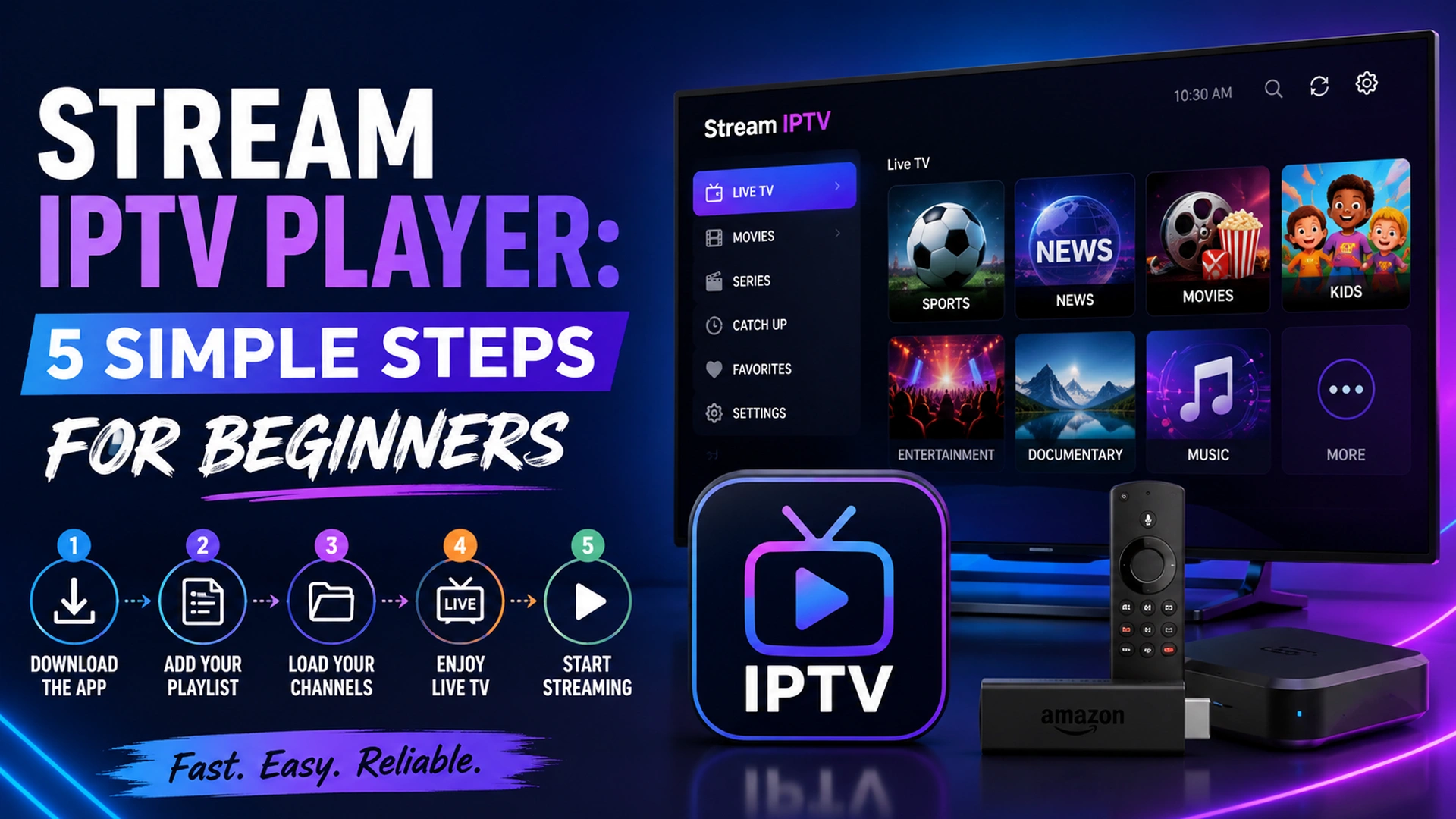
Want to stream IPTV on your TV but don’t know where to start? The process is simpler than it may seem. You need a compatible streaming device, an IPTV player, a reliable content source, and the correct login or playlist details.
In this beginner-friendly guide, I’ll explain how to stream IPTV using an IPTV player in five simple steps, from choosing your device and installing an app to adding an M3U playlist and loading live TV channels. You’ll find each and everything about it that could make your job effortless.
How to Stream IPTV in 5 Simple Steps
The basic IPTV streaming process involves five steps:
- Choose a compatible streaming device
- Install an IPTV player
- Choose an IPTV service or content source
- Add your M3U playlist or login details
- Test your IPTV stream and optimize playback
Let’s look at each step in detail.
Step 1: Choose a Device for IPTV Streaming
First, you need a device that supports an IPTV player. You don’t necessarily need to purchase a separate Android TV box because many modern Smart TVs and streaming devices can run IPTV applications.
Common IPTV-compatible devices include:
- Android TV and Google TV
- Amazon Fire TV and Firestick
- Samsung Smart TVs
- LG Smart TVs
- Apple TV
- Android smartphones and tablets
- iPhone and iPad
- Windows PCs
- Mac computers
For beginners, Android TV, Google TV, and Fire TV devices are popular because they provide access to a wide range of streaming applications.
What Makes a Good IPTV Device?
When choosing a device for IPTV streaming, consider:
- App compatibility
- Processing performance
- Available storage
- HD and 4K support
- Wi-Fi performance
- Ethernet connectivity
- Operating system updates
A more powerful device can provide smoother navigation, but your internet connection and stream quality also have a major impact on playback.
Step 2: Download an IPTV Player
An IPTV player is the application that loads and plays your IPTV content. The player itself generally does not provide the channels. Instead, it connects to a playlist or login supplied by your IPTV content source.
Popular IPTV player options vary by platform. For example, TiviMate is widely used on Android TV, while VLC can play compatible IPTV streams on computers and other supported platforms.
When choosing an IPTV app, look for support for:
- M3U playlists
- Xtream Codes
- Electronic Program Guide (EPG)
- Live TV channels
- VOD libraries
- Multiple playlists
- Favorites and channel organization
- Subtitles
- Catch-up or recording features where supported
Always download applications from official app stores or trusted sources whenever possible — for example, the official TiviMate site or the official VLC site.
Step 3: Choose an IPTV Service or Content Source
After installing your IPTV player, you need a content source that provides the channels or video content you want to watch.
Before subscribing, check whether the service supports your preferred:
- TV channels
- Sports
- Movies
- TV shows
- International channels
- VOD content
- Streaming devices
You should also consider stream quality, EPG availability, customer support, subscription terms, and whether the provider has the necessary rights to distribute its content.
Test an IPTV Service Before Buying
If a provider offers a legitimate free trial, use it to test the actual streaming experience rather than focusing only on the advertised number of channels.
During the trial, check:
- Channel loading speed
- HD and 4K playback
- Buffering
- Sports streams
- VOD playback
- EPG accuracy
- Channel switching
- Device compatibility
Testing the service on the same device and internet connection you plan to use later gives you a more realistic idea of its performance.
Step 4: Add Your M3U Playlist to the IPTV Player
Once you have an IPTV content source, you will usually receive an M3U URL or another supported login method.
An M3U playlist contains information that an IPTV player uses to load available channels and streams.
A typical example looks like this:
https://example.com/get.php?username=YOUR_USERNAME&password=YOUR_PASSWORD&type=m3u_plus
Your actual M3U URL should come directly from your content provider.
How to Add an M3U Playlist
The exact menu names differ between IPTV players, but the process usually looks like this:
- Open your IPTV player.
- Select Add Playlist.
- Choose M3U URL or Playlist URL.
- Enter the M3U link provided by your service.
- Enter a playlist name if required.
- Select Add, Save, or Load.
- Wait for the IPTV channels and categories to appear.
Never share your personal M3U URL publicly because it may contain your account credentials.
Can You Use Xtream Codes Instead?
Yes. Many IPTV players support Xtream Codes API as an alternative to an M3U playlist.
You will normally need:
- Server URL
- Username
- Password
Enter these details into the Xtream Codes login section of your IPTV player and allow the application to load your channels, VOD library, and other available content.
Step 5: Load Your IPTV Channels and Start Streaming
After your playlist or login details have been accepted, the IPTV player should organize the available content into categories.
You may see sections such as:
- Live TV
- Sports
- Movies
- TV Series
- VOD
- Favorites
- International channels
Select a channel to begin streaming.
If your provider supplies an EPG URL, add it to the IPTV player’s TV Guide or EPG section. This can display program names, schedules, and upcoming broadcasts.
How to Stream IPTV Without Buffering
A good IPTV player cannot compensate for every network or server problem. Buffering can come from your internet connection, Wi-Fi signal, device, IPTV app, or the individual stream.
Try these basic fixes:
- Restart your router and streaming device.
- Test another channel.
- Use a stable Wi-Fi connection or Ethernet.
- Close unnecessary apps running in the background.
- Update your IPTV player.
- Check your internet speed.
- Test the stream at another time.
- Try another compatible IPTV player.
If only a few channels buffer while most others play normally, the problem may be related to those individual streams rather than your device.
How to Get Better IPTV Streaming Quality
For a smoother IPTV experience, pay attention to more than your advertised internet speed.
Your actual streaming performance can depend on:
- Internet stability: An unstable connection can cause buffering even when your download speed looks good.
- Wi-Fi signal: A weak or congested wireless connection can affect live streaming.
- Device performance: Older or low-powered devices may struggle with high-resolution video.
- Stream quality: 4K IPTV streams generally require more bandwidth and processing power than SD or HD streams.
- Server performance: Problems affecting a particular content source can cause buffering or channel failures.
Common IPTV Player Problems
IPTV Playlist Is Not Loading
Check the M3U URL or login details for typing errors. Expired credentials or an unavailable content source can also prevent the playlist from loading.
IPTV Channels Are Missing
The missing channels may not be included in your current playlist. Refresh the playlist or contact your provider if channels that were previously available have disappeared.
EPG Is Not Working
Check that the EPG URL is correct and supported by your IPTV player. EPG information can also be incomplete or outdated at the provider level.
IPTV Player Keeps Crashing
Restart the application and device, update the player, and check available storage. If the issue continues, testing another compatible player can help determine whether the problem is app-specific.
IPTV Works on One Device but Not Another
Check whether the IPTV player supports both devices and whether your subscription limits simultaneous connections.
Is an IPTV Player the Same as an IPTV Service?
No.
An IPTV player is software used to load and play IPTV content. An IPTV service or content provider supplies the actual channels, streams, or VOD content.
Think of the player as the interface and playback tool, while the content source supplies what you watch.
This distinction is important because installing an IPTV player alone does not automatically give you access to live TV channels.
Do You Need a VPN to Stream IPTV?
No. A VPN is not required simply to use an IPTV player.
A VPN can encrypt the connection between your device and VPN server and change the public IP address visible to online services. Some users may choose one for additional privacy or to troubleshoot certain network routing problems.
However, a VPN does not guarantee complete anonymity, automatically eliminate buffering, or make unauthorized streaming legal.
Best IPTV Setup for Beginners
For a simple IPTV setup, you generally need:
| Component | Purpose |
|---|---|
| Streaming device | Runs the IPTV player |
| IPTV player | Loads and plays your content |
| IPTV service | Provides channels and VOD |
| M3U or Xtream Codes | Connects the content source to the player |
| EPG | Displays program schedules |
| Internet connection | Delivers the streams |
This setup works across many popular IPTV platforms, although the exact installation and configuration steps vary by device and application.
Frequently Asked Questions
-
What is an IPTV player?
An IPTV player is an application that loads and plays television streams or playlists supplied by a compatible IPTV content source.
-
How do I stream IPTV on my TV?
Install a compatible IPTV player on your Smart TV or streaming device, obtain a legitimate IPTV content source, enter its M3U URL or Xtream Codes credentials, and load the playlist.
-
Can I stream IPTV without an Android TV box?
Yes. IPTV players are available for various platforms, including compatible Smart TVs, Fire TV devices, Android TV, Apple TV, smartphones, tablets, Windows, and macOS.
-
What is an M3U playlist?
An M3U playlist is a file or URL containing information that compatible media players can use to load IPTV channels and streams.
-
Is Xtream Codes better than M3U?
Neither is universally better. Both can provide access to IPTV content, but the better option depends on which login formats your IPTV player and content provider support.
-
Why does my IPTV player keep buffering?
Buffering can result from an unstable internet connection, weak Wi-Fi, device limitations, network congestion, problems with the individual stream, or issues with the content source’s performance.
-
Can I use the same IPTV playlist on multiple devices?
That depends on the terms and connection limits of your IPTV content source. Some services restrict simultaneous connections.
Final Thoughts
Streaming IPTV is relatively simple once you understand how the different components work together. Choose a compatible device, install an IPTV player, select a legitimate content source, add your M3U or Xtream Codes details, and test your channels.
For the best results, don’t judge an IPTV service provider only by its channel count. Test the channels you actually watch, check performance during busy periods, verify EPG and VOD functionality, and make sure the IPTV player works reliably on your preferred device.
Thanks for sharing. I read many of your blog posts, cool, your blog is very good.
I don’t think the title of your article matches the content lol. Just kidding, mainly because I had some doubts after reading the article.
I don’t think the title of your article matches the content lol. Just kidding, mainly because I had some doubts after reading the article.
Your point of view caught my eye and was very interesting. Thanks. I have a question for you.
I don’t think the title of your article matches the content lol. Just kidding, mainly because I had some doubts after reading the article.
Your point of view caught my eye and was very interesting. Thanks. I have a question for you.
The discussion shared good reasons to explore the topic further while browsing online and I look forward to reading more from you
Can you be more specific about the content of your article? After reading it, I still have some doubts. Hope you can help me.
Your point of view caught my eye and was very interesting. Thanks. I have a question for you.
I don’t think the title of your article matches the content lol. Just kidding, mainly because I had some doubts after reading the article.