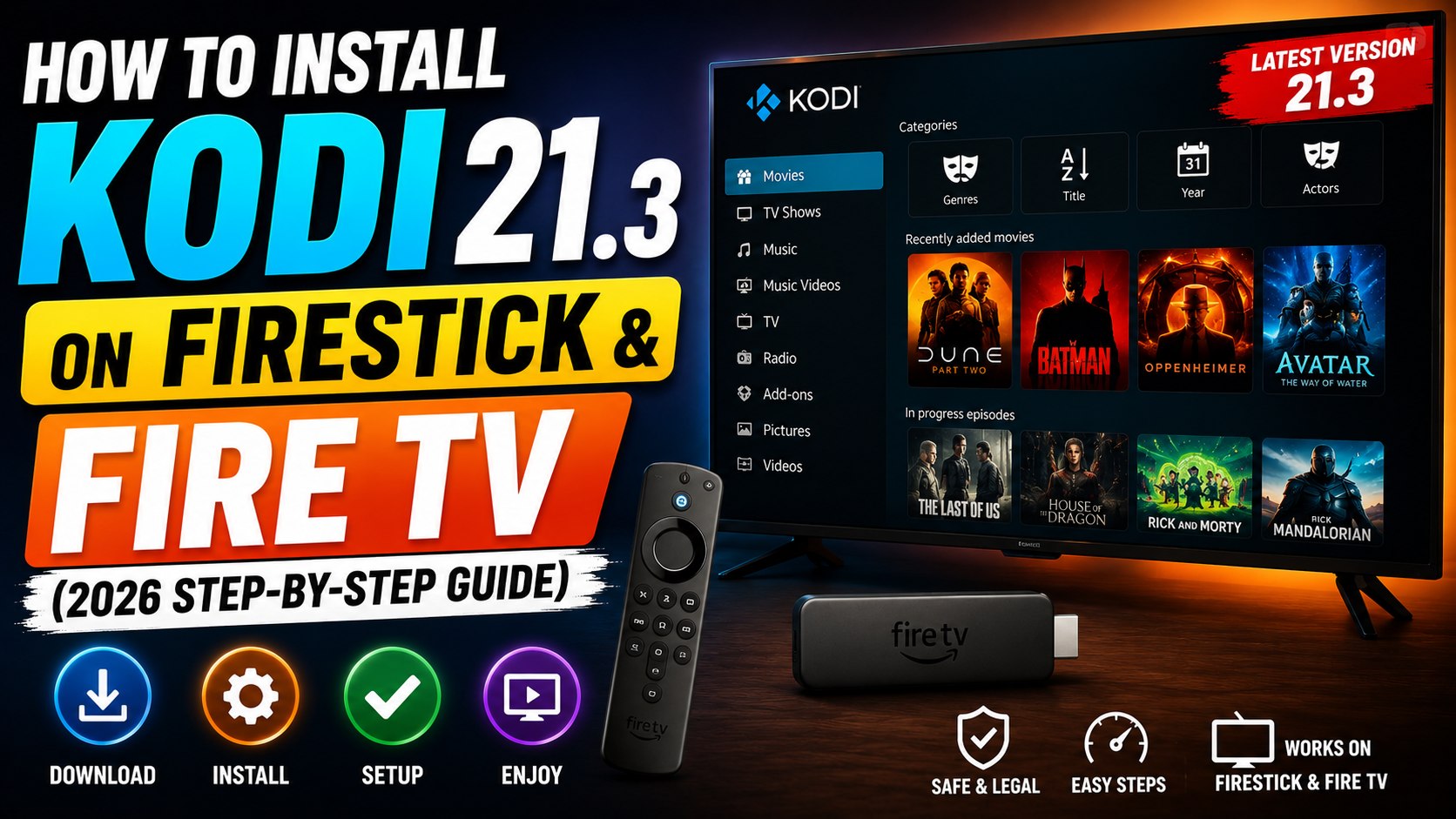
To install Kodi 21.3 Omega on Firestick, enable Apps from Unknown Sources in Developer Options. Then install the free Downloader app from the Amazon App Store, open Downloader and enter the official Kodi URL kodi.tv/download/android, select the ARMV7A (32BIT) build, wait for the APK to download, then click Install.
The entire procedure takes around 6.20 minutes on any Fire TV Stick or Fire TV Cube.
Legal Disclaimer: This guide is only for educational purposes. I’m not affiliated with Amazon and don’t promote piracy. All I want to teach you is to get entertainment properly and that’s it.
What is Kodi 21.3 Omega?
Kodi 21.3 Omega is a free, open-source media player that turns devices like Firestick, Android TV, Windows PCs, and Macs into a complete entertainment center. It includes performance improvements, wider device compatibility, and better media playback support.
What specialty does Kodi 21.3 Omega have?
Kodi 21.3 Omega version offers some brand-new features. Let’s take a look –
- Enhanced Video Playback: Added HDR support for Xbox One and fixed HDR10 metadata issues for more accurate colors and improved picture quality.
- Improved Blu-ray Compatibility: Resolved Blu-ray playback problems on Linux and fixed audio and subtitle synchronization issues when resuming videos.
- Faster Library Management: Improved video library rescanning speed, fixed multi-episode file detection errors, and corrected subtitle language selection issues.
- Smarter Add-On Updates: Increased the inactivity period before automatic add-on updates stop from 25 days to 68 years, reducing unnecessary maintenance.
- Better Stability and Bug Fixes: Addressed various playback, interface, and system bugs to deliver a smoother and more reliable media experience.
- Improved Cross-Platform Performance: Enhanced compatibility across Windows, Android, Linux, macOS, Fire TV, and other supported devices.
- More Reliable Streaming: Fixed several playback-related issues that could cause interruptions, improving overall streaming stability.
Things You Need Before Installing Kodi on Firestick & Fire TV
Before installing Kodi on Firestick or Fire TV, you’ll need 4 things:
- A stable internet connection with a minimum 15 Mbps speed.
- An active Amazon account.
- Sufficient storage (minimum 500 mb for installation).
- An Amazon Fire TV Stick, Fire TV Stick 4K, 4K Max, Lite, or Fire TV Cube, connected to your TV.
How to Install Kodi 21.3 on Firestick & Fire TV
Many users think installing Kodi on Firestick is complicated, but the process is quite simple. Since Kodi isn’t available in the Amazon App Store, you’ll need to sideload it using the Downloader app, enable developer options, and then install the official Kodi app on your Firestick or Fire TV.
Here are the steps for installing Kodi 21.3 on Firestick and Fire TV:
Step 1: Enable Apps From Unknown Sources on Firestick
Because Kodi is not in the Amazon App Store, you have to allow your Fire TV Stick to install apps from outside it. This is a one-time setting.
- From the Firestick home screen, open Settings (gear icon in the top menu).
- Select My Fire TV.
- Choose Developer Options.
- Click Install Unknown Apps or Apps from Unknown Sources.
- Find Downloader in the list and toggle it ON.
Do not see Developer Options? Go to My Fire TV, then About, highlight your device name, and click it seven times in a row. Developer Options will appear after that.
You’ll see the message – “No Need, You’re Already a Developer”.
Step 2: Install the Downloader App
If you already have Downloader installed, skip to Step 3.
- Press the Home button on your remote.
- Open Find, then select the Search option (magnifying glass).
- Type Downloader and select the orange icon by AFTVnews.
- Click Download or Get.
- Once installed, open Downloader and grant any permissions it requests.
Pro tip from testing: Open Downloader’s settings and enable JavaScript before continuing. Some download pages (including the Kodi mirror) will not load correctly without it.
Step 3: Download and Install Kodi 21.3 Omega on Firestick
This is the main install. The whole step takes around 2 to 3 minutes, depending on your internet.
- Open Downloader and select the Home tab on the left.
- Click the URL box at the top of the screen.
- Type the official Kodi URL: kodi.tv/download/android and press Go.
- The official Kodi download page will load on your Fire TV Stick.
- Scroll to the Android section and select ARMV7A (32BIT). This is the correct build for every Fire TV Stick model in 2026.
- The download will start. The Kodi 21.3 APK is around 93 MB and downloads in a few minutes (2.45-3.10).
- When the download completes, Downloader will prompt you to install. Click Install in the bottom right corner.
- The install runs automatically and takes about 25-35 seconds.
- Click Done when the install confirmation appears.
- Back in Downloader, click Delete twice to remove the leftover APK file and free up space. (This does not remove Kodi itself.)
That is the installation complete. Kodi is now on your Firestick.
So, what’s your take on this? Too complicated?! You can install it more quickly with a speedy net connection (my connection was a bit slow during the process!).
However, there’s a catch. You should use the official add-ons and a VPN to get seamless streaming. If you’re using Kodi on Firestick and Fire TV without a VPN in 2026, your ISP can see exactly what you’re accessing. But which VPN could be useful?
Let’s check this article to know better – Top 5 Best VPN for Firestick.
6 Common Kodi Issues on Firestick (and How to Fix Them)
Here are the 6 most common problems of Kodi on Firestick and how to fix them.
| Problematic Issue | Reason | Fixing |
|---|---|---|
| Kodi is crashing or not opening | Corrupted cache, excessive app data, or Fire TV OS conflicts. | Go to Settings > Applications > Manage Installed Applications > Kodi, then select Force Stop and Clear Cache. If the issue persists, clear data or reinstall Kodi. |
| Add-ons aren’t working | Outdated repositories, broken sources, or dependency errors. | Update or remove the faulty add-on. Install the latest stable version of Kodi and use updated repositories. |
| Video buffering or playback lag | Slow internet connection, low device memory, or cache buildup. | Restart your Firestick, clear Kodi cache, close background apps. Use high-speed internet. |
| No sound during playback | Incorrect audio settings or unsupported audio format. | Check Firestick audio settings, restart Kodi, and update the app to the latest version. |
| Add-ons not working | If Kodi add-ons stop loading streams, the cause is usually outdated repositories or broken source links. | Remove and reinstall the add-on if the issue persists. |
| Kodi not working | Sometimes Kodi may fail to open or function properly after a Fire OS update or due to corrupted files. | 1. Restart your Firestick and try opening Kodi again. 2. Uninstall Kodi from Settings > Applications > Manage Installed Applications. 3. Reinstall the latest Kodi version using the Downloader app. |
How to Update Kodi on Firestick to the Latest Version
To update Kodi on Firestick, install the latest Kodi APK through the Downloader app. The new version replaces the old one without removing your settings, add-ons, or saved data.
Step 1: Enable App Installation from Unknown Sources
From the Firestick home screen, go to Settings > My Fire TV (or Device & Software) > Developer Options. Select Install Unknown Apps, find Downloader, and turn it ON. This allows you to install Kodi and other apps outside the Amazon App Store.
Step 2: Download and Install the Latest Kodi Update
Open the Downloader app and visit the official Kodi download page. Select the Android version, then choose the ARMV7A (32-bit) build, which is compatible with most Firestick devices.
Once the download is complete, click Install. Firestick will detect your existing Kodi installation and update it without removing your settings or add-ons.
Step 3: Complete the Update
After installation, click Done instead of opening Kodi immediately. Delete the downloaded APK file to free up storage space on your Firestick. Then, launch the updated Kodi app from your Apps menu and verify that the latest version is installed.
Benefits of Using Kodi on Firestick
Installing Kodi on Firestick gives you a flexible media center for streaming videos, managing personal media files, using add-ons, and customizing your entertainment experience from one place.
Let’s check the 7 top advantages of a Kodi setup on Firestick.
- Organized Media Library: Keep your movies, TV shows, music, and photos in one easy-to-manage location.
- Customizable Interface: Personalize Kodi with different skins, layouts, and settings to match your viewing preferences.
- Powerful Playback Tools: Enjoy support for subtitles, high-quality video formats, playlists, and media controls.
- Add-on Support: Expand Kodi’s features with official add-ons for streaming, weather updates, podcasts, and more.
- Offline Media Access: Play content stored on USB drives, external storage, or your home network without an internet connection.
- Free and Open Source: Kodi is completely free to use with no subscription fees.
- Multi-Device Compatibility: Use Kodi across Firestick, Android TV, Windows, Mac, Linux, and other supported platforms with a familiar experience.
6 Best Kodi Add-ons for Firestick in 2026
1. Umbrella: A popular Kodi add-on known for reliable performance, fast scraping, and consistent streaming links.
POV: Frequently updated and optimized for speed, making it a favorite among Kodi users.
2. Red Light: A well-maintained add-on with an intuitive interface and active development support.
3. Gears: A dependable option for movies and TV shows, offering smooth playback and strong Premiumize integration.
4. Seren: One of the most established Kodi add-ons. It is known for high-quality streams, advanced features, and excellent Premiumize support.
SportzX: A sports-focused Kodi add-on that helps users access live sporting events, match schedules, highlights, and sports-related content.
6 Common Kodi Firestick Issues (And How to Fix Them)
Most Kodi issues on Firestick are caused by cache buildup, outdated add-ons, or app conflicts. You can usually fix them by clearing the cache, updating Kodi and add-ons, or reinstalling the app.
- Kodi Crashing or Not Opening
Cause: Corrupted cache, app data issues, or Firestick system conflicts.
Fix: Force-stop Kodi and clear its cache from Firestick settings. If the issue continues, clear app data or reinstall the latest Kodi version. - Add-ons Not Working
Cause: Outdated repositories, broken sources, or dependency errors.
Fix: Update the add-on and repository, install missing dependencies, and make sure you’re using the latest Kodi version. - Buffering or Playback Lag
Cause: Slow internet, low device memory, or excessive cache files.
Fix: Restart your Firestick and router, clear Kodi cache, and connect to a stable 5GHz Wi-Fi network whenever possible. - Add-on Installation Fails
Cause: Disabled permissions, corrupted ZIP files, or network issues.
Fix: Enable Unknown Sources in Kodi settings and download the ZIP file again from a trusted source. - Black Screen on Launch
Cause: Display glitches, incompatible settings, or corrupted app files.
Fix: Restart Kodi first. If the problem persists, uninstall and reinstall the latest version of Kodi. - No Sound During Playback
Cause: Incorrect audio settings or unsupported audio formats.
Fix: Check Firestick audio settings, restart Kodi, and try a different stream to confirm the issue isn’t source-related.
Few Practical Tips for Using Kodi APK for Firestick
- Use Sideloading for Better Control: Installing Kodi manually lets you decide when to update and helps avoid unexpected changes.
- Keep Backup Add-ons Ready: If you use Kodi for live content, having multiple add-ons can help when one source becomes unavailable.
- Free Up Device Storage: Kodi performs better when your Firestick has enough available storage and memory for smooth playback.
- Clear Cache When Problems Occur: If Kodi freezes, crashes, or slows down, clearing the cache and force-stopping the app can often fix the issue quickly.
- Restart Your Firestick Regularly: An occasional reboot can improve performance, free up memory, and reduce app-related issues.
FAQs on the Kodi 21.3 installation guide on Firestick
-
How do I install Kodi 21.3 on Firestick?
You can install Kodi 21.3 on Firestick by using the Downloader app, enabling “Install Unknown Apps” in settings, and sideloading the official Kodi APK from kodi.tv/download.
-
Is Kodi 21.3 compatible with Firestick?
Yes, Kodi 21.3 (Omega) is fully compatible with Firestick devices, including Fire TV Stick 4K, Fire TV Stick Lite, and Fire TV Cube.
-
Do I need Downloader to install Kodi on Firestick?
Yes, the Downloader app is the easiest way to sideload Kodi on Firestick since it is not available in the Amazon App Store.
-
Is Kodi legal to install on Firestick?
Yes, Kodi is legal to install and use on Firestick. However, legality depends on how you use third-party add-ons or streaming sources.
-
Why is Kodi not installing on my Firestick?
Kodi may fail to install due to disabled unknown sources, low storage space, or downloading the wrong APK version for your Firestick.
-
Can I update Kodi 21.3 on Firestick without uninstalling it?
Yes, you can update Kodi by installing the latest APK over the existing version using the Downloader app, which keeps your settings and add-ons intact.
-
Does Kodi 21.3 work on all Firestick models?
Kodi 21.3 works on most Firestick models, but performance is best on newer devices like Firestick 4K and Fire TV Cube.
-
Why does Kodi keep crashing on Firestick?
Kodi may crash due to cache issues, outdated add-ons, or insufficient storage on your Firestick device.
-
Is Kodi free to use on Firestick?
Yes, Kodi is completely free and open-source software available for Firestick and other streaming devices.
-
What is Kodi 21.3 Omega on Firestick used for?
Kodi 21.3 Omega is used as a media player to stream videos, organize personal media libraries, and access content through add-ons on Firestick.
-
Is Kodi legal to use on Firestick?
Yes, Kodi is legal to install and use on Firestick. However, the legality of streaming content depends on the add-ons and sources you use. Always access content from authorized and legitimate sources.
Final Words – You Need to Install the Latest Kodi 21.3
Installing Kodi 21.3 on Firestick is one of the easiest ways to organize and access your favorite media from a single platform. Whether you use Kodi for personal media libraries or compatible add-ons, it provides a flexible streaming experience on Fire TV devices.
By following the steps in this guide, you can install Kodi 21.3 on Firestick safely and keep it updated for the latest features, performance improvements, and bug fixes.
With regular updates and broad device compatibility, Kodi remains one of the most popular media players for Firestick users in 2026.
This is really interesting, You’re a very skilled blogger. I’ve joined your feed and look forward to seeking more of your magnificent post. Also, I’ve shared your site in my social networks!
I like the efforts you have put in this, regards for all the great content.
I used to be very happy to search out this web-site.I needed to thanks in your time for this glorious learn!! I undoubtedly having fun with each little little bit of it and I have you bookmarked to take a look at new stuff you blog post.
Having read this I thought it was very informative. I appreciate you taking the time and effort to put this article together. I once again find myself spending way to much time both reading and commenting. But so what, it was still worth it!