To use IPTV on an Amazon Fire TV Stick, first check whether your device runs Fire OS or Vega OS. Fire OS models let you enable Developer Options, install the Downloader app, and sideload an IPTV app such as IPTV Smarters Pro. Vega OS models block sideloading completely, so you are limited to apps in the Amazon Appstore.
The setup usually takes only a few minutes once you have a compatible application and valid subscription details. However, installation methods vary between Fire TV Stick models, especially newer devices running Vega OS.
This guide explains how IPTV Firestick works, which apps to consider, how to configure your playlist, and how to fix common streaming problems.
| Key Takeaways: Check your Firestick model first: Fire OS and Vega OS have different app-installation options. Install a compatible IPTV player: Popular options include TiviMate, IPTV Smarters Pro, Kodi, VLC, and XCIPTV. Prepare your playlist: Most IPTV players accept an M3U URL or another supported login method. Use a stable connection: Around 10–15 Mbps is a useful starting point for HD, while 25 Mbps or more is recommended for many 4K streams. Choose licensed IPTV services: IPTV players do not automatically include television channels. Fix playback problems: Start by checking your internet connection, playlist credentials, application cache, and provider status. |
What Is IPTV on Firestick?
IPTV on Firestick lets you watch live TV channels, sports, movies, and on-demand videos over the internet using an Amazon Fire TV Stick and a compatible streaming application. It delivers television content without requiring a traditional cable or satellite connection.
The Fire TV Stick plugs into your television’s HDMI port and connects to the internet through Wi-Fi or a compatible Ethernet adapter.
Depending on your IPTV service, you may also access catch-up television and an Electronic Program Guide (EPG).
How Does IPTV Work on Firestick?
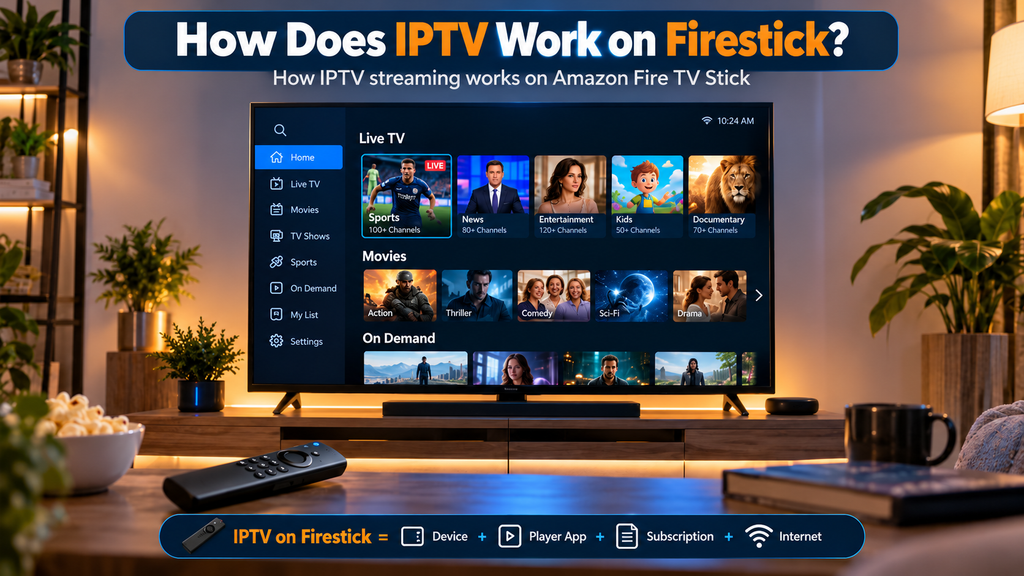
IPTV on Firestick works by connecting an IPTV player to a streaming service using an M3U playlist or Xtream Codes API login. The Amazon Fire TV Stick receives video streams over the internet and plays live TV channels, sports, movies, and on-demand content on your television.
Here’s how it works:
- Amazon Fire TV Stick: Connects to your TV’s HDMI port and runs compatible streaming apps through Fire OS or Vega OS, depending on the model.
- IPTV Player: Apps like TiviMate, IPTV Smarters Pro, and XCIPTV organize channels, playlists, and video playback. These apps do not provide TV content themselves.
- IPTV Subscription: A licensed IPTV provider supplies access to live channels and on-demand content through an M3U URL or supported login credentials.
- Internet Connection: The Firestick streams video over Wi-Fi or Ethernet, allowing you to watch content without traditional cable or satellite TV.
An IPTV player is not the same as an IPTV subscription provider. The player handles playback, while the provider supplies the content.
Do You Need an IPTV Subscription for Firestick?
You don’t always need a paid IPTV subscription for Firestick. Some legal IPTV services offer free live TV channels. However, premium channels, sports, and on-demand content typically require a subscription from an authorized provider.
What Do You Need to Watch IPTV on Firestick?
You need a Fire OS Firestick, an active IPTV subscription, your M3U playlist URL or Xtream Codes login, and a connection of at least 15 Mbps. The app itself supplies no channels.
| Requirement | Purpose |
| Amazon Fire TV Stick | Runs compatible streaming applications |
| HDMI-compatible television | Displays the video |
| Wi-Fi or Ethernet connection | Provides internet access |
| Compatible IPTV player | Plays and organizes channels |
| Legal IPTV subscription or playlist | Provides authorized content |
| M3U URL or supported login credentials | Connects your player to the service |
| EPG link | Displays TV schedules |
| Storage | Around 100 MB free (but it may vary in different Amazon Fire TV Stick devices) |
For smooth HD playback, aim for approximately 15–20 Mbps of stable available bandwidth. Many 4K streams benefit from at least 25 Mbps, though the exact requirement depends on the video bitrate and compression.
You do not necessarily need a paid IPTV subscription. Some legal services offer free television channels.
Check Which Fire TV Stick You Own
Amazon now ships two different operating systems. Fire OS is Android-based and allows sideloading. Vega OS is Linux-based and blocks it entirely, with no workaround. Which one you have decides everything that follows.
Amazon’s developer documentation states that starting with the Fire TV Stick 4K Select, all future Fire TV Sticks will run Vega. The Fire TV Stick 4K Plus and 4K Max are the last Android-based sticks that allow sideloading.
| Fire TV model | Operating system | Sideloading |
| Fire TV Stick 4K Max | Fire OS | Supported |
| Fire TV Stick 4K Plus | Fire OS | Supported |
| Fire TV Stick 4K (2023) | Fire OS | Supported |
| Fire TV Stick HD (Wi-Fi 5 version) | Fire OS | Supported |
| Fire TV Cube | Fire OS | Supported |
| Fire TV Stick 4K Select | Vega OS | Blocked |
| Fire TV Stick HD (2026 version) | Vega OS | Blocked |
Two devices share the name Fire TV Stick HD. Only the Wi-Fi 5 edition runs Fire OS and supports sideloading. The 2026 release runs Vega OS and does not.
How to Check Your Firestick Model
Go to Settings → My Fire TV → About. The model name appears there. If you see 4K Select, or an HD model released in 2026, you have Vega OS.
A quicker test: search the Amazon Appstore for the Downloader app. If it is unavailable on your device, you are on Vega OS.
If you are buying a Firestick specifically for IPTV, the Fire TV Stick 4K Max is the safest choice available now.
How to Install IPTV on Amazon Fire TV Stick
The safest and easiest installation method is through the Amazon Appstore. Some older Fire OS models also support installing compatible applications outside the Appstore.
Method 1: Install IPTV From the Amazon Appstore
Use this method whenever your preferred IPTV application is officially available for your device.
- Turn on your Fire TV Stick and connect it to Wi-Fi.
- Open Find or Search from the Fire TV home screen.
- Enter the name of your preferred IPTV application.
- Select the application from the available results.
- Choose Get or Download.
- Open the application after installation.
- Enter your IPTV playlist or subscription credentials.
Once your playlist loads, select a channel to start watching.
Application availability depends on your country, Fire TV model, and operating system.
Method 2: Install a Compatible IPTV APK on Supported Fire OS Devices
Some IPTV applications are distributed directly by their developers rather than through the Amazon Appstore.
On supported Fire OS devices, this may require installing an APK file, commonly called sideloading.
Step 1: Check Developer Options
Navigate to:
Settings → My Fire TV → Developer Options
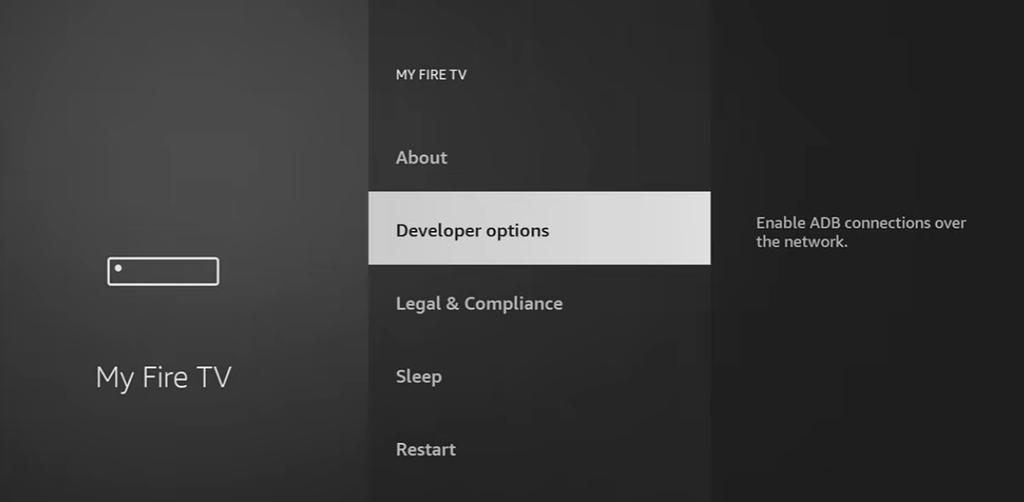
If Developer Options is not visible on a compatible older device:
- Open Settings → My Fire TV → About.
- Highlight your Fire TV device name.
- Press the remote’s Select button seven times.
- Return to My Fire TV and check for Developer Options.
Step 2: Allow installation for your trusted installer
Where supported, enable the installation permission for the app that will open your APK file.
Step 3: Download the application
Use a trusted installer or browser to obtain the APK directly from the developer’s verified website.
Avoid unofficial APK repositories and modified IPTV applications.
Step 4: Connect Your IPTV Service
Open the installed IPTV player and add your authorized M3U playlist or supported account credentials.
Your channels should appear after the app successfully loads your subscription information.
What If Your Firestick Runs Vega OS?
Vega OS devices cannot install conventional Android IPTV APKs.
Instead:
- Open the Amazon Appstore.
- Search for a streaming or IPTV player compatible with your device.
- Check that the application supports your playlist or television service.
- Install the app and follow its setup instructions.
If your preferred IPTV player is unavailable, consider using another supported streaming device instead of sideloading an Android APK on Vega OS.
How to Set Up IPTV Smarters Pro on Firestick
To use IPTV Smarters Pro on Firestick, install a compatible version of the player, choose your login method, and enter the subscription details supplied by your IPTV provider.
IPTV Smarters Pro is a widely recognized IPTV player associated with playlist-based television streaming. Its availability and compatibility depend on the specific app version and Fire TV operating system.
Follow these steps after installing a compatible application.
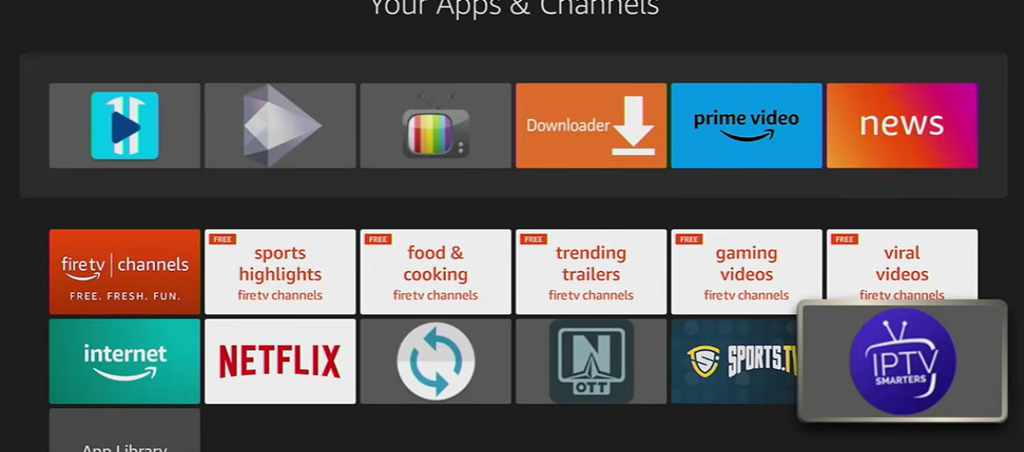
Step 1: Open IPTV Smarters Pro
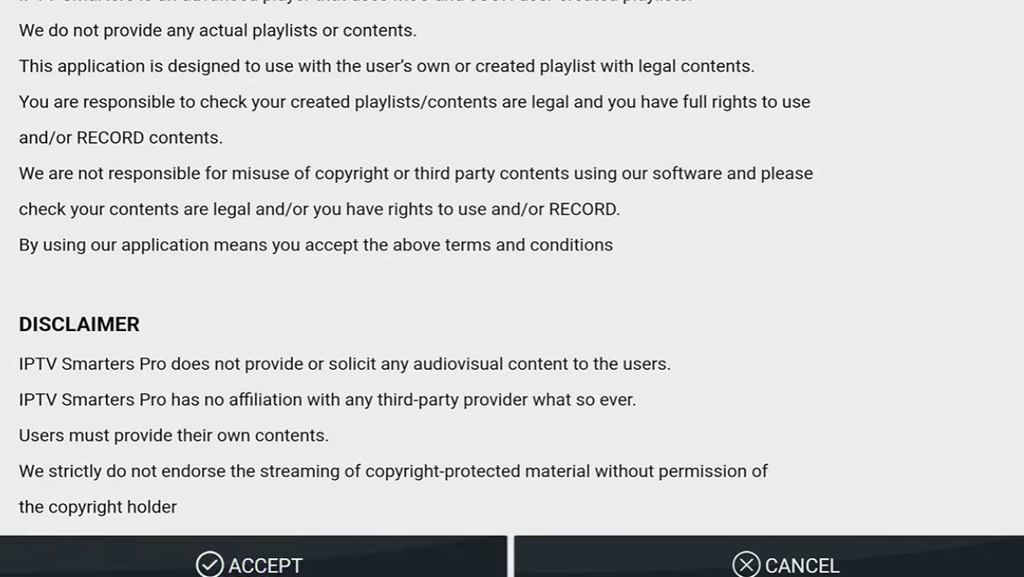
Launch the application and proceed through its initial setup screen.
Accept the terms only after reviewing them.
Step 2: Choose a Login Method
Depending on the application version, you may see options such as:
- Login with Xtream Codes API
- Load Your Playlist or File/URL
- Add an M3U Playlist
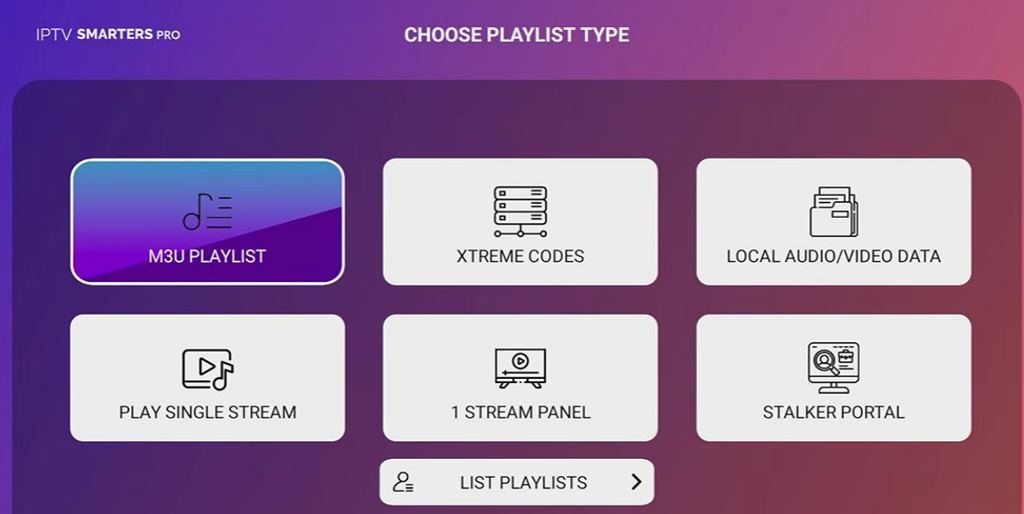
Your IPTV provider should identify which login method it supports.
Step 3: Enter Your IPTV Credentials
For Xtream Codes-compatible login, enter:
- Playlist Name: Any recognizable name
- Username: Supplied by your provider
- Password: Supplied by your provider
- Server URL: The authorized portal address
Select the option to add the account or user.
Step 4: Load Your Channels
Allow the application to retrieve your available channels, movies, series, and program information.
Select Live TV to browse channel categories.
Step 5: Start Streaming
Open Live TV, select a channel category, and choose a channel using your Firestick remote.
If your provider supports EPG data, television schedules may also appear.
For additional configuration instructions, see our IPTV Smarters Pro setup guide.
Note: IPTV Smarters Pro is a media player. It does not include a television subscription or provide broadcasting rights.
5 Best IPTV Apps for Firestick in 2026
The best IPTV apps for Firestick in 2026 include TiviMate, IPTV Smarters Pro, Kodi, VLC, and XCIPTV. TiviMate is our top choice for live TV and EPG features, IPTV Smarters Pro is ideal for beginners, and VLC offers simple, free M3U playback.
Most Android-based IPTV apps require a compatible Fire OS device, as newer Vega OS Firesticks do not support installing Android APKs.
| App | Best for | Pricing | Login types |
| TiviMate | Overall experience and EPG | Free / Premium | M3U, Xtream Codes |
| IPTV Smarters Pro | Beginner-friendly setup | Varies by version | M3U, Xtream Codes |
| Kodi with PVR add-on | Customization | Free | M3U |
| VLC for Fire TV | Basic playback | Free | Network URL, M3U |
| XCIPTV | Live TV and VOD | Varies by version/provider | Provider-dependent |
1. TiviMate – Best Overall IPTV Player
TiviMate provides a television-style interface with organized channel lists and program schedules.
- Features: EPG, favorites, catch-up TV, recording, and multiple playlists.
- Pricing: Free basic version; paid Premium features.
- Installation: Sideloading on compatible Fire OS devices.
Best for: Viewers who primarily watch live television on compatible Android-based Fire TV devices.
2. IPTV Smarters Pro – Best for Beginners
IPTV Smarters Pro offers a straightforward interface for managing IPTV subscriptions.
- Features: M3U playlists, Xtream Codes API, EPG, and multi-screen support.
- Pricing: Free basic features; optional paid upgrades.
- Installation: App Store availability varies; compatible Fire OS devices may support sideloading.
Best for: Beginners who have an IPTV provider’s login details.
3. Kodi with PVR Add-on – Best for Customization
Kodi is a free, open-source media center. Its PVR IPTV Simple Client add-on can load M3U channel playlists and XMLTV program guides.
- Features: Live TV, XMLTV EPG, channel groups, and customizable interface.
- Pricing: Completely free.
- Installation: Install a compatible Kodi version, then enable the PVR IPTV Simple Client add-on.
Best for: Advanced users who want greater control over their IPTV setup and local media library.
4. VLC for Fire TV – Best Free IPTV Player
VLC is a free, open-source media player that supports network streams and M3U playlists. It is suitable for basic IPTV playback.
- Features: M3U support, network streaming, multiple video formats, and subtitle support.
- Pricing: Completely free.
- Installation: Search for VLC in the Amazon Appstore on compatible Fire TV devices.
Best for: Basic IPTV playback without a dedicated cable-style TV guide.
5. XCIPTV – Best Alternative IPTV Interface
XCIPTV provides a television-oriented interface for IPTV services, with features that vary by version.
- Features: EPG, catch-up TV, VOD, and internal or external video players.
- Pricing: Depends on the app version or provider.
- Installation: Typically installed via a provider or a compatible APK on supported devices.
Best for: Users whose authorized IPTV provider supports the application.
Which IPTV app should you choose? For organized live TV, consider TiviMate. For beginner-friendly IPTV account setup, consider IPTV Smarters Pro. For basic M3U streaming, VLC may be sufficient.
How to Install an IPTV App on Firestick
You can install an IPTV app on Amazon Fire TV Stick through the Amazon Appstore or by sideloading a compatible APK using Downloader. After installation, add your M3U playlist or Xtream Codes login to start watching IPTV.
Method 1: Install From the Amazon Appstore
- Open Find → Search on your Firestick.
- Search for a compatible IPTV player.
- Select Get or Download to install it.
- Open the app and enter your IPTV subscription details.
Method 2: Install IPTV Using Downloader
On supported Android-based Fire OS devices:
- Install Downloader: Search for Downloader by AFTVnews in the Amazon Appstore and install it.
- Enable App Installation: Go to Settings → My Fire TV → Developer Options → Install Unknown Apps and allow Downloader. If Developer Options is hidden, select your device name under About seven times.
- Download the IPTV APK: Open Downloader and enter the developer’s official app download URL.
- Install the App: Open the downloaded APK and select Install.
- Add Your IPTV Playlist: Launch the player and enter your M3U URL or Xtream Codes credentials provided by your authorized IPTV service.
Note: The Fire TV Stick 4K Select uses Vega OS and does not support standard Android APK sideloading. Use compatible apps available through its official App Store instead.
If You Have a Vega OS Fire TV Stick
Sideloading is not possible on Vega OS, and there is no workaround for ordinary users. Your options are the Amazon Appstore, casting from a phone, or buying a Fire OS device.
Amazon’s own product page for the Fire TV Stick 4K Select states that only apps from the Amazon Appstore can be downloaded. The restriction is deliberate and came in response to pressure from anti-piracy groups.
Your three Options
Use an Appstore IPTV app. A small number of M3U players are published in the Amazon Appstore. VLC is the most reliable of them. Check what is available on your device before assuming nothing works.
Cast from your phone. Install an IPTV app on an Android phone and cast to the Firestick. This works but ties up the phone and adds latency, so it suits occasional viewing rather than daily use.
Buy a Fire OS device. The Fire TV Stick 4K Max remains available and supports sideloading. An Android TV box is another option if you want long-term flexibility.
One thing worth knowing: there is no indication that Amazon plans to disable sideloading on existing Fire OS devices. If yours works today, it should keep working.
How to Add an M3U Playlist to Firestick IPTV
An M3U playlist is a file or URL containing references to media streams. Many IPTV players use this format to organize television channels.
To add an M3U playlist:
- Open your compatible IPTV application.
- Find Add Playlist, M3U URL, or a similar option.
- Enter the playlist URL supplied by your authorized provider.
- Give the playlist a recognizable name.
- Save the information.
- Allow the application to load the available channels.
- Select a channel to begin playback.
Some applications also accept local M3U files.
If your IPTV service supplies an XMLTV EPG URL, you may be able to add it separately to display program schedules.
Keep playlist URLs and login credentials private because they may contain account authentication information.
7 Common Fixes for IPTV Fire Stick
IPTV not working on Firestick is usually caused by a slow or unstable internet connection, outdated IPTV apps, corrupted app cache, or IPTV server issues. In some cases, ISP restrictions may also interrupt streaming.
1. Clear App Cache: Go to Settings → Applications → Manage. Installed Applications, select your IPTV app, and choose Clear Cache. Use Clear Data only if necessary, as it removes saved settings and logins.
2. Check App Permissions: Open your IPTV app’s settings and enable required file or media permissions, if available.
3. Restart Firestick and Router: Restart your Fire TV Stick and unplug your Wi-Fi router for 60 seconds to fix temporary connection issues.
4. Check Your Internet Connection: Run a speed test and use stable Wi-Fi. Aim for at least 10 Mbps for HD and 25 Mbps for 4K streaming.
5. Check VPN or ISP Restrictions: If your ISP is restricting legitimate streaming traffic, a reputable VPN may help. However, a VPN does not guarantee better performance or resolve every connection issue.
6. Update or Reinstall the IPTV App: Install the latest compatible version of TiviMate, IPTV Smarters Pro, or your preferred player. Reinstall only if updating fails.
7. Verify Your IPTV Playlist: Check your M3U URL, Xtream Codes credentials, and subscription status. Contact your IPTV provider if channels still fail to load.
Quick Tip: If other streaming apps work but your Firestick IPTV app does not, check the IPTV playlist, app settings, and provider server before changing your internet connection.
How to Choose the Best IPTV for Firestick 2026
Choosing the best IPTV for Firestick involves more than finding a low subscription price.
A reliable service should provide authorized content, clear pricing, compatible streaming methods, and accessible customer support.
Consider these 6 factors:
- Content licensing: Confirm that the provider is authorized to distribute the channels and programs it sells.
- Firestick compatibility: Check whether the service offers a supported application, playlist format, or official Fire TV integration.
- Streaming quality: Look for stable HD or 4K streaming appropriate for your device and internet speed.
- EPG support: An electronic program guide makes live television easier to navigate.
- Customer support: Choose services that publish clear contact information and support instructions.
- Subscription transparency: Review pricing, cancellation terms, renewal policies, and refund conditions.
Final Thoughts – IPTV Fire TV Stick
The Amazon Fire TV Stick is a popular device for IPTV streaming, but not all models support the same IPTV apps. Newer Firesticks running Vega OS cannot install standard Android APKs, whereas compatible Fire OS models support sideloading IPTV apps via Downloader.
Before following an IPTV Firestick setup guide, check your device’s operating system. If you plan to use apps like TiviMate or IPTV Smarters Pro, a Fire TV Stick 4K Max running Fire OS is a suitable choice.
Existing Fire OS devices generally support sideloading, although app compatibility and Amazon’s future policies may change.
Frequently Asked Questions – IPTV for Fire Stick
What is the best IPTV app for Firestick?
The Fire TV Stick 4K Max is a great choice for IPTV streaming, offering fast performance and 4K video support. For non-4K TVs, the Fire TV Stick HD is a more affordable option with convenient TV power and volume controls.
Is There a Monthly Fee for the Amazon Fire Stick?
No, the Amazon Fire TV Stick has no monthly fee. You pay once for the device. However, premium streaming apps, IPTV subscriptions, and services like Netflix or Disney+ may require separate monthly payments.
How Much Does a Fire Stick Cost?
Amazon Fire TV Stick prices typically range from $30 to $60, depending on the model. The Fire TV Stick Lite starts at $29.99, Fire TV Stick HD at $39.99, Fire TV Stick 4K at $49.99, and 4K Max at $59.99. Prices can change anytime.
Where To Buy Fire Stick?
You can buy an Amazon Fire TV Stick from Amazon, Best Buy, Target, or Staples. Amazon is a good place to start, as it often offers discounts on Firestick models during seasonal sales and promotions.
What Streaming Services Are Available on Amazon Fire TV Stick?
Amazon Fire TV Stick supports popular streaming services like Netflix, Prime Video, Disney+, HBO Max, Hulu, Peacock, Paramount+, Apple TV, and STARZ. Amazon Prime members also get access to Prime Video, though most content includes ads unless they pay extra for ad-free viewing. App availability and subscription costs vary by region.
How To Use a Fire TV Stick
To stream on an Amazon Fire TV Stick, search for your preferred app on the home screen, download it, and sign in if required. You can stream movies, TV shows, and live channels through free or paid apps.
What Is a Fire TV Stick?
Amazon Fire TV Stick lets you watch movies, TV shows, live sports, news, and IPTV channels through apps like Netflix, YouTube, Prime Video, and compatible IPTV players. Simply connect your Firestick to your TV and Wi-Fi to access free and paid streaming content.
Can I watch IPTV for free on my Firestick?
Yes, you can watch free IPTV on Firestick using legal streaming apps and free-to-air TV services. However, premium channels, live sports, and exclusive content usually require a paid subscription.
Is IPTV on Firestick legal?
Yes, IPTV on Firestick is legal when you use licensed IPTV services that have permission to stream their content. However, watching copyrighted channels, movies, or sports through unauthorized IPTV providers may violate copyright laws.
Is Amazon Firestick blocking IPTV?
Amazon is not blocking all IPTV apps on Firestick, but it restricts apps linked to unlicensed content. Newer Firesticks running Vega OS also prevent Android APK sideloading, while older Fire OS models generally support compatible IPTV apps.
What’s better than Firestick for IPTV?
NVIDIA Shield TV Pro and Google TV streaming devices are good alternatives to Firestick for IPTV. They support compatible IPTV apps like TiviMate, offer flexible app installation, and provide smooth HD and 4K streaming.
How to jailbreak a Firestick for IPTV?
To jailbreak a Firestick for IPTV, enable Developer Options and allow app installation from unknown sources on a compatible Fire OS device. Then use Downloader to install a trusted IPTV APK. No actual jailbreaking is required, and this method does not work with Android APKs on Vega OS Firesticks.
What is the best streaming device in 2026?
The NVIDIA Shield TV Pro, Apple TV 4K, and Amazon Fire TV Stick 4K Max are among the best streaming devices in 2026. NVIDIA Shield TV Pro is a strong choice for IPTV, Apple TV 4K offers smooth premium streaming, and Fire TV Stick 4K Max provides an affordable 4K experience.
How to install IPTV Smarters Pro on Firestick?
To install IPTV Smarters Pro on Firestick, search for the app in the Amazon App Store. If unavailable, use Downloader to install the official APK on a compatible Fire OS device. Open the app, enter your M3U URL or Xtream Codes login, and start streaming. Android APK sideloading is not supported on Vega OS Firesticks.
How to download IPTV Smarters Pro on Firestick?
To download IPTV Smarters Pro on Firestick, search for the app in the Amazon App Store. If unavailable, install its official APK using Downloader on a compatible Fire OS device. Vega OS Firesticks do not support Android APK installation.
How to download IPTV on Firestick?
To download IPTV on Firestick, open the Amazon Appstore, search for a compatible IPTV player, and install it. Alternatively, use Downloader to install a trusted IPTV APK on supported Fire OS devices. Then add your M3U playlist or Xtream Codes login to start streaming.
Your article helped me a lot, is there any more related content? Thanks!
I don’t think the title of your article matches the content lol. Just kidding, mainly because I had some doubts after reading the article.
Your point of view caught my eye and was very interesting. Thanks. I have a question for you.
Thank you for your sharing. I am worried that I lack creative ideas. It is your article that makes me full of hope. Thank you. But, I have a question, can you help me?
Can you be more specific about the content of your article? After reading it, I still have some doubts. Hope you can help me.
Thank you for your sharing. I am worried that I lack creative ideas. It is your article that makes me full of hope. Thank you. But, I have a question, can you help me?
Thanks for another great article. Where else could anyone get that type of information in such a perfect way of writing? I have a presentation next week, and I’m on the look for such information.