Smart IPTV, also known as SIPTV, is an IPTV player that lets you load your own M3U playlist and stream live TV and video content on compatible devices. It does not provide channels or subscriptions itself.
On supported Fire TV and Android TV devices, you can install the app and then add your IPTV playlist through the Smart IPTV web portal. Smart IPTV also works on supported Smart TVs, so the exact installation method depends on your device.
This guide explains how to install Smart IPTV on Firestick, Fire TV, Android TV, and Google TV, then add an M3U playlist and start streaming.
What You Need Before Installing Smart IPTV
Before you begin, make sure you have:
- A compatible Fire TV, Android TV, or Google TV device
- A stable internet connection
- The official Smart IPTV app
- An IPTV subscription that provides a working M3U playlist URL
- A smartphone, computer, or laptop for entering your playlist details
Important: Smart IPTV is only a media player. The official activation page states that no TV channels are included with the app. Hence, you need to obtain your own content source separately.
How to Install Smart IPTV on Firestick and Fire TV
The installation process can vary slightly between Fire TV models and Fire OS versions. The steps below cover the common method for installing an app from outside the Amazon App Store.
Step 1: Install Downloader
- From the Fire TV home screen, select Find or Search.
- Search for Downloader.
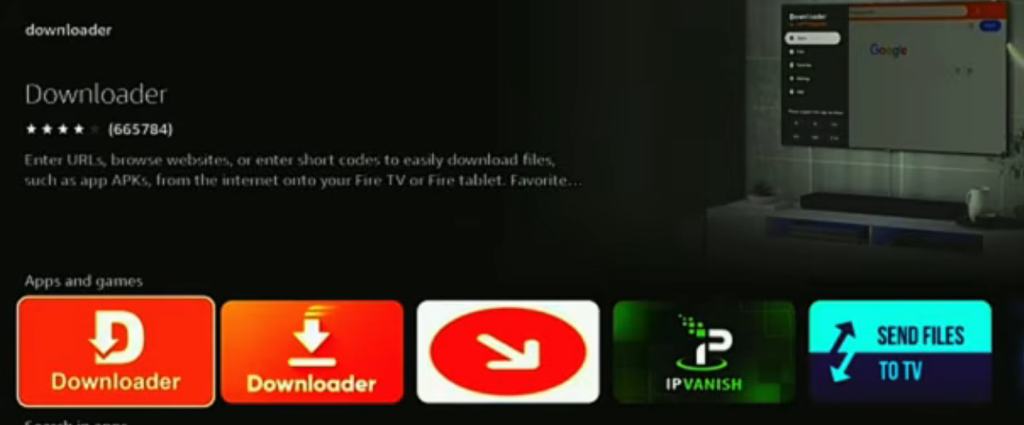
- Select the Downloader app from the results.
- Choose Get or Download.
- Wait for the installation to finish.
- Open Downloader.
Downloader is commonly used to access and install apps outside the Amazon App Store (sideloading). Amazon describes installing apps outside the App Store as sideloading.
Step 2: Allow Downloader to Install Apps
To install an APK through Downloader, Fire TV may require permission for apps from outside the Amazon App Store.
- Open Settings.
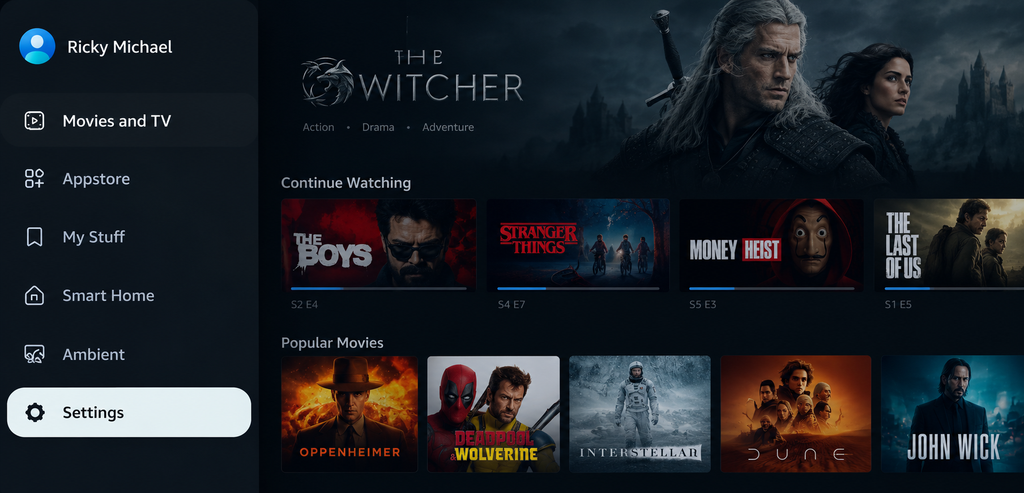
- Select My Fire TV or Device & Software, depending on your Fire OS version.
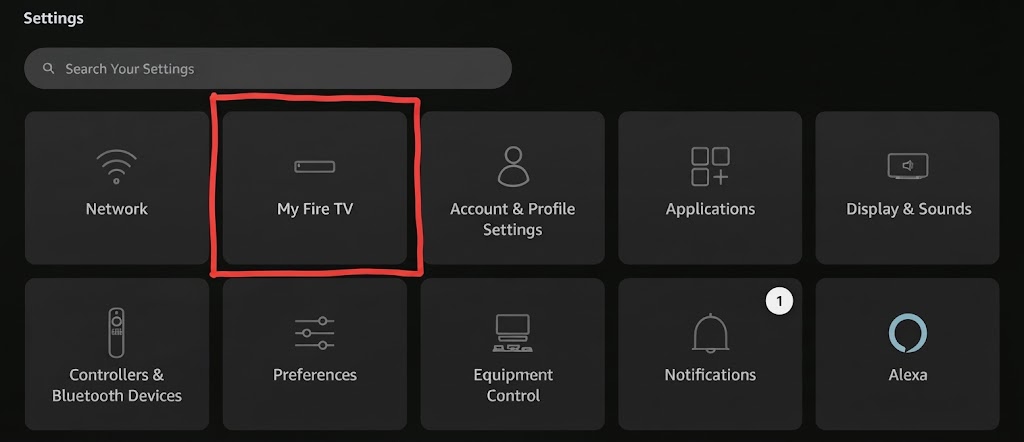
- Open Developer Options.
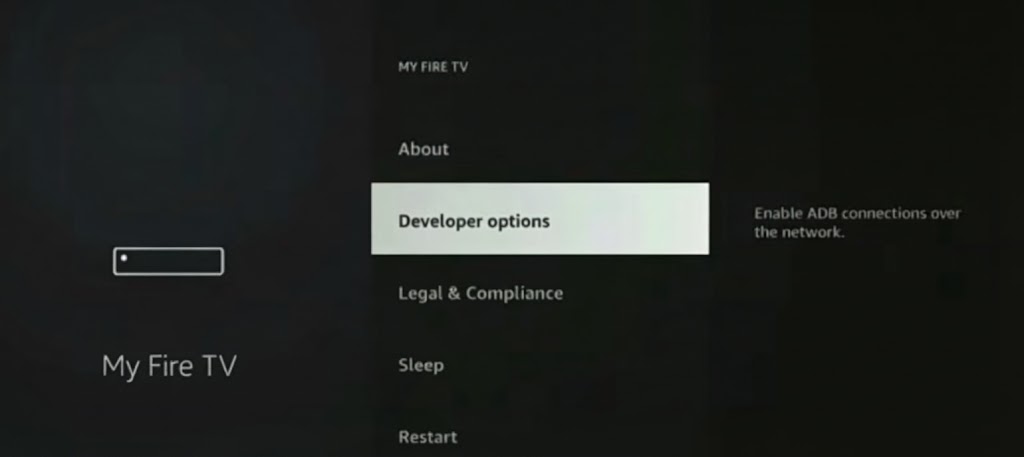
- Select Install unknown apps.
- Find Downloader and turn the permission on.
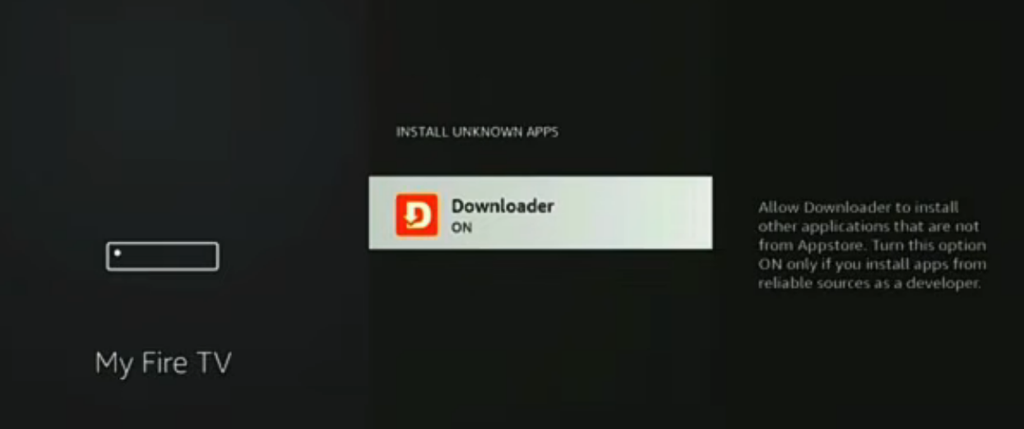
Amazon’s Fire TV documentation confirms that compatible Fire TV versions use the Developer Options area to enable installation from unknown sources. Menu names can differ between software versions.
Developer Options Is Missing?
On some compatible Fire TV versions, Developer Options can be enabled by going to:
Settings → My Fire TV → About → Your Fire TV
Then press the center button on the remote seven times. Return to the previous menu and check whether Developer Options now appears.
However, this method is not universal across current Fire TV software. Amazon’s documentation notes that Developer Options is not supported on Fire OS 14. Therefore, the available installation options depend on your device and operating system.
Step 3: Download and Install Smart IPTV
Once Downloader is ready:
- Open Downloader.
- Select the URL or search field.
- Enter the current Smart IPTV download address provided by the official Smart IPTV website.
- Download the compatible APK.
- Select Install when the APK prompt appears.
- Wait for the installation to finish.
- Select Done.
- Delete the downloaded APK if you no longer need it to free up storage.
Important: Avoid Unverified APK Sources
Do not download Smart IPTV from random APK websites simply because an old installation guide lists a Downloader code. APK addresses and short codes can change, and third-party download pages may distribute modified or outdated files.
For the safest setup, use the official Smart IPTV website or a source you can independently verify.
How to Install Smart IPTV on Android TV and Google TV
The process is similar on Android TV and Google TV, although menu names vary by manufacturer.
Method 1: Install From the Built-In App Store
If Smart IPTV appears in your device’s official app store:
- Open the Apps section.
- Search for Smart IPTV or SIPTV.
- Select the official app.
- Choose Install.
- Open Smart IPTV after installation.
This is the preferred method because it avoids downloading an APK from an unknown source.
Method 2: Install the APK
If the app is not available in your device’s app store, you can install a compatible APK.
Before installing an APK, verify that it comes from a trustworthy source and that the version is compatible with your Android TV or Google TV device.
How to Set Up Smart IPTV With an M3U Playlist
Installing Smart IPTV does not automatically give you live TV channels. You must add a compatible playlist from your IPTV provider.
Step 1: Open Smart IPTV
Launch Smart IPTV on your Fire TV, Android TV, or Google TV device. The app displays the device information needed to connect your playlist.
Step 2: Find Your Device MAC Address or ID
Smart IPTV uses device identification information when you upload a playlist. Depending on the device and app version, this may be shown as a MAC address or device ID. Write down the information displayed by the app.
Step 3: Open the Smart IPTV Playlist Portal
Using a phone or computer, open the official Smart IPTV playlist management page. Enter the device information requested by the portal and provide the M3U playlist URL supplied by your IPTV provider.
Step 4: Submit the Playlist
Check the information carefully and submit the playlist. Then return to your TV and restart Smart IPTV.
If the playlist is valid and the device information matches, the channel list should load in the app.
How to Activate Smart IPTV
Smart IPTV uses a trial and one-time activation model on supported devices.
The official activation page currently lists a €5.49 one-time activation fee per TV or device. Activation only unlocks the application; it does not provide channels or an IPTV subscription.
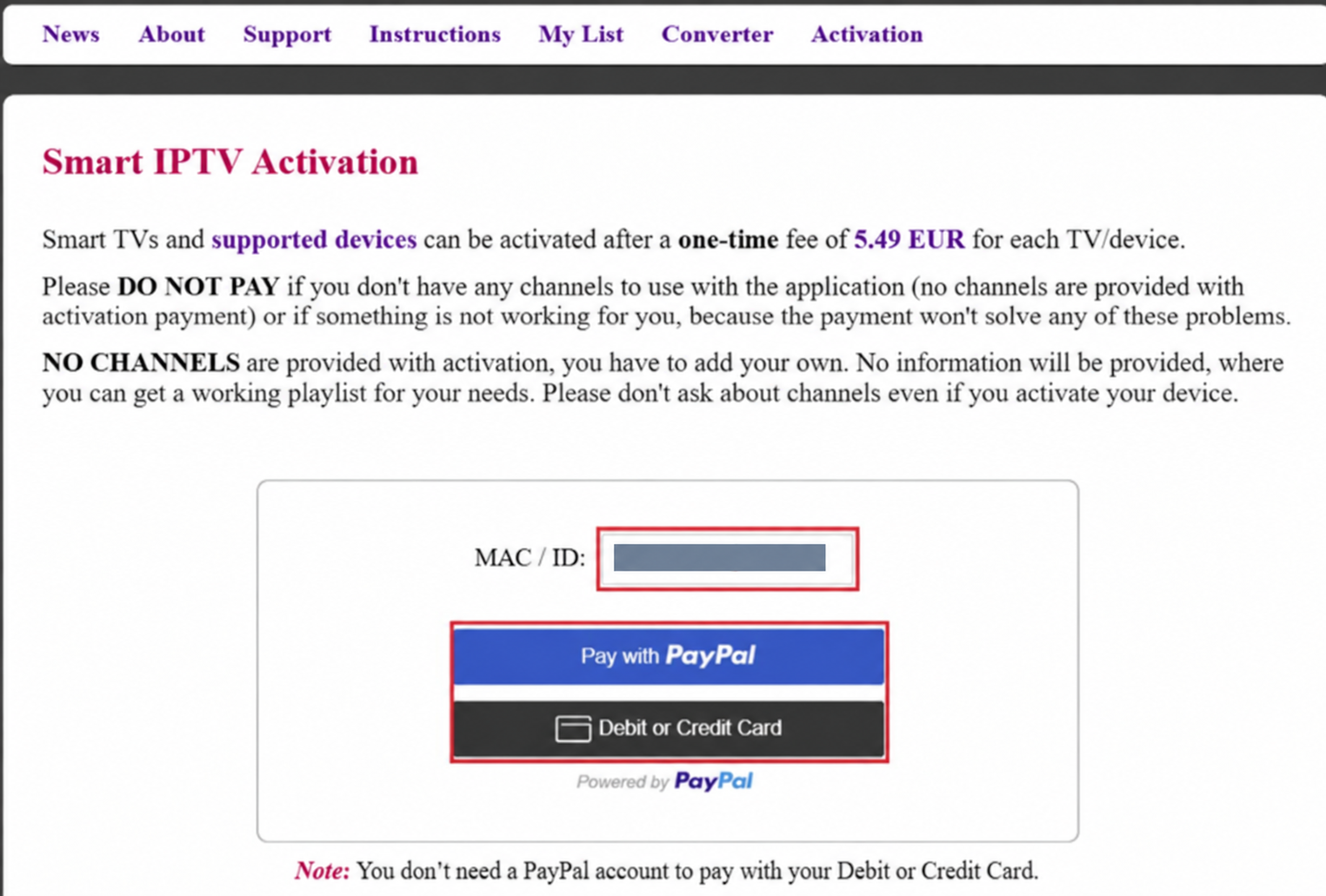
Before paying, make sure your playlist works correctly and that Smart IPTV is compatible with your device.
How to Install IPTV Smart Player on Google TV Streamer 4K & Chromecast
You can install an IPTV player on Google TV Streamer 4K or Chromecast through the Google Play Store or by sideloading it with Downloader.
Here’s the process:
First, open the Downloader application on your Google TV Streamer. Before opening that, there’s one setting you need to change. To access this setting, return to the main home screen and select Settings from the top right corner.
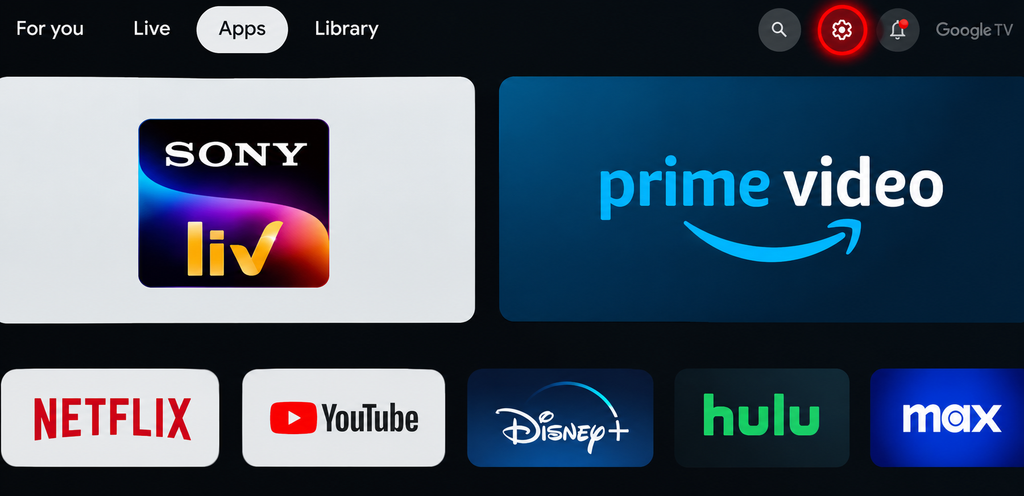
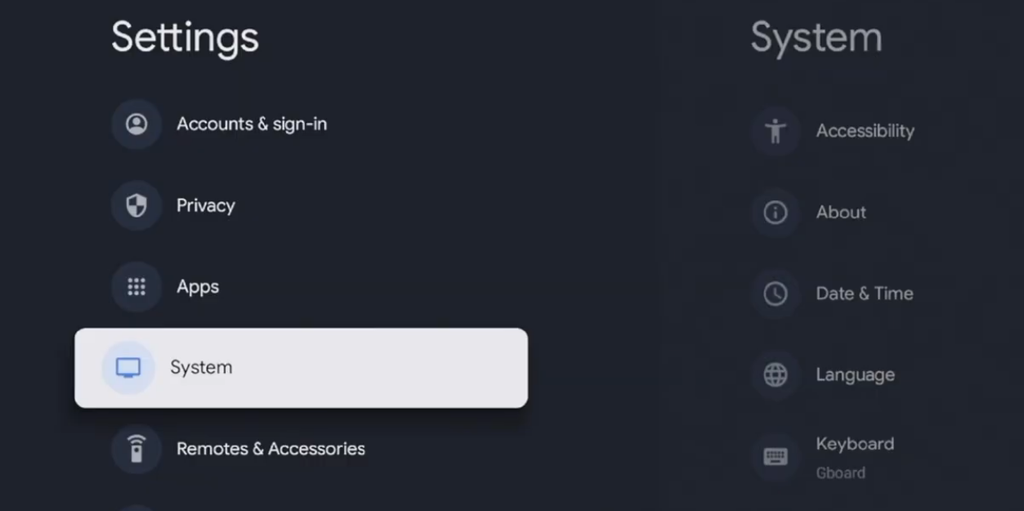
Inside Settings, scroll down and select System.
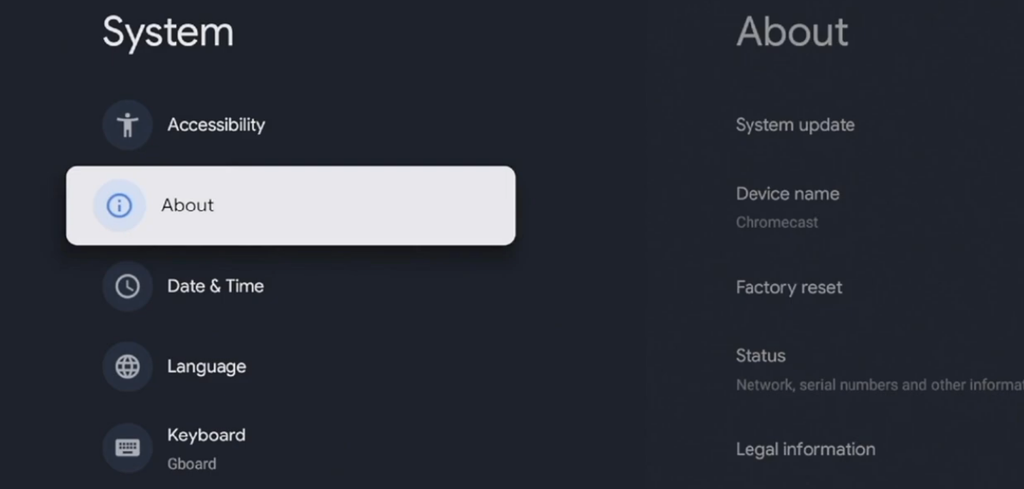
Next, scroll down again and choose “About“.
Now, find the option called Android TV OS build. After finding, press the okay button on your remote.
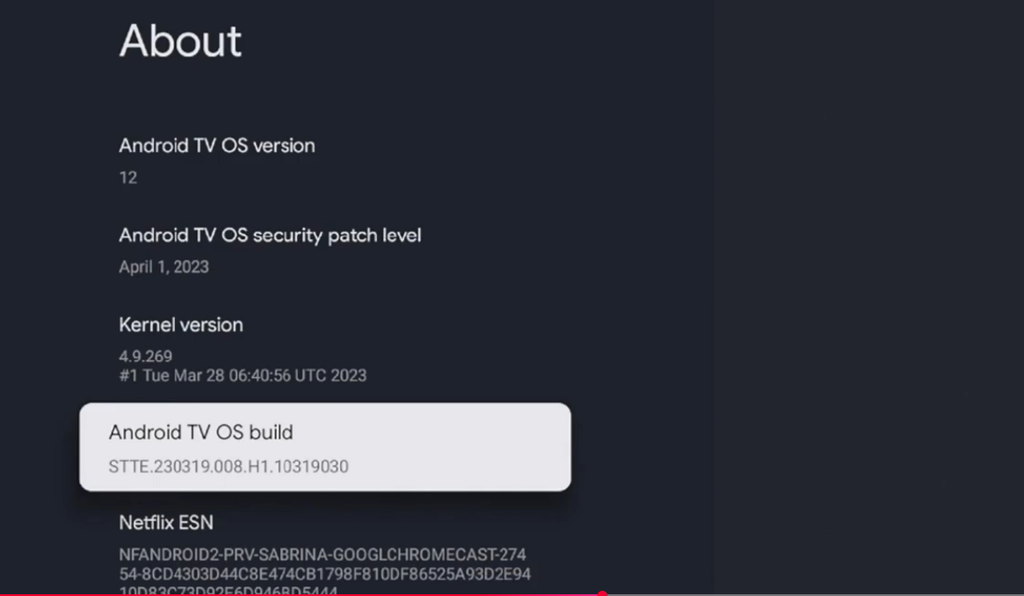
After finding it, press the OK button 7-8 times. After that, you’ll see a message confirming that Developer Mode has been enabled.
Get back to the home screen. Open the downloader application. Once the downloader is open, select the search box and enter the following code — 644142.
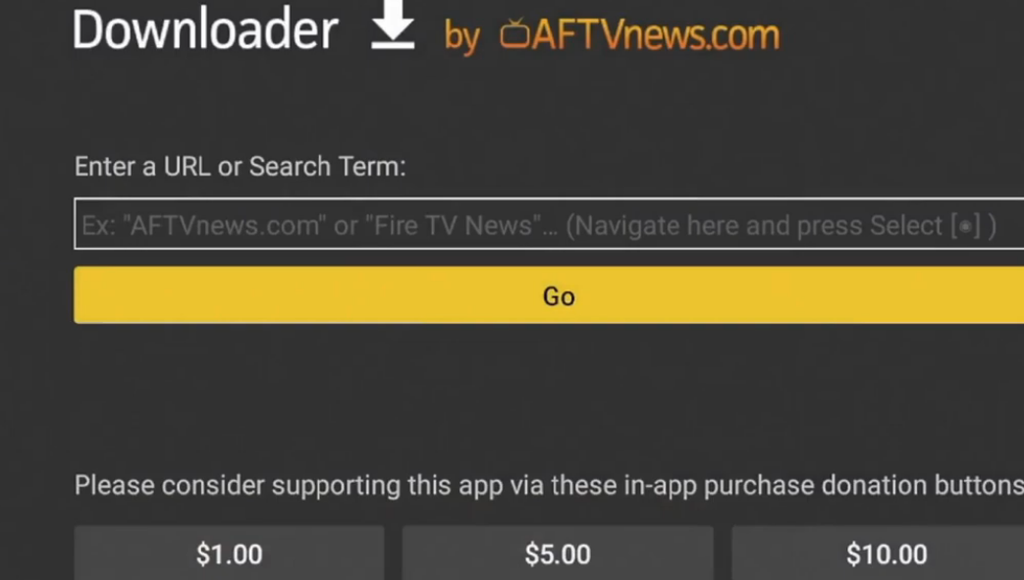
After entering the code, select Go.
The required file will begin downloading. Once the download is complete, follow the onscreen instructions to install the application. This is it.
How to Test Smart IPTV After Installation
Don’t stop after seeing your channel list. Test several parts of the service to make sure the setup works properly.
Test Live TV
Open several channels from different categories and check:
- Channel loading speed
- Picture quality
- Audio and video synchronization
- Buffering
- Channel switching speed
Test the VOD Library
If your IPTV provider supplies VOD content, open several movies and TV shows to check whether they load and play correctly.
Check the EPG
If your playlist includes Electronic Program Guide data, verify that program titles, descriptions, and schedules are displayed correctly.
Test Different Streaming Times
Try the service at different times of day. Testing during busy evening hours can give you a better idea of how the playlist and content provider perform under higher network demand.
Smart IPTV Features
Smart IPTV is primarily a playlist-based IPTV player rather than a content provider. Its main purpose is to organize and play compatible IPTV streams.
Depending on the device and playlist, users can access features such as:
- M3U playlist support
- Live TV channel playback
- Video on Demand
- Electronic Program Guide data
- Channel groups
- Playlist management
- Smart TV and streaming-device compatibility
Available features can vary by device, app version, and playlist.
Is Smart IPTV the Same as an IPTV Service?
No. This is one of the most important things to understand.
Smart IPTV is an IPTV player. It provides the software for loading and playing your playlist. An IPTV service provider supplies the actual television streams, channels, VOD content, or playlist credentials.
Think of it this way:
- Smart IPTV = media player
- IPTV provider = content source
You need a compatible content source to watch live TV through the player.
Is Smart IPTV Safe & Legal?
Smart IPTV isn’t available on the Amazon App Store, though it can be downloaded from the Google Play Store on supported devices.
Before installing an APK, you can check the file with a multi-engine security scanner such as MetaDefender Cloud. It scans uploaded files with multiple security engines and can help identify known malware or suspicious files.
Smart IPTV is a media player and does not provide TV channels or host streaming content itself. However, whether the content you watch is legal depends on the IPTV source and its broadcasting rights.
For safe and legal streaming, use Smart IPTV with legitimate IPTV services and content you have permission to access.
Common Smart IPTV Installation Problems
Let’s check 5 common installation problems of Smart Internet Protocol TV:
Smart IPTV Does Not Appear on Fire TV
The app may not be available through your device’s official app store. Check whether your Fire TV model and Fire OS version support the installation method you are using.
Downloader Cannot Install the APK
Check that:
- Downloader has permission to install unknown apps
- The APK is compatible with your device
- You have enough storage
- The downloaded file is complete and from a trustworthy source
The Playlist Is Empty
An empty playlist usually means the M3U URL is incorrect, expired, unavailable, or not properly linked to the device. Check the playlist URL with your IPTV provider.
Channels Keep Buffering
First, check your internet connection and test other channels. If only certain channels buffer, the problem may be related to the content source rather than Smart IPTV itself.
EPG Data Is Missing
EPG information comes from the playlist or content provider. If the channels play but the guide is empty or inaccurate, check whether your provider supplied valid EPG data.
Smart IPTV vs Other IPTV Players
Smart IPTV is particularly useful for users who want a straightforward playlist-based player on a compatible TV or streaming device. However, it is not the only option, alongside guides like our Kodi on Firestick install walkthrough.
TiviMate is popular among Android TV users who want a more feature-rich interface and playlist management tools.
VLC Media Player is another option for users who want a general-purpose media player that can handle compatible network streams. It’s a universal media player.
The best IPTV player depends on your device, playlist format, interface preferences, and the features you need.
Final Verdict on Smart IPTV Firestick
Smart IPTV is a straightforward IPTV player for users who already have a compatible M3U playlist and want to stream it on a supported TV or streaming device. Its setup is relatively simple once the app is installed, but the playlist and content source are separate from the player.
For the best experience, verify your device compatibility, use a legitimate content source, test the playlist before activating the app, and avoid downloading APK files from untrusted websites.
Frequently Asked Questions on Setting Up Smart IPTV on Firestick & Android TV
-
What is Smart IPTV?
Smart IPTV, or SIPTV, is an IPTV media player that allows users to load compatible playlists and stream live TV and other video content. It does not provide channels with activation.
-
Is Smart IPTV free?
Smart IPTV offers a trial on supported devices, followed by a one-time activation fee. The official activation page currently lists the fee as €5.49 per TV or device.
-
Does Smart IPTV provide channels?
No. Smart IPTV does not provide channels or an IPTV subscription. You must add your own compatible playlist or content source.
-
Can I install Smart IPTV on Firestick?
Smart IPTV can be used on compatible Fire TV devices, but the installation method depends on the Fire OS version and how the app is distributed. Current Fire TV software may have different installation options than older versions.
-
Can I use Smart IPTV on Android TV?
Yes, Smart IPTV can be used on compatible Android TV and Google TV devices. Availability and installation options may vary by device and region.
-
Does Smart IPTV support M3U playlists?
Yes. Smart IPTV is designed to load compatible IPTV playlists, including M3U playlist URLs.
-
Do I need an IPTV subscription to use Smart IPTV?
You need a compatible content source if you want to watch live TV or VOD content. Smart IPTV itself does not supply channels.
-
How much does Smart IPTV activation cost?
The official Smart IPTV activation page currently lists a €5.49 one-time fee per TV or device. Prices and payment options can change, so check the official activation page before purchasing.
I don’t think the title of your article matches the content lol. Just kidding, mainly because I had some doubts after reading the article.
Your point of view caught my eye and was very interesting. Thanks. I have a question for you.
I don’t think the title of your article matches the content lol. Just kidding, mainly because I had some doubts after reading the article.