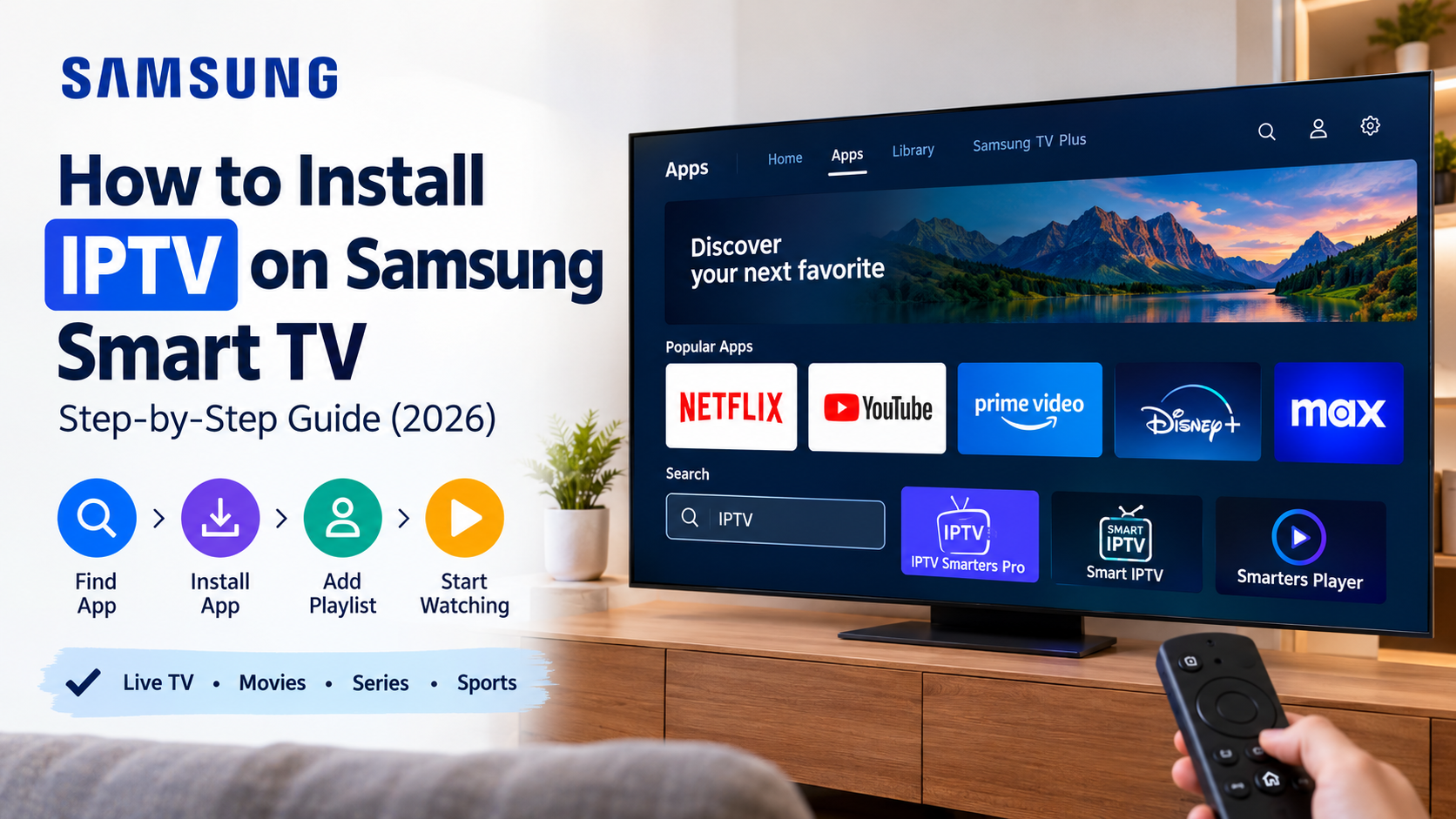
To install IPTV on a Samsung Smart TV, open Apps, search for a compatible IPTV player available for your TV, install it, and add your M3U playlist or Xtream Codes credentials. App availability varies by Samsung TV model, region, and Tizen version.
An IPTV player does not normally provide live TV channels or movies on its own. You need your own IPTV playlist or an IPTV service that provides compatible login details.
This guide explains how to install IPTV on a Samsung Smart TV, how to add M3U or Xtream Codes, what to do when an IPTV app is unavailable, and how to fix common playback problems.
| Can you install IPTV on a Samsung Smart TV? Yes. Open Home > Apps, search for a compatible IPTV player, select Install, and then enter the M3U URL or Xtream Codes provided by your IPTV source. Samsung Smart TVs use Tizen, so Android APK installation methods used on Firestick and Android TV do not directly apply. Available apps can also vary by TV model, software version, and region. |
What You Need Before Installing IPTV on a Samsung Smart TV
Before setup, make sure you have:
- A Samsung Smart TV (Tizen OS supported model)
- Stable internet connection (preferably 15 Mbps+ for HD)
- IPTV subscription from a provider
- M3U playlist URL or Xtream Codes login
- IPTV player app installed on your TV
- Load Channels and the EPG
Samsung requires a Samsung Account to access Smart Hub apps on applicable newer TVs, including models from 2023 onward.
How to Install and Configure IPTV on Samsung Smart TV
The exact menu names can vary slightly between Samsung TV models and software versions. The general process is the same. Let’s take a look closely to learn.
1. Open the Samsung App Store
Turn on your Samsung Smart TV and press the Home button on your remote. Navigate to the Apps section to access the Samsung App Store. Ensure your TV is connected to a stable internet connection before proceeding.
2. Search for a Compatible IPTV App
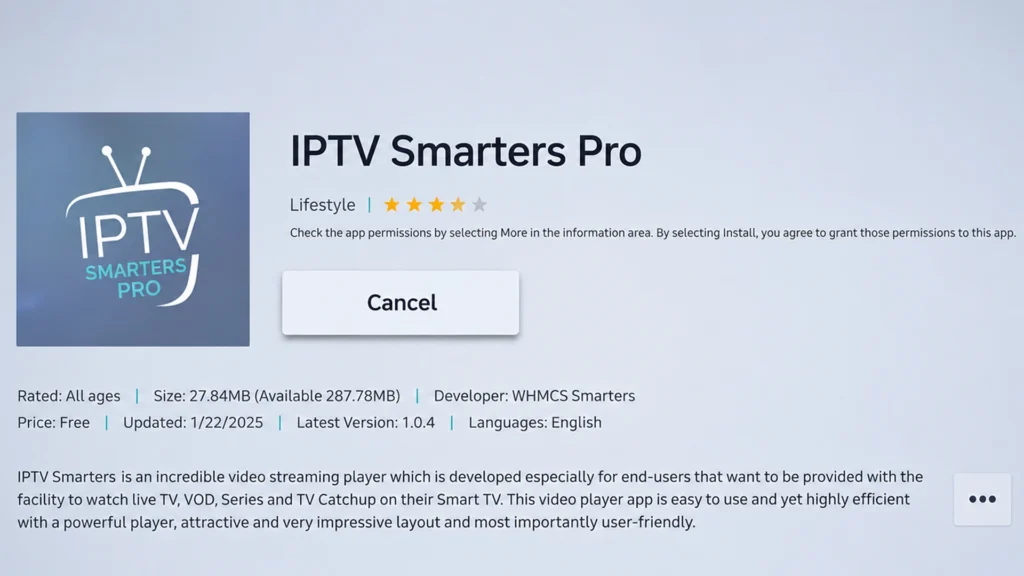
Use the search function within the App Store to find an IPTV player compatible with Samsung Smart TVs. Popular options include IPTV Smarters Pro, Smart IPTV, SmartOne IPTV, and other supported IPTV applications. Choose an app that meets your preferences and is compatible with your IPTV service provider.
3. Download and Install the IPTV App
Select your preferred IPTV app and click Install. After installing the app, open it. The first time you launch it, you’ve to accept the terms & conditions. Go ahead and select “Accept” to continue.
4. Add IPTV Subscription Details
Once the installation is complete, launch the app from the Apps section or your TV’s home screen. You can then proceed to add your IPTV subscription details, such as an M3U playlist URL or Xtream Codes credentials, to start streaming live TV and on-demand content.
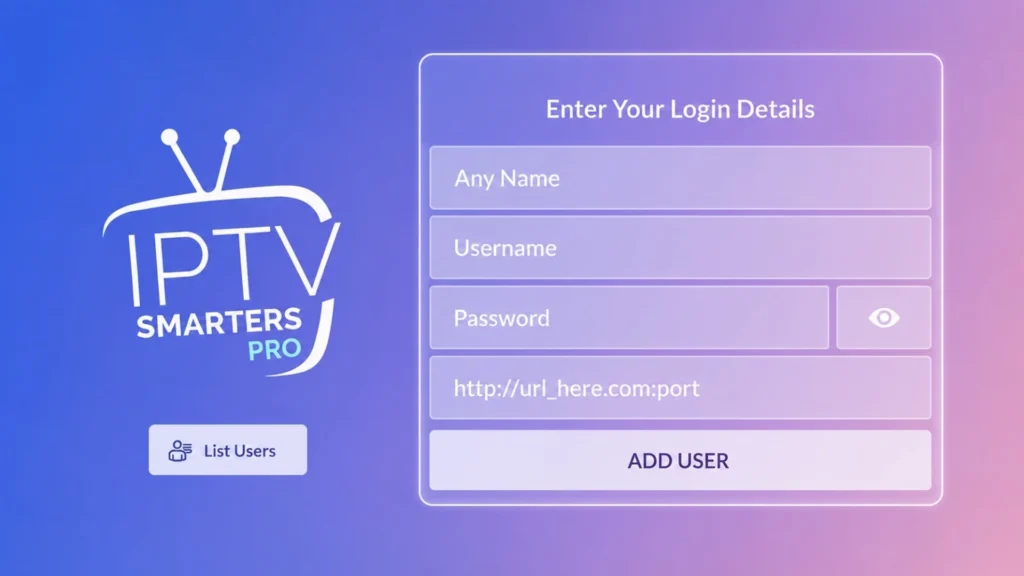
You’ll need 3 things – a username, a password, and a server URL. Take your time and ensure that everything is typed in correctly. After providing this information, select Add User or log in. The app will now begin loading your channels and content.
5. Access the IPTV Dashboard
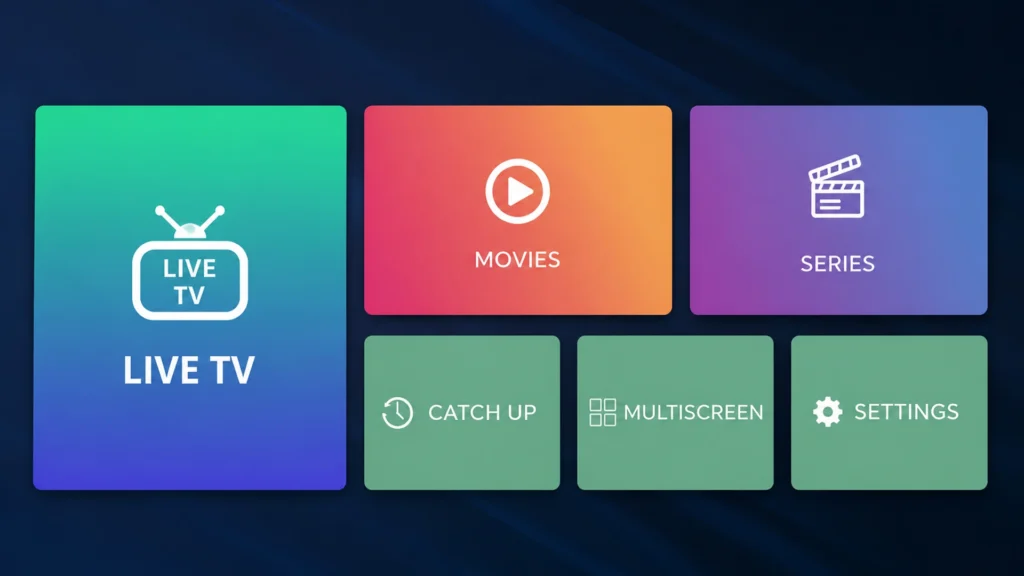
After everything loads, you’ll be taken to the main dashboard. You’ll find live TV channels, movies, TV shows, catch-up, multi-screen, settings, etc., options. Go to live TV to start browsing channels.
6. Start Watching IPTV
Congratulations, you can start watching now! If you want more modifications, please go to the settings. You can select parental control, subtitles, EPG, and other options there.
So, this is it. This is the process of how to set up IPTV on a Samsung Smart TV.
M3U vs Xtream Codes: Which Should You Use?
Both methods can load IPTV content, but they work differently.
| Method | What you enter | Best for |
| M3U URL | A playlist URL | Loading an IPTV playlist |
| Xtream Codes | Server URL + username + password | Apps that support API login |
| EPG/XMLTV | EPG URL | Loading program schedules |
Why Install IPTV on Samsung Smart TV?
Samsung Smart TVs support IPTV streaming, allowing users to access live TV channels, movies, and series directly through compatible IPTV apps. As Samsung Smart TVs offer high-resolution streaming, using Internet Protocol TV with them significantly enhances the user’s viewing experience.
Here are the reasons why you should install digital television service on your Samsung Smart TV –
- Easy Access: Watch live TV, movies, and series directly from your Samsung Smart TV without extra devices.
- Lower Cost: IPTV plans are often more affordable than traditional cable or satellite subscriptions.
- Clean Setup: No streaming sticks, set-top boxes, or additional cables are required.
- Better Picture Quality: Enjoy HD, Full HD, and 4K streaming on compatible Samsung TVs.
- Personalized Experience: Dedicated IPTV player apps (e.g., IPTV Smarters Pro, Tivimate, Kodi, VLC) help you create favorite channel lists and customize your IPTV app settings.
- Global Content: Access local and international channels from a single platform.
What If Your IPTV App Is Not Available on Samsung TV?
An IPTV app may not appear because of your TV model, region, software version, or app compatibility. Samsung specifically notes that app availability and menu options can vary by these factors.
Try these options:
1. Search for Another IPTV Player
Look for another compatible IPTV app in Samsung Apps. Several IPTV/Smarters-branded players are currently listed on Samsung’s platform.
2. Check Your TV Software
Go to:
Settings > Support > Software Update > Update Now
Keeping the TV software current can resolve compatibility and app-related problems.
3. Check Your Samsung Account
If Smart Hub apps are unavailable, make sure you’re signed in to your Samsung Account and have accepted the required terms.
4. Use an External Streaming Device
If the required IPTV player isn’t available for your Samsung TV, you can use a compatible external device such as a Fire TV, Roku, or Android TV/Google TV device.
This can also be useful if your older Samsung TV has limited app support.
How to Enhance IPTV Streaming on Samsung TV
If IPTV works but playback keeps buffering, try the following.
Use Ethernet if Possible
Connect the Samsung TV directly to your router with an Ethernet cable. A wired connection can provide more consistent network performance.
Use 5 GHz Wi-Fi
If Ethernet isn’t practical, connect the TV to a 5 GHz Wi-Fi network when the router and TV are close enough for a strong signal.
Restart Your TV and Router
Temporary network or app problems can sometimes disappear after restarting both devices.
Keep Your TV Updated
Check Settings > Support > Software Update and install available updates. Samsung recommends keeping TV software updated when troubleshooting app problems.
Check the IPTV Source
If Netflix, YouTube, or other streaming apps work normally but IPTV constantly buffers, the problem may be related to the IPTV stream, playlist, or server rather than your Samsung TV.
7 Common IPTV Issues on Samsung Smart TV (and How to Fix Them)
Sometimes, people encounter various issues when using Internet Protocol Television on a Samsung Smart TV. Here I’ll address 7 of the most common issues you can solve –
1. IPTV App Won’t Install
Fix: Check your internet connection and update your Samsung TV software by checking for updates. Then, verify that the IPTV app supports your TV model and Tizen OS version.
2. Channels Are Not Loading
Fix: Confirm that your M3U playlist URL or Xtream Codes details are correct. Also, make sure your IPTV subscription is active.
3. IPTV Keeps Buffering
Fix: Use a wired Ethernet connection or switch to a 5GHz Wi-Fi network. Closing bandwidth-heavy applications can also improve streaming performance.
4. IPTV App Keeps Crashing
Fix: Restart your Samsung Smart TV, update the IPTV app to the latest version, and reinstall the app if the issue persists.
5. No Sound or Poor Video Quality
Fix: Check your TV’s audio settings, verify your internet speed, and select the streaming quality your connection supports.
6. EPG Is Not Showing
Fix: Check whether your IPTV player supports EPG and verify the EPG/XMLTV URL if your provider supplied one. You may also need to refresh the playlist or EPG data.
7. IPTV Works on Phone but Not Samsung TV
Fix: Your IPTV credentials may be valid, but the Samsung IPTV app may have a compatibility or configuration issue. Try another compatible IPTV player or use an external streaming device.
Most IPTV issues can be resolved by updating the app, verifying subscription details, and maintaining a stable internet connection.
How to Uninstall an IPTV App From Samsung TV
If you no longer need the IPTV player:
- Press Home on the remote.
- Open Apps.
- Find the installed IPTV app.
- Open its options.
- Select Delete or Remove, depending on your TV model.
Samsung notes that menu names can vary by model and software version.
Conclusion — IPTV on Samsung Smart TV: Complete Setup Guide
Installing IPTV on a Samsung Smart TV is usually straightforward: open Apps, install a compatible IPTV player, and add your M3U playlist or Xtream Codes details.
The main thing to remember is that Samsung TVs use Tizen, so Android APK installation methods do not directly apply. If your preferred IPTV player isn’t available, try another compatible Samsung TV app or use an external streaming device.
For the best experience, keep your TV software updated, use a stable internet connection, and verify your IPTV credentials before troubleshooting the TV itself.
FAQs on How to Watch IPTV on Samsung TV
-
Can you install IPTV on a Samsung Smart TV?
Yes. You can install a compatible IPTV player through Samsung’s Apps/Smart Hub interface and then add your M3U playlist or Xtream Codes credentials.
-
Which IPTV app is best for Samsung Smart TV?
There is no single IPTV player that is best for every Samsung TV. App availability varies by model and region. Choose a compatible player that supports the playlist or login method you use.
-
Can I install IPTV Smarters on Samsung Smart TV?
Yes, Smarters-branded IPTV players are currently listed on Samsung’s TV app platform, but the exact app and availability can vary by region and TV model. Samsung currently lists apps including IPTV Smarters Pro Player and Smarters IPTV Player.
-
Can I install an IPTV APK on Samsung TV?
Not like you can on Android TV or Firestick. Samsung Smart TVs use Tizen, so Android APK installation methods generally do not apply directly.
-
Can I use Xtream Codes on Samsung Smart TV?
Yes, if the IPTV player you install supports Xtream Codes API. Enter the server URL, username, and password provided by your IPTV source.
-
What internet speed do I need for IPTV on Samsung TV?
The required speed depends on video quality, network stability, and the stream itself. Rather than relying on one fixed number, use a stable connection with enough bandwidth for the resolution you’re watching. Ethernet can help improve consistency.
-
Why is IPTV buffering on my Samsung Smart TV?
Common causes include weak Wi-Fi, network congestion, unstable IPTV streams, overloaded servers, or incorrect app settings. Try Ethernet or 5 GHz Wi-Fi and test another channel to identify the cause.
-
Why can’t I find my IPTV app on Samsung TV?
The app may not be available for your TV model, region, or software version. Search Samsung Apps manually, check for software updates, and consider another compatible IPTV player.
-
Do IPTV apps provide live TV channels?
Usually, no. An IPTV player is generally a playback application. You normally need to provide your own compatible playlist or IPTV service credentials.
Your article helped me a lot, is there any more related content? Thanks!
Your article helped me a lot, is there any more related content? Thanks!
I don’t think the title of your article matches the content lol. Just kidding, mainly because I had some doubts after reading the article.
I don’t think the title of your article matches the content lol. Just kidding, mainly because I had some doubts after reading the article.
With havin so much content do you ever run into any issues of plagorism or copyright violation? My blog has a lot of unique content I’ve either created myself or outsourced but it looks like a lot of it is popping it up all over the internet without my permission. Do you know any solutions to help protect against content from being stolen? I’d certainly appreciate it.
Thanks for sharing. I read many of your blog posts, cool, your blog is very good.
Can you be more specific about the content of your article? After reading it, I still have some doubts. Hope you can help me.
Your point of view caught my eye and was very interesting. Thanks. I have a question for you.
Thank you for your sharing. I am worried that I lack creative ideas. It is your article that makes me full of hope. Thank you. But, I have a question, can you help me?
I love your blog.. very nice colors & theme. Did you make this website yourself or did you hire someone to do it for you? Plz answer back as I’m looking to construct my own blog and would like to find out where u got this from. thanks a lot