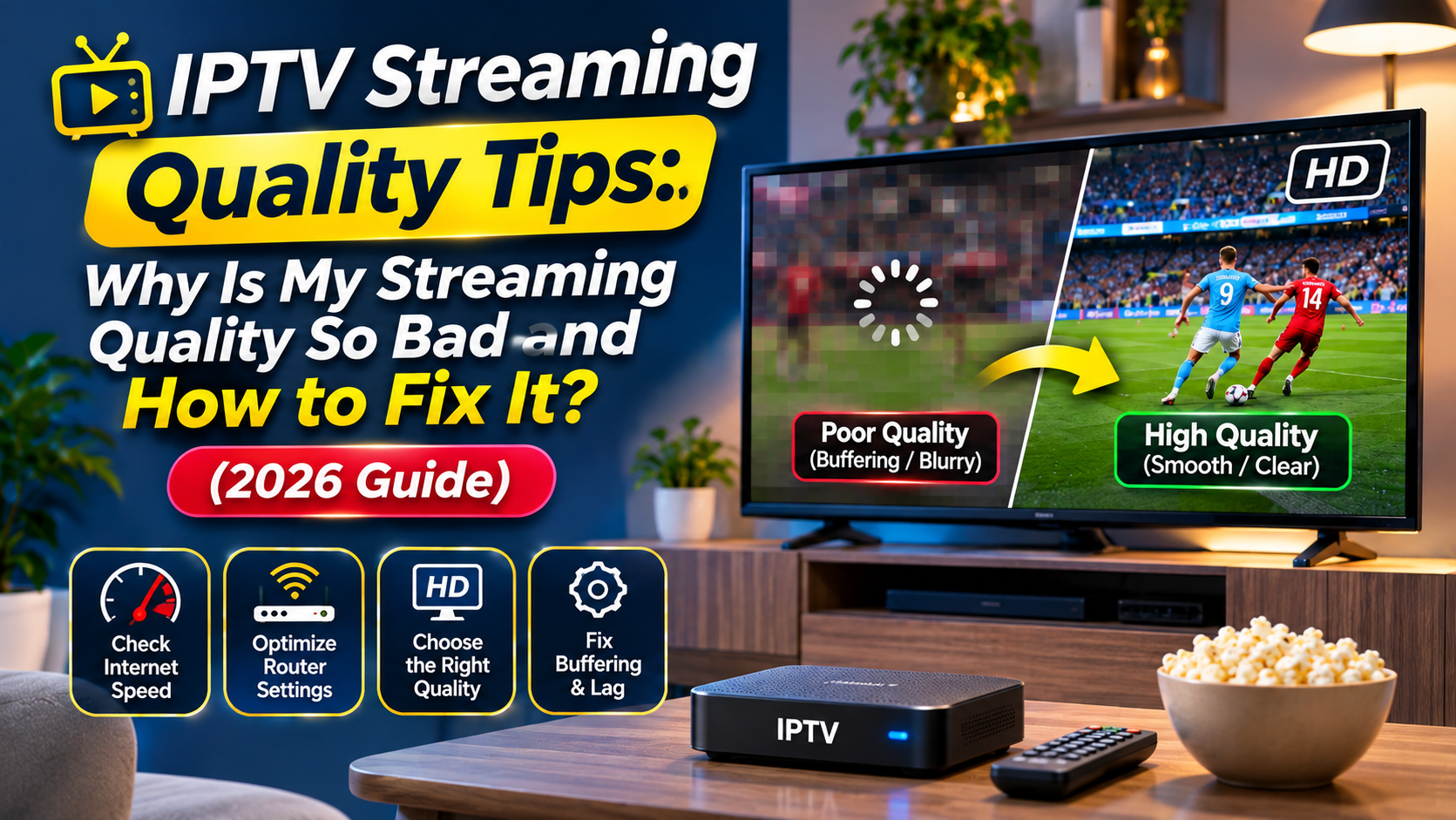
Poor IPTV streaming quality usually happens because of slow internet, weak WiFi, low video bitrate, busy IPTV servers, or incorrect device settings. These problems can make your TV picture blurry, cause buffering, or stop live channels from playing smoothly.
If you are wondering, “Why is my streaming quality so bad?” the good news is that many problems are easy to fix.
Start by checking your internet speed, restarting your router, and connecting your streaming device with an Ethernet cable. If the problem continues, check your IPTV provider, video settings, and router configuration.
This guide explains how to improve IPTV streaming quality, reduce buffering, and enjoy clearer live TV, sports, and movies.
Why Is My IPTV Streaming Quality So Bad?
IPTV quality depends on how smoothly video travels from the streaming server to your device.
Here are the most common causes of poor stream quality:
| Problem | Why It Happens | Quick Fix |
| Blurry picture | Low video resolution or bitrate | Select a better quality source |
| Constant buffering | Slow internet or overloaded server | Test your connection |
| Video freezing | WiFi interruptions or packet loss | Use Ethernet |
| Quality keeps changing | Unstable internet speed | Check network usage |
| IPTV lagging at night | Network or server congestion | Test another streaming service |
| Channels not loading | App, router, or provider problem | Restart the app and router |
| Audio does not match video | Playback or decoding problem | Restart the stream or change player |
Advice: A fast internet connection does not always mean better IPTV quality. The original video must also be clear, and the IPTV server must deliver it properly.
15 Best IPTV Streaming Quality Tips
Sometimes, it is hard to enjoy buffer-less streaming through Internet Protocol Television. Let’s check these 15 tips for a seamless streaming.
1. Check Your Internet Speed
A slow internet connection is one of the main reasons IPTV videos buffer or look blurry.
The internet speed you need depends on your video’s resolution and bitrate.
| Streaming Quality | Suggested Internet Speed |
| SD (480p) | 3 Mbps |
| HD (720p) | 5 Mbps |
| Full HD (1080p) | 10 Mbps |
| 4K Ultra HD | 25 Mbps or more |
These are practical planning targets for one stream, not fixed IPTV requirements. Some streams need less or more bandwidth.
How to check your speed:
- Open Fast.com or Speedtest.net.
- Run a speed test near your streaming device.
- Check the download speed.
- Repeat the test while IPTV is buffering.
- Compare the results.
If your speed drops often, contact your internet provider.
2. Use Ethernet Instead of WiFi
An Ethernet cable connects your TV or streaming box directly to the router.
It often provides a more stable connection than WiFi.
Why Ethernet helps:
- Reduces wireless interference.
- Keeps your connection more consistent.
- Helps prevent packet loss.
- Works well for live sports and 4K streaming.
If your Firestick, Android TV box, or Smart TV supports Ethernet, try it before changing advanced router settings.
3. Move Your Router Closer to Your TV
Weak WiFi can reduce your stream quality.
Walls, furniture, and other devices may weaken the signal.
To improve WiFi:
- Place the router in an open area.
- Keep it away from thick walls.
- Use 5 GHz WiFi when the signal is strong.
- Try 2.4 GHz when the TV is far away.
- Avoid placing the router behind your television.
A stronger WiFi signal can make IPTV playback more stable.
4. Restart Your Router and IPTV Device
Restarting your equipment can fix temporary connection problems.
Follow these steps:
- Turn off your IPTV device.
- Restart your router.
- Wait until the internet reconnects.
- Turn your streaming device back on.
- Open IPTV and test a channel.
If streaming quality improves, the problem may have been temporary.
5. Stop Background Downloads
When several devices use the same internet connection, IPTV may not receive enough bandwidth.
For example, someone might be downloading games while you are watching live TV.
Try these fixes:
- Pause large downloads.
- Stop unnecessary cloud backups.
- Close unused streaming apps.
- Reduce simultaneous 4K streams.
This helps keep more internet speed available for IPTV.
6. Select the Right Video Resolution
Higher resolution does not always give you a better streaming experience.
If your internet is unstable, a 4K stream may buffer more than a 1080p stream.
Try switching between available quality options:
- 720p: Useful for slower connections.
- 1080p: A good balance of picture quality and bandwidth.
- 4K: Best for compatible devices and stable, fast connections.
A clear 1080p stream may look better than a poorly compressed 4K stream.
Also, changing your TV’s output to 4K does not turn a low resolution IPTV source into true 4K video.
7. Check Your IPTV Bitrate
IPTV bitrate means how much video data is sent every second. It is usually measured in Mbps or Kbps.
Does bitrate affect stream quality? Yes.
A higher video bitrate can preserve more picture detail, especially during sports and fast action. However, it also needs more bandwidth.
A lower bitrate uses less data but may make the picture look blurry or blocky.
Why Is My Stream Bitrate Unstable?
Your stream bitrate may change because of:
- Unstable internet speed.
- Network congestion.
- Adaptive video quality settings.
- Changes made by the video provider.
- Problems with the source stream.
Some IPTV services use adaptive bitrate streaming. This lets the video player switch between quality levels when network conditions change.
Quick Fix: Use a stable connection and select a suitable quality level. If the provider sends only a low bitrate stream, your router cannot restore the missing picture detail.
8. Choose a Reliable IPTV Provider
The IPTV provider plays an important role in streaming quality.
Even with fast internet, a weak server or heavily compressed video can produce poor results.
When comparing legal IPTV services, check:
- Available HD and 4K channels.
- Video clarity during live sports.
- Buffering during busy hours.
- Channel loading speed.
- Device compatibility.
- Customer support.
- Content licensing.
How to Perform an IPTV Quality Review
Before paying for a long subscription, test the service during normal hours and busy evening hours.
Watch a news channel, a sports channel, and a movie. Check whether the picture stays clear and the stream plays without interruption.
A useful IPTV quality review should measure real playback performance, not just the number of advertised channels.
9. Update Your IPTV Player
An outdated IPTV application may have playback bugs or problems with newer video formats.
Check whether your player has a newer version.
For example, popular IPTV players include:
- TiviMate
- IPTV Smarters Pro
- VLC Media Player
- Kodi
Use the official app website or a trusted app store when updating.
10. Clear IPTV App Cache
Your IPTV application stores temporary files called cache.
Over time, some apps may develop cache related playback problems.
To clear the cache on many Android TV devices:
- Open Settings.
- Select Apps.
- Choose your IPTV player.
- Open Storage.
- Select Clear Cache.
- Restart the application.
Clearing cache may fix some app problems, but it will not repair a slow connection or overloaded server.
Avoid selecting Clear Data unless you have saved your login and playlist information.
11. Check Your IPTV Router Settings
Your IPTV router manages traffic between your internet connection and streaming devices.
Poor router performance, WiFi congestion, or incorrect network settings can affect playback.
Some routers include IPTV settings such as:
- IPTV/VLAN
- IGMP Proxy
- IGMP Snooping
- Quality of Service (QoS)
- LAN port assignment
Important: The IPTV option in a router usually supports special TV services supplied by an internet provider. Ordinary internet based IPTV apps generally do not need this option enabled.
Do not change IPTV VLAN settings unless your internet provider requires them.
12. Use Quality of Service (QoS)
IPTV Quality of Service (QoS) is a router feature that can help give streaming traffic priority over less important network activity.
For example, QoS may help when someone is downloading a large file while you watch live TV.
To configure QoS:
- Log in to your router.
- Find the QoS or traffic priority section.
- Select your streaming device.
- Give it a suitable priority.
- Save and test the connection.
QoS can reduce congestion inside your home network. However, it cannot fix a poor IPTV source or an overloaded server.
13. Check Whether Your Router Is Blocking IPTV
Sometimes an IPTV app fails to connect because of network filtering or incorrect router settings.
Possible causes include:
- Parental control rules.
- Firewall restrictions.
- DNS filtering.
- Incorrect VLAN configuration.
- Provider or ISP network restrictions.
If you suspect IPTV is blocked by your router, test another legitimate streaming app on the same device.
You can also test your licensed IPTV service on a different permitted connection.
If the app works elsewhere, review your router settings and ask your IPTV provider for its network requirements.
Do not disable all firewall protection just to make IPTV work.
14. Use a Compatible Streaming Device
Older streaming devices may struggle with high resolution video.
This can happen when the device has limited memory, an older processor, or unsupported video formats.
For better IPTV performance:
- Update your device software.
- Close unused apps.
- Keep enough storage space free.
- Use a device that supports your video codec.
- Avoid unnecessary background applications.
A better streaming device may improve playback when your current device cannot decode the video properly.
15. Test IPTV During Different Hours
Does your IPTV work well in the morning but buffer at night?
This may be caused by internet congestion or a busy streaming server.
To find the cause:
- Watch the same channel in the morning.
- Test it again during evening hours.
- Check your internet speed both times.
- Compare it with a reliable streaming service.
- Record when the problem happens.
If only one IPTV service has problems, its server or delivery network may be responsible.
If several streaming services become slow at the same time, investigate your home network or internet provider.
How to Improve IPTV Quality Through Router Settings
Router settings can improve stability, especially when you use a TV service supplied directly by your internet provider.
However, IPTV router setup is different from setting up a normal IPTV player.
ASUS Router IPTV Settings
Many ASUS routers include a dedicated IPTV configuration page.
To find it:
- Open your ASUS router’s administration page.
- Go to LAN > IPTV.
- Check Select ISP Profile.
- Choose the profile required by your ISP.
- Configure the IPTV LAN port if needed.
- Save your changes.
Some ASUS router IPTV settings also support multicast related options.
If your ISP has not provided IPTV settings, leave the profile at its default value.
TP-Link Router IPTV Settings
Many TP-Link routers support IPTV/VLAN configuration.
To configure IPTV on a supported TP-Link router:
- Visit tplinkwifi.net.
- Log in to your router.
- Open Advanced > Network > IPTV/VLAN.
- Enable IPTV/VLAN only when required.
- Select your ISP profile, Bridge mode, or Custom mode.
- Enter ISP supplied VLAN details if needed.
- Assign the correct LAN port for your IPTV set top box.
- Save your settings.
The exact menu depends on your TP-Link model and firmware.
Incorrect IPTV router settings can interrupt your internet connection. Always confirm the required values with your ISP.
What About the Actiontec CenturyLink C1900A IPTV Router?
The Actiontec CenturyLink C1900A Wireless VDSL2 IPTV Router is an older router designed for DSL connections and IPTV services.
It supports Gigabit Ethernet ports and multicast related networking features.
However, its older Wireless N technology may not provide the same WiFi performance as modern WiFi 6 routers.
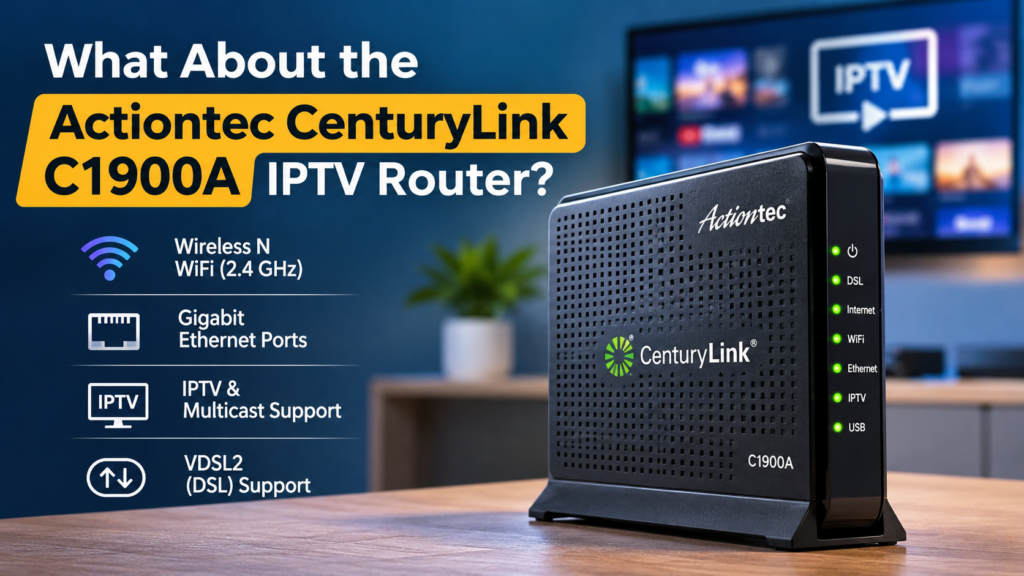
If you use this model, try a wired connection first and check whether the firmware and ISP settings are correct.
What Is the Best Router for IPTV?
The best router for IPTV is one that provides a stable connection, sufficient bandwidth, and the networking features your service needs.
When choosing an IPTV support router, look for:
| Router Feature | Why It Matters |
| Gigabit Ethernet | Provides a reliable wired connection |
| WiFi 6 or newer | Helps handle busy wireless networks |
| QoS | Can prioritize streaming traffic |
| IPTV/VLAN support | Supports compatible ISP IPTV services |
| IGMP support | Helps manage multicast TV traffic |
| Good WiFi coverage | Reduces weak signal problems |
An ASUS or TP-Link router can be suitable for IPTV, but the best router for IPTV depends on your internet plan, home size, and provider requirements.
You do not need an expensive IPTV router just to watch one HD channel.
Does IPTV Antifreeze Technology Really Work?
IPTV antifreeze technology is a marketing term often used by IPTV providers to describe features intended to reduce buffering and freezing.
There is no single standard technology called IPTV Antifreeze.
A provider may use this term for:
- Video buffering.
- Adaptive bitrate streaming.
- Backup streaming servers.
- Improved content delivery.
- Automatic connection recovery.
These features can help in some situations, but they cannot guarantee uninterrupted streaming.
If the server is overloaded or your internet connection fails, IPTV antifreeze features may not prevent buffering.
Advice: Judge IPTV services by actual playback quality, not claims such as “100% antifreeze IPTV.”
How to Find the Real Cause of Poor IPTV Quality
Before buying a new router or changing your subscription, use this simple test.
| What You Notice | Most Likely Area to Check |
| Only one channel is blurry | Original video source |
| IPTV works on Ethernet but not WiFi | Wireless network |
| IPTV freezes only at night | Server or internet congestion |
| Video is blurry but never buffers | Source resolution or bitrate |
| IPTV works on another device | Player or device settings |
| ISP TV box fails after router changes | IPTV/VLAN configuration |
| All channels keep buffering | Internet, WiFi, or IPTV provider |
These signs help narrow down the problem, but they do not prove the exact cause.
A Simple 5 Minute IPTV Quality Test
Try these steps in order:
- Check your internet speed on the streaming device.
- Restart your IPTV app.
- Test another channel.
- Connect through Ethernet if available.
- Compare IPTV with another licensed streaming service.
This test can help you decide whether to troubleshoot your network, device, or IPTV provider.
Final Thoughts — How to Maximize IPTV Streaming Quality
Improving IPTV streaming quality starts with finding the real problem.
First, check your internet speed, WiFi connection, and streaming device. Then review the video bitrate, IPTV player, and provider performance.
If you use ISP supplied television service, check your IPTV router configuration. For ordinary IPTV apps, focus on connection stability and video source quality instead of changing advanced VLAN settings.
The best IPTV viewing experience comes from a clear video source, a reliable server, and a stable internet connection. You need all three for smooth streaming.
FAQs — How to Improve IPTV Streaming Quality
Why Is My Stream Quality So Bad Even With Fast Internet?
Your IPTV stream may look bad because the provider uses a low bitrate source, its server is overloaded, or your device has playback problems. Fast internet cannot improve the quality of the original video.
How Can I Improve Streaming Quality on Firestick?
Use a strong WiFi signal or compatible Ethernet adapter, update your IPTV player, close unused apps, and select a suitable video quality. Also check the provider’s stream quality.
Does Bitrate Affect Stream Quality?
Yes. Higher bitrate can improve picture detail when the video is encoded well. However, it uses more bandwidth. Low bitrate can make fast moving scenes look blurry or pixelated.
Why Is My IPTV Bitrate Unstable?
It may be caused by changing network conditions, adaptive bitrate streaming, or problems with the video source. Check your connection stability and compare multiple channels.
Should I Enable IPTV on My Router?
Enable IPTV on your router only if your internet provider requires IPTV/VLAN or multicast configuration. Most standard IPTV apps that stream over the internet do not need special router IPTV settings.
What Does IPTV Mean in Router Settings?
IPTV means Internet Protocol Television. In router settings, the IPTV option usually helps support an ISP’s television service using features such as VLANs, multicast traffic, and dedicated LAN ports.
What Is an IPTV Port on a Router?
An IPTV port is usually a LAN port assigned to an ISP supplied TV set top box. It may be configured to carry the provider’s special IPTV traffic instead of normal internet traffic.
Can Router Settings Improve IPTV Quality?
Yes. Better WiFi settings, QoS, and a wired connection may improve stability. IPTV/VLAN and IGMP settings help when required by your ISP. Router settings cannot improve a badly compressed source.
Why Does IPTV Buffer During Live Sports?
Live sports may buffer because of busy servers, network congestion, or unstable internet. Fast movement can also make low bitrate video look worse, even without buffering.
Is 4K IPTV Always Better Than 1080p?
No. A well encoded 1080p stream can look clearer than a heavily compressed 4K stream. Video bitrate, source quality, and device compatibility all matter.
this is one of the best article i have came across for very long time, i enjoy reading your article, you really have put on a lot of effort and work.
i never came across a well indepth article like this, this is the second time i am reading it, i really enjoy it, thanx for the great work, i appreciate it.
Thank you for this article, keep up the good work
Woah! I’m really enjoying the template/theme of this website. It’s simple, yet effective. A lot of times it’s challenging to get that “perfect balance” between superb usability and visual appeal. I must say that you’ve done a superb job with this. In addition, the blog loads extremely fast for me on Safari. Excellent Blog!
Super-Duper website! I am loving it!! Will come back again. I am taking your feeds also.