You can use IPTV Smarters Pro with Roku, but the setup is different from Firestick or Android TV. Roku runs Roku OS, so you cannot install the Android IPTV Smarters Pro APK directly on a Roku device.
The most practical setup is to run IPTV Smarters Pro on a compatible phone, tablet, or computer and screen-mirror it to a Roku. Advanced users may also encounter a Developer Mode sideload method, but it requires a Roku-compatible application package rather than an Android APK.
This guide explains both methods, what actually works on Roku, and what to do if IPTV Smarters Pro will not connect or display correctly.
Can You Install IPTV Smarters Pro on Roku?
You cannot directly install the Android IPTV Smarters Pro APK on Roku. Roku uses Roku OS rather than Android, so APK files designed for Fire TV and Android TV are not compatible with Roku OS.
This is where many IPTV Smarters Roku guides become confusing.
According to Roku’s official Developer Mode documentation, Roku provides a Development Application Installer for testing and sideloading Roku development apps.
For most users, there are three practical approaches:
| Method | Direct Roku Installation? | Difficulty | What You Need |
| Screen mirror IPTV Smarters from Android | No | Easy | Android + compatible Roku |
| Mirror from Windows | No | Easy | Windows PC + compatible Roku |
| AirPlay from Apple device | No | Easy | Compatible Apple device + Roku |
| Roku Developer Mode | Yes, for compatible Roku development apps | Advanced | Computer + Roku-compatible package |
Quick answer: If your goal is simply to watch IPTV Smarters Pro on your Roku TV, screen mirroring is usually the simplest place to start.
What You Need to Set Up IPTV Smarters Pro on Roku
Before starting, have the following ready:
- Roku player or Roku TV
- Compatible Android, Windows, or Apple device
- IPTV Smarters Pro installed on the source device
- Your authorized IPTV account or playlist details
- Stable internet connection
- Roku and source device connected to the same local network when required
Your IPTV service may provide an M3U playlist URL or supported login credentials such as a username, password, and server URL.
IPTV Smarters Pro is a player. It does not normally supply the TV subscription or channels itself.
Method 1: Set Up IPTV Smarters Pro on Roku With Android
If IPTV Smarters Pro is already installed on your Android phone or tablet, screen mirroring offers a straightforward way to display it on a compatible Roku device.
Step 1: Connect Both Devices to the Same WiFi
Connect your Android device and Roku to the same WiFi network.
A local network connection allows compatible devices to discover each other for screen mirroring.
Step 2: Enable Screen Mirroring on Roku
Using your Roku remote, go to:
Settings → System → Screen mirroring → Screen mirroring mode
Depending on the options available on your Roku, choose Prompt or your preferred permission setting.
Screen-mirroring availability can vary by Roku device and source device.
Step 3: Open Screen Mirroring on Android
Open your Android device’s screen-casting feature.
The name varies by manufacturer and may appear as:
- Smart View
- Screen Mirroring
- Cast
- Screen Cast
- Wireless Display
Select your Roku when it appears.
Step 4: Accept the Connection on Roku
If Roku displays a connection request, approve it using your remote.
Your Android screen should now appear on the TV.
Step 5: Open IPTV Smarters Pro
Launch IPTV Smarters Pro on Android.
If you haven’t configured it yet, enter the account or playlist details supplied by your IPTV service provider.
Step 6: Test a Channel
Open a live channel or authorized stream.
If it plays correctly on the Android device and screen mirroring is working, the content should also appear on the Roku-connected display.
Important: IPTV Smarters Pro is still running on your Android device. Roku is displaying the mirrored screen; the Android app has not been installed on Roku.
Method 2: Set Up IPTV Smarters Pro on Roku From Windows
A Windows PC provides another way to use IPTV Smarters with a compatible Roku.
Step 1: Enable Roku Screen Mirroring
On Roku, open:
Settings → System → Screen mirroring
Configure the available screen-mirroring settings.
Step 2: Connect Roku and Your PC to the Same Network
Make sure the Roku and Windows PC are connected to the same local network.
Step 3: Connect Windows to Roku
On a compatible Windows 11 PC:
- Press Windows + K.
- Wait for available displays to appear.
- Select your Roku.
- Approve the connection on Roku if prompted.
Your PC display should appear on the TV when the connection succeeds.
Step 4: Open IPTV Smarters Pro
Launch IPTV Smarters Pro on your Windows PC.
Sign in using the authorized account or playlist information supplied by your IPTV service.
Step 5: Test IPTV Playback
Open a channel and check both video and audio.
If IPTV Smarters works on the PC but does not display properly through Roku, troubleshoot the mirroring connection separately from the IPTV account.
Method 3: Use IPTV Smarters With Roku From iPhone or iPad
Compatible Roku devices can also work with Apple AirPlay, providing another option for iPhone and iPad users.
Step 1: Check AirPlay on Roku
On your Roku, look for:
Settings → Apple AirPlay and HomeKit
Make sure AirPlay is available and enabled.
Step 2: Use the Same WiFi Network
Connect the Roku and your iPhone or iPad to the same WiFi network.
Step 3: Open IPTV Smarters Pro
Open IPTV Smarters Pro on your Apple device and load your authorized IPTV account.
Step 4: Open Screen Mirroring
Open Control Center and select Screen Mirroring.
Choose your Roku from the available devices.
Step 5: Enter the AirPlay Code
If Roku displays an AirPlay code, enter it on your iPhone or iPad.
Then return to IPTV Smarters Pro and test playback.
AirPlay behavior can vary depending on the Roku model, Roku OS version, Apple device, and application.
Can You Sideload IPTV Smarters Pro on Roku Using Developer Mode?
This is the part that causes the most confusion.
Roku does support Developer Mode sideloading, but it is designed for compatible Roku development applications. It does not allow you to install an Android IPTV Smarters Pro APK.
If you already have a legitimate Roku-compatible development package, Roku provides a Development Application Installer that can upload a development app over your local network.
How to Enable Roku Developer Mode
Using the Roku remote, press:
Home ×3 → Up ×2 → Right → Left → Right → Left → Right
The Developer Settings screen should appear on supported Roku devices.
From there:
- Note the Roku device URL or IP information displayed.
- Enable the Development Application Installer.
- Read and accept the Developer Tools License Agreement.
- Create a developer web server password.
- Allow Roku to restart.
Keep the password secure because it is used to access the Development Application Installer.
How Roku’s Development Application Installer Works
After Developer Mode is enabled:
- Connect your computer to the same local network as Roku.
- Enter the Roku device URL shown in Developer Settings into your browser.
- Sign in with rokudev as the username.
- Enter the developer password you created.
- Open the Development Application Installer.
- Select Upload.
- Choose your compatible Roku development application package.
- Select Install.
The application should launch if the package is valid and compatible with the Roku platform.
Important: Don’t Upload an Android APK
An IPTV Smarters Pro APK designed for Android is not a Roku development application.
Therefore:
Android APK → Android/Fire TV devices
Roku development package → Roku Developer Mode
Treat websites that offer random “IPTV Smarters Roku ZIP” files with caution. A ZIP filename alone does not prove that the software is genuine, current, secure, or compatible with your Roku.
For most users who simply want to use IPTV Smarters Pro, screen mirroring avoids the need to rely on an unknown third-party Roku package.
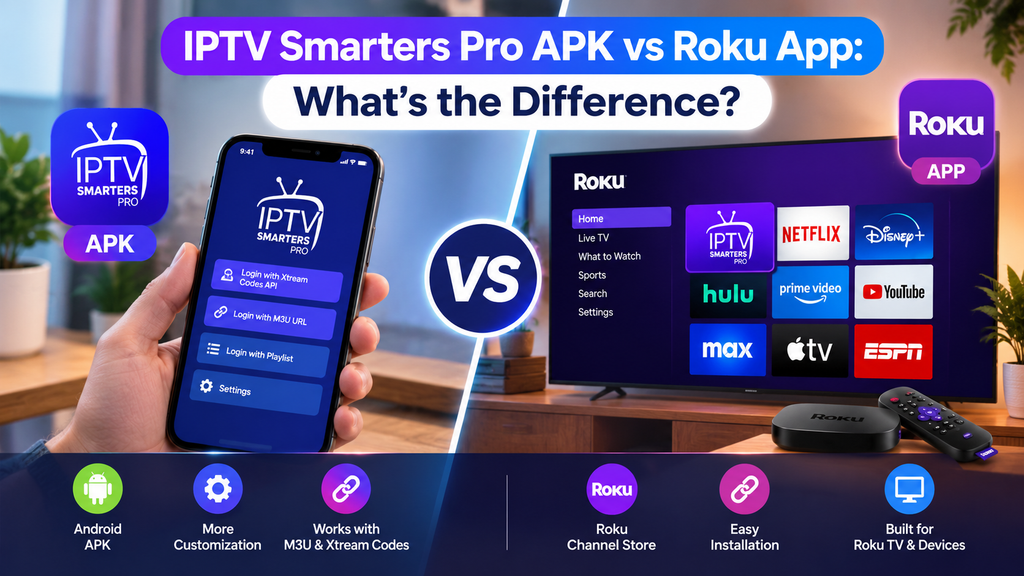
IPTV Smarters Pro APK vs Roku App: What’s the Difference?
The file format is one of the most important differences.
An APK is an Android application package. Devices running Android-based operating systems can install compatible APKs.
Roku uses Roku OS and its own application platform.
That means instructions such as:
Download APK → Enable unknown sources → Install APK
may apply to certain Android-based streaming devices, but they are not Roku installation instructions.
Developer Mode does not convert Roku into an Android device.
IPTV Smarters Pro Not Working on Roku? Try These Fixes
If the setup doesn’t work, first determine whether the problem comes from IPTV Smarters, your IPTV account, the network, or the Roku mirroring connection.
Roku Doesn’t Appear on Android
Check that both devices are on the same network and that screen mirroring is available and enabled on the Roku.
Also check your Android casting settings because manufacturers use different names and technologies for screen sharing.
Roku Doesn’t Appear on Windows
Confirm that screen mirroring is enabled on Roku, then press Windows + K again and look for the Roku display.
Restarting both devices can also refresh network discovery.
AirPlay Can’t Find Roku
Check:
Settings → Apple AirPlay and HomeKit
Then confirm that the Roku and Apple device are connected to the same network.
IPTV Smarters Opens, but Channels Don’t Play
Test the same account or channel directly on the phone or computer before troubleshooting Roku.
If playback fails on the source device too, check:
- IPTV login details
- M3U URL
- Username and password
- Server URL
- Account status
- Internet connection
- Stream availability
If the channel plays correctly on the source device but not on the television, focus on the screen-mirroring or AirPlay connection.
Video Works but Audio Doesn’t
Disconnect screen mirroring and reconnect it. Also check the volume and audio-output settings on both the source device and Roku TV.
Testing another video outside IPTV Smarters can help determine whether the issue is related to IPTV playback or the mirroring connection.
Developer Mode Installation Fails
Make sure the file you are uploading is actually built for Roku.
An Android APK cannot be fixed by renaming it .zip.
If you downloaded a Roku package from an unofficial source, compatibility and authenticity may also be uncertain.
Can You Use a Roku IPTV Player Instead of IPTV Smarters Pro?
Yes. If a compatible IPTV or M3U player is currently available through the Roku Streaming Store, you may be able to use it without IPTV Smarters Pro.
The general setup is:
Roku Home → Streaming Store → Find compatible IPTV player → Add app → Open player → Add supported playlist/login → Test playback
Before installing a player, check whether it supports the login method supplied by your IPTV service.
App availability can change by region, Roku model, and time, so verify the current listing directly on your Roku.
IPTV Smarters Pro on Roku TV, TCL, and Hisense
The same operating-system limitation applies to televisions with Roku OS built in.
For example, if you have a compatible TCL Roku TV or Hisense Roku TV, the television still runs Roku OS. An Android IPTV Smarters Pro APK does not become compatible simply because Roku is built directly into the TV.
The practical options remain:
IPTV Smarters on supported device → Screen mirroring/AirPlay → Roku TV
or
Compatible Roku IPTV player → IPTV playlist/login → Roku TV
Always check the exact TV model to confirm support for screen mirroring and AirPlay features.
Is Screen Mirroring or Developer Mode Better for IPTV Smarters on Roku?
For most IPTV Smarters users, screen mirroring is the simpler method because it lets the app run on a platform it actually supports.
Developer Mode is primarily useful when you have a legitimate Roku-compatible development application to test or install.
| If You Have | Method to Try |
| Android phone/tablet | Screen mirroring |
| Windows PC | Wireless display/screen mirroring |
| Compatible iPhone/iPad | AirPlay |
| Roku-compatible development app | Developer Mode |
| Android IPTV Smarters APK only | Do not upload it to Roku |
Final Thoughts
Setting up IPTV Smarters Pro on Roku is different from installing it on Firestick or Android TV. Roku OS does not support Android APK installation, so downloading an IPTV Smarters APK and trying to sideload it directly is not the correct approach.
For most users, the practical setup is:
Install IPTV Smarters Pro on a supported device → Add your IPTV login → Enable screen mirroring or AirPlay → Connect to Roku → Test playback.
Roku’s Developer Mode provides another installation mechanism, but it should only be used with applications specifically built for the Roku platform.
If IPTV Smarters works on your phone or computer but not on your TV, troubleshoot the mirroring connection first. If it fails on every device, check the IPTV account, playlist, server details, and internet connection before changing your Roku settings.
FAQs About IPTV Smarters Pro on Roku
How do I set up IPTV Smarters Pro on Roku?
Install IPTV Smarters Pro on a compatible Android, Windows, or Apple device, add your authorized IPTV details, and use screen mirroring or AirPlay to display it on a compatible Roku.
Can I install IPTV Smarters Pro directly on Roku?
The Android IPTV Smarters Pro APK cannot be installed directly on Roku because Roku uses Roku OS rather than Android.
Can I sideload IPTV Smarters Pro on Roku?
Roku Developer Mode can sideload compatible Roku development applications, but it cannot install Android APK files. You need a package specifically built for Roku.
Can I download IPTV Smarters Pro from the Roku Streaming Store?
Availability can change, so check the Roku Streaming Store on your device. If the specific Smarters app you want isn’t available, use a compatible Roku IPTV player or screen mirroring.
Can I install IPTV Smarters Pro APK on Roku TV?
No. An Android APK is not compatible with Roku OS, including Roku TVs from manufacturers such as TCL and Hisense.
Can I use IPTV Smarters Pro on Roku without sideloading?
Yes. Run IPTV Smarters Pro on a compatible phone, tablet, or computer and use screen mirroring or AirPlay with a supported Roku.
Why won’t my IPTV Smarters Roku ZIP install?
The package may not be built for Roku, may be outdated, or may be invalid. Roku’s Development Application Installer requires a compatible Roku development application; simply converting or renaming an Android APK does not make it compatible.
Hi there to all, for the reason that I am genuinely keen of reading this website’s post to be updated on a regular basis. It carries pleasant stuff.
I split it with friends and we had an amazing time.
Are they legal to ship in the U.S.?
This helped me focus like crazy!
Will definitely be ordering again soon!
How long does it take to kick in?
This helped me focus like crazy!
Can’t wait to try the other flavors!
Love the taste and the effects!
10/10 would recommend!
This helped me rethink my strategy. Thanks for the inspiration!
Thanks for the detailed breakdown — it saved me a lot of time.
Very readable and informative. Saved this for future reference.
Thanks for the examples — they made the theory much easier to digest.
Great post — concise, useful, and well-presented. Thank you!
I just like the helpful information you provide in your articles
I appreciated the formatting — easy to skim and still informative.
I appreciate the honesty in your assessment — refreshing to see.
This is really interesting, You’re a very skilled blogger. I’ve joined your feed and look forward to seeking more of your magnificent post. Also, I’ve shared your site in my social networks!
You’re so awesome! I don’t think I’ve ever read anything like that before. So great to find someone with some original thoughts on this topic. Really.. thank you for starting this up. This website is something that is needed on the internet, someone with a little originality!
You’re so awesome! I don’t think I’ve ever read anything like that before. So great to find someone with some original thoughts on this topic. Really.. thank you for starting this up. This website is something that is needed on the internet, someone with a little originality!
Well-researched and balanced. Appreciate the effort behind this.
Your blog is so much more than just a collection of posts It’s a community of like-minded individuals spreading optimism and kindness
Your positivity and optimism are contagious It’s impossible to read your blog without feeling uplifted and inspired Keep up the amazing work
Naturally like your web site however you need to take a look at the spelling on several of your posts. A number of them are rife with spelling problems and I find it very bothersome to tell the truth on the other hand I will surely come again again.
I am truly thankful to the owner of this web site who has shared this fantastic piece of writing at at this place.
Great information shared.. really enjoyed reading this post thank you author for sharing this post .. appreciated
I very delighted to find this internet site on bing, just what I was searching for.
I truly appreciate your technique of writing a blog. I added it to my bookmark site list.
Let us know in the comments which of their posts has resonated with you the most.
This is my first time pay a quick visit at here and i am really happy to read everthing at one place.
I am truly thankful to the owner of this web site who has shared this fantastic piece of writing at at this place.
Awesome! Its genuinely remarkable post, I have got much clear idea regarding from this post.
This is really interesting, You’re a very skilled blogger. I’ve joined your feed and look forward to seeking more of your magnificent post. Also, I’ve shared your site in my social networks!
Nice post. I learn something totally new and challenging on websites.
I very delighted to find this internet site on bing. Well writing and information.
You’re so awesome! I don’t believe I have read a single thing like that before. So great to find someone with some original thoughts on this topic. Really.. thank you for starting this up. This website is something that is needed on the internet, someone with a little originality!
I just like the helpful information you provide in your articles.
Nice post. I learn something totally new and challenging on websites.
Thank you for providing this post, it’s clear and well-explained.
I do not even understand how I ended up here, but I assumed this publish used to be great
I very delighted to find this internet site on bing, just what I was searching for as well saved to fav
I do not even understand how I ended up here, but I assumed this publish used to be great
Great information shared.. really enjoyed reading this post thank you author for sharing this post .. appreciated
Great information shared.. really enjoyed reading this post thank you author for sharing this post .. appreciated
I like the efforts you have put in this, regards for all the great content.
I very delighted to find this internet site on bing, just what I was searching for as well saved to fav
There is definately a lot to find out about this subject. I like all the points you made
I’m often to blogging and i really appreciate your content. The article has actually peaks my interest. I’m going to bookmark your web site and maintain checking for brand spanking new information.
Excellent weblog right here! Also your web site loads up very fast! What web host are you the usage of? Can I get your associate hyperlink in your host? I want my site loaded up as fast as yours lol
I am regular reader, how are you everybody? This article posted at this web site is actually fastidious.
wonderful writing skills, gotta bookmark this
Good post! We will be linking to this particularly great post on our site. Keep up the great writing
I do not even understand how I ended up here, but I assumed this publish used to be great
This is really interesting, You’re a very skilled blogger. I’ve joined your feed and look forward to seeking more of your magnificent post. Also, I’ve shared your site in my social networks!
I truly appreciate your technique of writing a blog. I added it to my bookmark site list and will
great post!
Nice post. I learn something totally new and challenging on websites
I like the efforts you have put in this, regards for all the great content.
There is definately a lot to find out about this subject. I like all the points you made
This was beautiful Admin. Thank you for your reflections.
Hi there to all, for the reason that I am genuinely keen of reading this website’s post to be updated on a regular basis. It carries pleasant stuff.
I am truly thankful to the owner of this web site who has shared this fantastic piece of writing at at this place.
I really like reading through a post that can make men and women think. Also, thank you for allowing me to comment!
You’re so awesome! I don’t believe I have read a single thing like that before. So great to find someone with some original thoughts on this topic. Really.. thank you for starting this up. This website is something that is needed on the internet, someone with a little originality!