With the rise of IPTV and cord-cutting, families now have access to countless live channels, on-demand content, adult and Pay-Per-View programs. This makes parental controls essential to ensure that children access only age-appropriate content. With the IPTV parental settings, parents can filter the content, limit and check the watching habits of their children.
In this guide, I’ll explain how to set up parental controls on IPTV, how content restrictions work, what features different IPTV providers offer, and the essential safety practices parents should follow.
Here we go –
What are Parental Controls?
Parental controls are tools that help parents handle what children can access and watch on their devices or online. They can block explicit(sexual or violent) content, set screen-time limits, check activity, and manage purchases to keep kids safe.
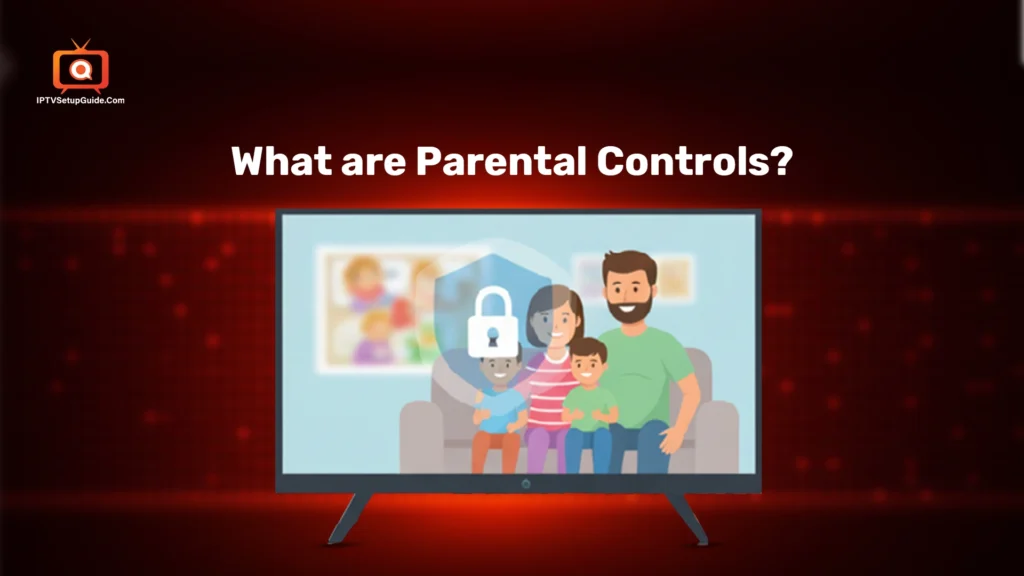
So, the age-appropriate digital well-being can be adequately ensured. Parental controls are available on TVs, IPTV apps, smartphones, streaming devices, gaming consoles, and even through internet providers.
Key Features of Parental Controls
- Content Filtering – Parental control properly filters content so that no 18+ content will be visible to children. Content filters automatically restrict content based on age ratings, such as PG+, 12+, 16+, 18+, etc.
- PIN and Password Protection – Choosing a strong PIN is essential to prevent children from bypassing restrictions. After all, today’s children are too smart!
- Viewing Time Limits – Set daily or weekly caps on screen time so the bad habit won’t catch up.
- User Profiles with Permissions – Some IPTV providers allow multiple profiles. A child’s profile will automatically hide adult-rated channels and limit access to mature on-demand content.
- Checking the Activity – Track the websites children are visiting, app usage, and online communication.
- Genre or Keyword Blocking – Advanced systems allow blocking by category (e.g., horror, adult, violent) or specific keywords in program descriptions.
- Checking Communication – Limit children’s communication on online platforms (including messaging and contact).
How to Set Up Parental Controls on IPTV: Step-by-Step Guidelines
To set Age-based filtering settings on Internet TV, you need to go to IPTV’s menu option>Settings>Parental Controls. Now, set a 4-digit Personal Identification Number for content restriction. You can block specific channels, movie ratings, unrated content, DVR functions, VOD library, etc.
Let’s review the entire setup procedure for PIN-protected access on your IPTV set–top box.
Go to Settings Menu – After opening the IPTV device or app, go to the settings menu.
Find Parental Control – Now, find the option named Parental Control, Security, or Profile Restrictions.
Set a PIN – Now, set a complicated PIN. But, set a PIN that you can remember. Avoid common types of PINs, such as 1234 or a default PIN like “0000”.
Set Age Restrictions – You can set an age-based filter to block content below a specific age (Under 16, 18, 12, etc.). It’s a superb layer of security.
Block Individual Channels – You can block specific channels you don’t want your children to watch. For instance, if you want to block AXN, you can enter the PIN and tap OK, which will place a lock icon on that channel. After that, you can lock multiple channels. Once you’re done, go back and press “Save”.
Allow Other Filters – If your system allows, enable other filters to block unrated content, movie ratings, DVR functions, rental locking (VOD and PPV event), and adult locking. Since many IPTV service providers offer high-quality adult channels and videos, parents should focus on this above all else.
Save the Settings – Now, save the settings after completing the viewing restrictions tasks.
Make a Restart – Some IPTV boxes may need a restart for changes to take effect. In that case, restart the device and double-check whether everything is in shape.
So, this is how you can set Parental PIN on the TV over broadband. Next, we’ll see the following tasks for elderly citizens to keep this Kids Safe Mode feature decisive!
What Parents Should Do After Setting Parental Controls?
When you set up parental controls on IPTV, this isn’t the end. This is just the first step. You still need to complete some vital tasks after enabling IPTV family controls. Let’s look at these 7 features they shouldn’t avoid –
1. Review the Content Regularly
After software updates or provider changes, restrictions may reset. Check them consistently.
2. Change Your PIN Occasionally
Updating your PIN reduces the chance that children will find out. Plus, avoid using “1111” or “1122” type Access Code.
3. Monitor Watch History
Some IPTV devices log the channels recently viewed. This helps ensure that restrictions are working correctly.
4. Set Clear Screen-Time Rules
Parents—not IPTV safety settings—are a child’s first teachers. Guide kids by teaching the value of early mornings, why TV shouldn’t be on during meals, and the importance of getting enough sleep.
5. Install Updates
Regularly update your device’s software and firmware to fix security gaps and ensure parental controls are working properly.
6. Check Viewing History
Most IPTV service subscriptions have a Watch History or Activity Log. Check the logs to ensure kids aren’t bypassing restrictions.
7. Educate Kids About Harmful Content
In this internet era, it’s too hard to keep a round-the-clock check on kids. Hence, you should educate them regarding the damaging effects of explicit content.
Follow these guidelines properly to keep you safe from the adverse effects of Internet Protocol TV and 18+ content. This is how you can ensure age-appropriate streaming.
How to Set Up Parental Controls on Android TV
To set up parental controls on Android TV, go to Settings → Security & Restrictions (or Parental Controls), create a PIN, and use it to restrict apps and content by age for safer viewing.
Step 1: Go to Settings
Open your Android TV settings and select Parental Controls.
Step 2: Set a Secure PIN
Create a strong, memorable PIN to stop unauthorized changes.
Step 3: Enable Age-Based Restrictions
Block content based on appropriate age ratings.
Step 4: Create Individual Profiles
Set separate profiles for each family member for easy access.
Step 5: Review and Update Regularly
Check filters and update the PIN to maintain a safe viewing experience.
How to Set Up Parental Controls on Firestick IPTV Apps
On Firestick, go to Settings → Preferences → Parental Controls, set a PIN, and use it to restrict apps, purchases, and content by rating across all installed apps, including IPTV.
Step 1: Open the IPTV App’s Settings
Navigate to the Settings menu within the app.
Step 2: Select Parental Control
Find and tap the Parental Control option.
Step 3: Set a Strong PIN
Create a secure PIN to prevent children from changing restrictions.
Step 4: Block Unsuitable Channels or Content
Restrict access to adult or inappropriate content based on ratings.
Step 5: Enable Additional Restrictions (Optional)
Use features like time-based limits or content filtering by genre to manage screen time and ensure a safe viewing experience.
Final Words
Keeping your children safe while streaming on IPTV doesn’t have to be complicated. With the right parental controls and a reliable IPTV player, you can create a secure, family-friendly viewing experience. Combine age-based filters, PIN protection, and content monitoring, and you’ll have peace of mind knowing your kids are protected from harmful content.
Choose IPTV providers that offer robust parental control features, follow the steps outlined in this guide, and take an active role in guiding your children’s viewing habits.
Furthermore, install the best IPTV player for hassle-free control of this feature. It’s not a hard task to set up parental controls on IPTV and handle. Just some smart moves are enough!
FAQs on the IPTV Family Account Setup
1. What are parental controls on IPTV?
Parental controls are tools that allow parents to restrict access to adult or violent content, set viewing time limits, and monitor children’s activity on IPTV devices and apps.
2. How do I set up parental controls on my IPTV device?
Most IPTV devices have a Settings → Parental Controls menu. You create a PIN, set age-based restrictions, block specific channels, and, if available, set up profiles for different family members.
3. Can I limit screen time for my children on IPTV?
Yes. Many IPTV apps and devices let you set daily or weekly screen time limits.
4. Will parental controls block all adult content?
Parental controls filter content based on ratings or categories, but no system is perfect. It’s important to review logs, update filters, and educate children about safe viewing habits.
5. Do parental controls work on all IPTV apps?
Most IPTV apps and devices support parental controls, but features vary. Some apps allow time limits, PIN-protected profiles, and genre or keyword-based filtering. Check your provider’s settings for specific options.