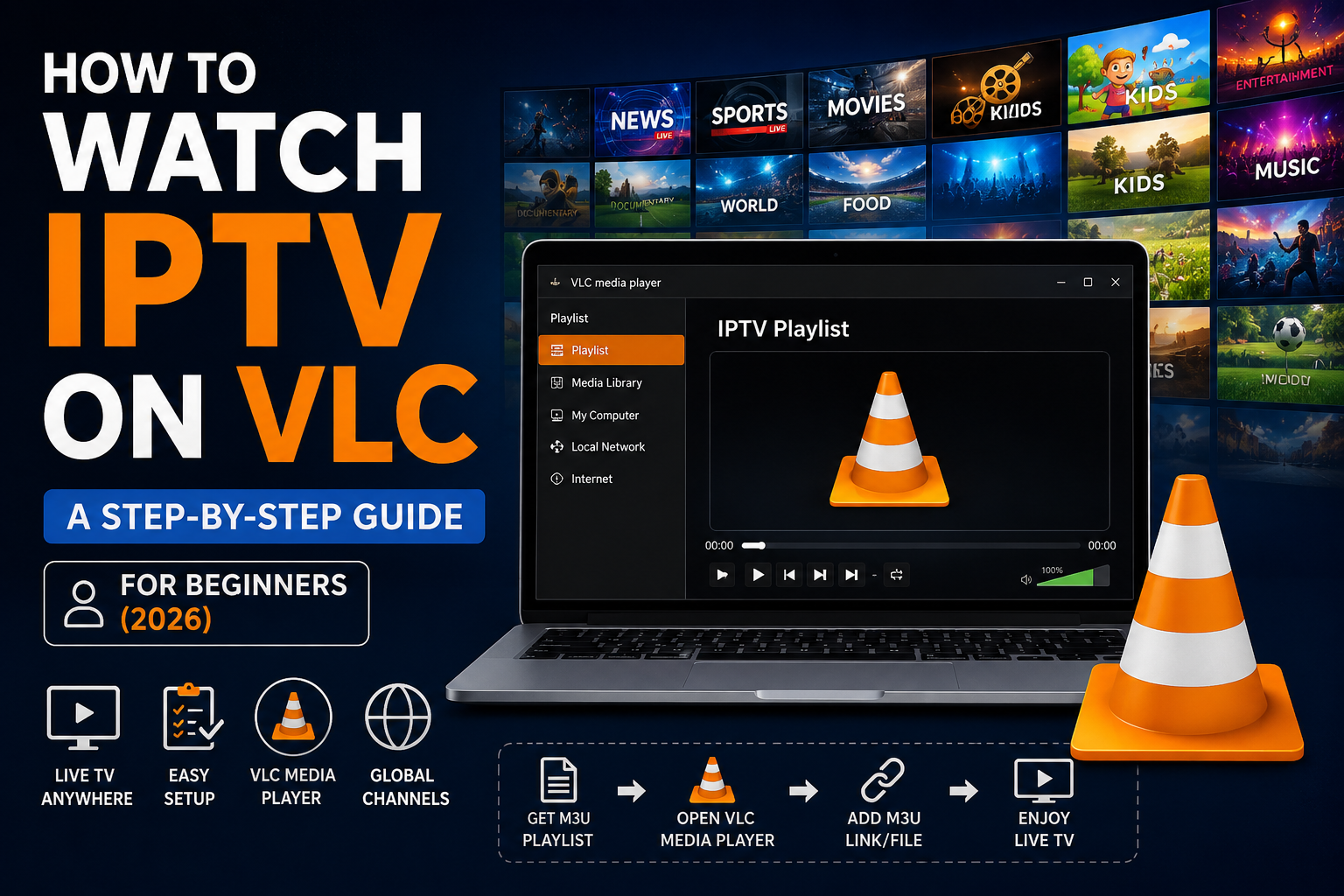
Tired of switching between multiple apps just to watch live TV? What if you could effortlessly watch IPTV in VLC with a single media player?
VLC Media Player is not just for movies and music. The traffic-coned iconed player is a powerhouse for streaming IPTV. Whether you want to enjoy sports, news, movies, or international channels, VLC can handle it.
In this guide, you’ll learn:
- Set up IPTV on VLC from scratch using M3U playlists and stream URLs
- Whether watching IPTV on VLC is legal (and how to stay on the right side of it)
- How to set up IPTV on VLC from scratch using M3U playlists and direct URL streams
- Pro tips and shortcuts to make your IPTV viewing seamless
By the end of this guide, you’ll have a fully working IPTV setup on VLC that runs smoothly across all your devices. Even if you’re a complete beginner, you can learn the procedure thoroughly.
What is IPTV and How Does VLC support it?
IPTV (Internet Protocol Television) delivers live TV and on-demand content over the internet instead of traditional cable or satellite. It works by streaming media from an IPTV server to your device.
VLC Media Player supports Internet TV by playing multiple formats, including M3U playlists, HTTP streams, and RTMP/RTSP protocols. This makes VLC a versatile platform for IPTV VLC players worldwide.
Benefits of IPTV on VLC:
- Access hundreds of channels in one place
- Stream across multiple devices
- Customize playback settings for smooth viewing
- Free and open-source with community support
Why VLC is Perfect for IPTV Streaming
VLC is ideal for IPTV due to:
- Cross-platform compatibility (Windows, Mac, Linux, Android, iOS)
- Supports multiple stream formats (M3U, XML, HTTP, UDP)
- Free and regularly updated
- Lightweight and runs on older hardware
- Customizable for advanced streaming (network caching, command-line automation)
Expert Insight: According to VideoLAN documentation, VLC supports advanced network caching and a wide range of codecs and streaming protocols. Thus, making it a reliable option for IPTV streaming and high-definition playback.
Is It Legal to Watch IPTV on VLC?
Let’s get this question out of the way, because most guides bury it or dodge it entirely.
The player is legal. The source is what matters.
Think of VLC like a CD player. The player isn’t illegal. But loading it with bootleg discs absolutely is. IPTV works the same way.
| Legal sources | Illegal/risky sources |
| Free public broadcasters (PBS, BBC public feeds, government channels). | “10,000 channels for $5/month” Telegram or Reddit dealers |
| Ad-supported services with public M3U links (Pluto TV, Xumo, Plex Live, Tubi). | Cracked Xtream Codes panels |
| Licensed paid IPTV providers tied to your ISP or cable replacement. | Reseller services advertising premium PPV sports for free |
| Community projects like IPTV-org that aggregate only free-to-air channels. | Anyone offering Netflix, HBO, Disney+ through M3U. |
Practical Rule: If a service advertises premium subscription content (live PPV sports, HBO, ESPN+, regional sports networks) at a fraction of the legitimate price, it’s piracy.
In the US, the UK, and the EU, end-user enforcement is rare but not nonexistent. ISP throttling, copyright notices, and, in some jurisdictions, fines are real outcomes. This is why sticking to the legitimate IPTV providers would be beneficial.
Requirements Before Watching IPTV on VLC
Before configuring IPTV on VLC, gather these five things:
1. A Compatible Device
Practically anything from the last decade works. VLC 3.0.23 even supports Windows XP SP3 and Mac OS X 10.7.5 – though for HD/4K streams you’ll want at least:
- CPU: Intel Core i3 (8th gen) / AMD Ryzen 3 / Apple Silicon / equivalent
- RAM: 4 GB (8 GB recommended for large playlists)
- Storage: 200 MB for VLC, plus space for any recordings
2. A Stable Internet Connection
| Stream Quality | Minimum Speed | Recommended |
| SD (480p) | 3 Mbps | 5 Mbps |
| HD (720p) | 5 Mbps | 10 Mbps |
| Full HD (1080p) | 10 Mbps | 15 Mbps |
| 4K UHD | 25 Mbps | 35+ Mbps |
The keyword is stable. A 100 Mbps connection that drops every 30 seconds is worse than a steady 10 Mbps line.
3. The Latest VLC Media Player
Download from videolan.org — and only from there. Bundled installers from third-party sites occasionally include adware. As of this guide’s publication, the current stable build is VLC 3.0.23 “Vetinari”, with dark mode, ARM64 Windows support, and Direct3D 11 fixes that benefit IPTV playback.
4. An IPTV Source (Playlist URL or File)
This is your channel list. It comes in one of three shapes:
- An M3U URL (a hosted text file)
- An M3U file (downloadable)
- Xtream Codes credentials (username + password + server URL — VLC needs these converted to an M3U URL)
5. (Optional) A VPN
Not mandatory, but useful for ISP throttling protection and accessing region-locked public broadcasters. More on this in the security section.
How to Watch IPTV on VLC: The Complete Step-by-Step Method
This is the universal method. It works identically on Windows, macOS, and Linux. Let’s check how to set up IPTV in VLC.
Step 1: Launch VLC Media Player
Open VLC the way you’d launch any application. On macOS Sequoia, the icon is in /Applications. On Windows 11, search “VLC” in the Start menu. On Linux, run VLC from the terminal or click the desktop launcher.
Step 2: Open the Network Stream Dialog
In the menu bar, click Media → Open Network Stream.
Keyboard shortcut: Ctrl + N (Windows/Linux) or ⌘ + N (macOS).
A new window appears with the Network tab pre-selected.
Step 3: Paste Your M3U URL
In the input field (it reads “Please enter a network URL”), paste the M3U URL from your IPTV source. It will look like one of these:
Step 4: Click Play
Hit Play at the bottom of the dialog. VLC loads the playlist and automatically starts streaming the first channel.
Step 5: Open the Full Channel List
Press Ctrl + L (or ⌘ + L on Mac) — or View → Playlist — to expose the playlist panel. Every channel from your M3U feed appears here. Double-click any entry to switch streams. Right-click for additional options like saving the stream or copying the URL.
That’s the entire process. From clicking VLC’s icon to watching a live channel: about 60 seconds.
Verifying a Successful Connection
You know it worked when:
- The channel begins playing within 5-10 seconds of clicking Play.
- The playlist panel populates with channel names.
- VLC’s title bar shows the current channel name (not just a generic file path).
Setting Up IPTV on VLC Using M3U Playlists
What an M3U Playlist Actually Contains
An M3U file is a plain-text playlist. Open one in Notepad and you’ll see something like:
Each line carries metadata (channel name, logo, EPG tag). Each line below points to the actual stream. M3U8 is just M3U encoded in UTF-8. It handles non-Latin characters (Chinese, Arabic, Cyrillic, etc.) more reliably and is the modern default.
Two Ways to Open an M3U File in VLC:
Method 1: Via the Media Menu
- Launch VLC.
- Click Media → Open File (or Ctrl + O).
- Navigate to your .m3u or .m3u8 file.
- Click Open.
Method 2: Drag and Drop
- Locate the M3U file in File Explorer / Finder / your file manager.
- Drag it directly onto the VLC window.
- VLC parses it instantly.
The drag-and-drop method is also how you load multiple playlists into a single VLC session. Then drop them in one after another and they accumulate in the playlist panel.
Adding IPTV to VLC via URL Stream
URL streaming is preferable to local M3U files because the URL stays up to date. Your provider updates the channel list on their side and your VLC sees it next time you reload.
Finding Your IPTV Stream URL
If you have a paid subscription, your provider sends you a unique M3U URL after signing up. It’s typically formatted as:
| http://provider-domain.tld:port/get.php?username=YOUR_USER&password=YOUR_PASS&type=m3u_plus&output=ts |
If you only received Xtream Codes (host + username + password), email support and ask them to issue an M3U URL. Every legitimate provider can do this.
Loading the Stream into VLC:
- Media → Open Network Stream (Ctrl + N).
- Paste the URL.
- Click Play.
Saving a Stream for Future Access
Two options:
Option A — Save the playlist: After loading the stream, open the playlist panel (Ctrl + L), then go to Media → Save Playlist to File. Save as .xspf or .m3u.
Option B — Bookmark within VLC: While the stream plays, go to Playback → Custom Bookmarks → Manage. Add the current position. Limited, but works for individual channels.
I recommend Option A for IPTV; it preserves the full channel list and you can reopen it with two clicks.
Troubleshooting Buffering and Playback Issues on VLC
This section fulfills the second promise in the intro. I’ve hit every one of these myself — here are the fixes that actually work.
Problem 1: Constant Buffering or Stuttering
This is the #1 IPTV-on-VLC complaint, and it has four common causes.
Cause #1 (fixes 90% of cases): Network cache is too low.
VLC’s default network cache is 1000 ms, which is fine for local files but disastrous for live IPTV. Fix:
- Tools → Preferences (or VLC → Settings on macOS).
- Bottom-left corner, switch “Show settings” from Simple to All.
- Expand Input / Codecs in the left tree.
- Find Network caching (ms) and change 1000 to:
- 3000 for stable home Wi-Fi (sweet spot for most users)
- 5000 for unstable connections or mobile hotspots
- 8000 for tethering or very poor connections
- Save and restart VLC.
Cause #2: ISP throttling. Test with a VPN. If buffering vanishes, throttling is confirmed.
Cause #3: Insufficient bandwidth. Run a speed test. HD needs a consistent 10 Mbps. Family streaming Netflix at the same time? That’s your bottleneck.
Cause #4: Source server overloaded. Try the same channel from a different M3U source. If a different source plays smoothly, the original was the problem.
Problem 2: “Your input can’t be opened” Error
Try these in order:
- Paste the M3U URL into a browser. If it shows text or downloads, the URL works — the issue is on VLC’s side.
- If the browser also fails, the source is down or expired. Paid providers rotate URLs every 30–90 days; ask for a fresh one.
- If the URL works in the browser but not in VLC, restart VLC.
- Still failing? Try a VPN service provider — the source may be location-restricted.
Problem 3: Audio and Video Out of Sync
While the stream plays:
- Press K to nudge audio later (50 ms increments)
- Press J to nudge audio earlier
For fine control, open Tools → Track Synchronization → Audio track synchronization. Persistent desync? Lower the audio output buffer in Preferences → Audio.
Problem 4: Some Channels Won’t Play (But Others Do)
Different channels use different protocols (HLS, RTMP, UDP, MPEG-DASH). VLC handles them all, but needs the right module enabled.
- For .mpd (MPEG-DASH), ensure VLC is updated to 3.0.20+
- For UDP multicast, you must be on the same LAN as the source
Problem 5: Black Screen with Audio Only
Hardware decoder mismatch. Fix:
- Preferences → Input/Codecs → Hardware-accelerated decoding → switch from “Automatic” to Disable.
- Restart VLC and try again.
- If the video appears, re-enable acceleration, but expect that channel to need software decoding.
Problem 6: VLC Crashes on Large Playlists
A 10,000-channel master M3U pushes VLC’s memory. Use a country or category sub-playlist instead (see next section). On 4 GB RAM machines, keep playlists under 2,000 channels.
Advanced Tips for IPTV on VLC
- Enable Hardware-accelerated decoding for smooth video
- Use EPG guides (XMLTV) for program schedules
- Explore VLC extensions: Playlist Manager, EPG Guide, Stream Quality Enhancer
- Automate tasks via VLC Lua commands for recurring streams.
Device-Specific Setup
- Windows/Mac/Linux: Media → Open Network Stream → Paste IPTV URL
- Android/iOS: Tap “Open Network Stream” → Enter URL or load M3U
- Linux: Use package manager → VLC → Open Network Stream → Add IPTV URL
Security, Legal, and Privacy Considerations
- Try to subscribe to legitimate IPTV services
- Use a VPN to protect privacy and avoid regional content filtering
- Keep VLC and system software updated
- Avoid unverified free IPTV sources. They may contain malware.
Recording IPTV Streams in VLC
- Open stream
- View → Advanced Controls → Record
- Manage recordings: Tools → Preferences → Input/Codecs → Recording path
- Schedule recordings via the OS task manager if needed
Tips and Tricks for Optimal IPTV Viewing
- Keyboard shortcuts: F = fullscreen, Space = play/pause
- Create channel favorites for quick access
- Customize VLC interface: Tools → Preferences → Interface
Conclusion
Watching IPTV on VLC in 2026 is easier than ever. With the right playlist, network settings, and VLC tweaks, you can enjoy hundreds of channels smoothly across devices. Use VPNs for privacy, EPG guides for navigation, and advanced extensions to enhance your experience.
Start now, and change VLC into a complete IPTV hub for your favorite content.
FAQs on How to Stream IPTV Using VLC
-
What is IPTV and how does it work with VLC?
IPTV delivers TV channels and on-demand content through the internet. VLC plays IPTV streams using M3U playlists, stream URLs, or network protocols like HTTP and RTSP.
-
How do I set up IPTV on VLC?
Open VLC, go to Media → Open Network Stream, paste your IPTV URL or load an M3U playlist, then click Play to start streaming.
-
What is an M3U playlist and how do I use it with VLC?
An M3U playlist is a file containing IPTV channel links. You can open it in VLC by selecting Media → Open File or dragging the file into the player.
-
Can I add an IPTV stream URL to VLC?
Yes. VLC supports direct IPTV stream URLs. Simply paste the URL into the Open Network Stream option and start watching instantly.
-
Is it legal to use IPTV streaming services?
Yes, IPTV technology is legal. However, streaming copyrighted content from unlicensed IPTV providers may violate local laws and broadcasting regulations.
-
Can I record IPTV streams in VLC?
Yes. VLC allows you to record IPTV streams using the built-in Record feature available under View → Advanced Controls.
-
How do I troubleshoot buffering or sync issues?
Increase VLC’s network caching, check your internet speed, update VLC to the latest version, and adjust audio sync settings under Track Synchronization.
-
Which VLC extensions enhance the IPTV experience?
Popular VLC extensions for IPTV include playlist managers, EPG guides, subtitle tools, and stream quality optimization plugins.
-
Can I watch IPTV on the VLC mobile apps?
Yes. VLC mobile apps for Android and iOS support IPTV streaming through M3U playlists and direct network stream URLs.
-
How do I secure my IPTV streaming on VLC?
Use a trusted VPN, keep VLC updated, avoid suspicious IPTV sources, and stream only from legitimate IPTV providers for better security and privacy.